
On this page
Overview
This is documentation for Drupal 7, which is no longer supported. Learn more and find resources for Drupal 7 sites
You can add, remove, and rename menus and menu items/tabs. You can also configure a special block for a menu and you can specify the default menu to which new items will be added.
In many themes, there are at least two menus, the Main (or primary) menu, and a secondary menu. The Main menu's links drive the main navigation structure for your site and are often displayed prominently across the top or side of the site. The Secondary menu is often used for items like the copyright and privacy notices, and is often displayed at the bottom or very top of the page in smaller text. You can specify which menus are used for the main and secondary links.
When adding or editing site content, you can also specify the content's menu item. You can specify a default menu for the content authoring form.
Each default or custom menu has a corresponding block. For more information on blocks, see Working with Blocks.
Configuration
Creating a menu
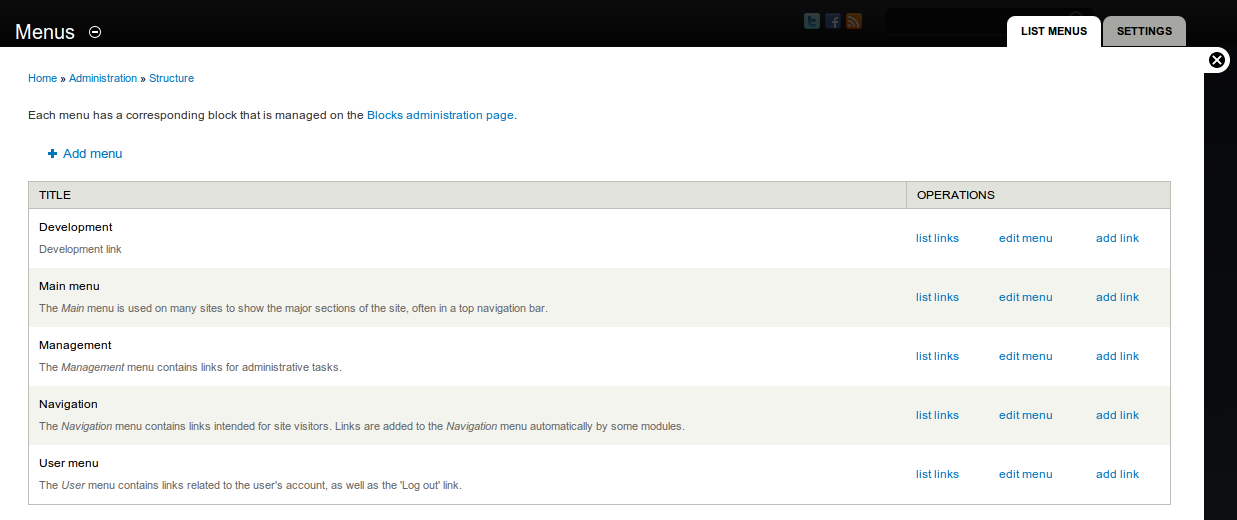
- Navigate to the Menus page (Structure > Menus or
http://example.com/admin/structure/menu). - Click Add menu.
- In the Title field, enter a title.
- In the Description field, enter an optional description.
- Click Save.
To learn how to add new menu items to the menu, read further on Adding a link to a menu. To add tabs to a menu, see Creating menu tabs.
Enable the menu
Assuming you plan to add nodes to your menu and not just external links, you must enable it in the content type for the node(s) that will be the target of the menu's links. It is possible to add menu links that are not enabled this way through the Menus page. If you do, you will find that certain changes cause your link to disappear from the assigned menu. Menus can be enabled on multiple content types.
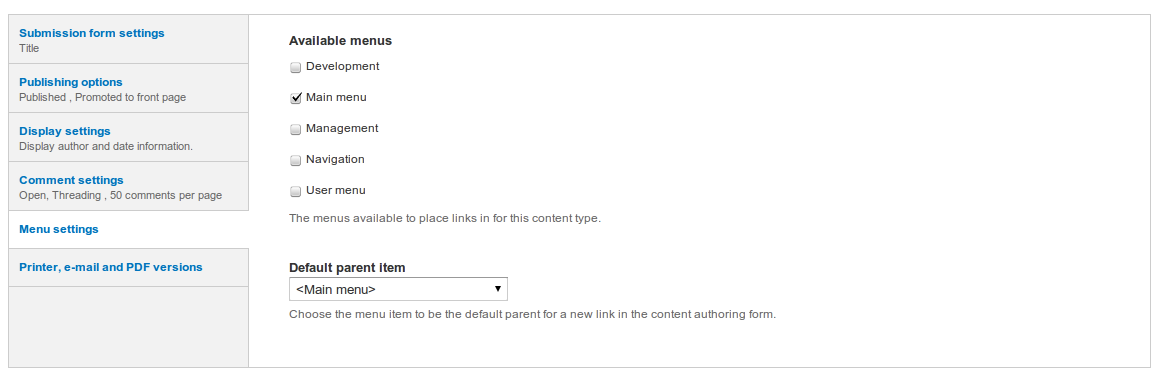
- Navigate to the content type for the node(s) (Structure > Content type or
http://example.com/admin/structure/types). - Locate the content type and click edit.
- Choose Menu settings.
- Click the checkbox of the menu(s) you want to enable.
- (Optional) Set the Default parent item to choose a default menu for the content type.
Specify the menus to use for main and secondary links
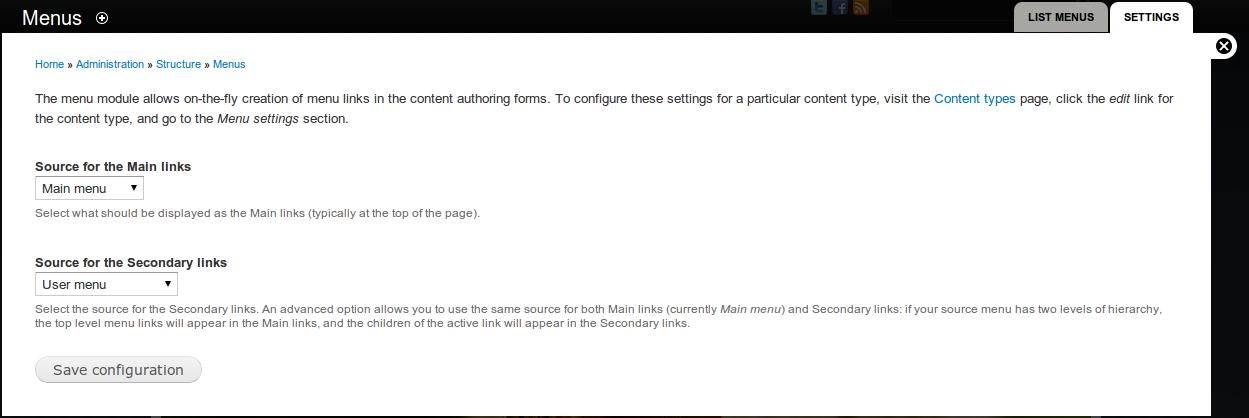
- Navigate to the Menu settings page (/admin/structure/menu/settings).
- Specify any of the following settings:
- Source for the main links: The menu that will provide the "main links". In many themes, the main links are displayed at the top of the page.
- Source for the secondary links: The menu that will provide the "secondary links". In many themes, the secondary links are displayed at the bottom of the page.
- Click Save configuration.
Renaming menus
- Navigate to the Menus page (/admin/structure/menu).
- Click Edit Menu.
- In the Title field, enter a new title.
- Click Save.
Note: The default menus cannot be renamed.
Removing a menu
- Navigate to the Menus page (/admin/structure/menu).
- Click Edit Menu.
- Click Delete.
- Click Delete again to confirm.
Note: The default menus cannot be deleted.
Expanding Menus
If you have hierarchical menu items within a menu and you'd like to show the submenu items, on each parent menu item's edit page, check Show as expanded and save. This only affects the immediate children below the menu item. That is, if you have 3 levels of menu items, checking Show as expanded on the first-tier items will only show the second-tier items, not the third-tier items. For example:
- First-tier menu item 1
- Second-tier menu item 1 (only shown if First tier menu item 1 has Show as expanded selected)
- Third-tier menu item 1 (only shown if Second tier menu item 1 has Show as expanded selected)
- Third-tier menu item 2 (only shown if Second tier menu item 1 has Show as expanded selected)
- Second-tier menu item 2
- Second-tier menu item 1 (only shown if First tier menu item 1 has Show as expanded selected)
- First-tier menu item 2
- First-tier menu item 3
Note: The default Bartik theme might appear to not follow the "show as expanded" rule as explained above for the main menu in the header, but you can place that menu in other regions and see the expected behavior. Just note that themes can have implementations that seem to deviate from the rule.
Help improve this page
You can:
- Log in, click Edit, and edit this page
- Log in, click Discuss, update the Page status value, and suggest an improvement
- Log in and create a Documentation issue with your suggestion
