
On this page
Working with blocks (content in regions)
This is documentation for Drupal 7, which is no longer supported. Learn more and find resources for Drupal 7 sites
Blocks are the boxes of content (such as "User Login" or "Who's online") that can be displayed in regions (such as footer or sidebar) on your page. This functionality is provided by the Block module, which is a part of Drupal 7 core.
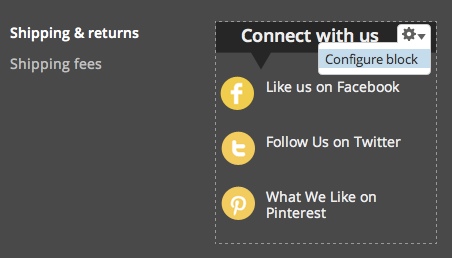
Example of a block. This block displays social media icons.
Blocks are made available to your site most commonly by enabling core or contributed modules. Once created, a Block can be modified to adjust its appearance, shape, size and position - or which Website pages it appears on. For example, enabling the core Poll module makes the "Most Recent Polls" block available for you to place in a region. Also note that some modules provide multiple blocks when enabled, others may not define new blocks.

If you click "Configure Block" you can go ahead and edit the contents of the block, deal with the visibility settings and even change the placement of where it is on your theme.
Blocks are placed in regions via the Block Admin page Administer > Structure > Blocks.
Your site's theme defines the regions available. Therefore, block placement in regions is done per theme on the Block Admin page. If you have more than one theme enabled on your site blocks can be placed differently for each theme.
You can learn more about Assigning content to regions.

The block management screen also lets you specify the vertical sort-order of the blocks within a theme region. This can be done by dragging blocks to the desired position. When Javascript is not enabled, you do this by assigning a weight to each block. Lighter blocks (smaller weight) "float up" towards the top of the region. Heavier ones "sink down" towards the bottom of it.
The block management screen also provides checkboxes (depending on what modules you have enabled), as well as a configure link, which takes you to the configuration screen. The checkboxes and configuration page let you customize the visibility of the block. A block's visibility depends on:
- Whether it is Enabled and assigned to a region. Disabled blocks (blocks not assigned to any region in your theme) are never shown.
- The Throttle checkbox (if you have the Throttle module enabled). Throttled blocks are hidden during high server loads.
- Page-specific visibility settings. Individual blocks can be configured to only show/hide on certain pages. This can be a path like "about" for the [site-root]/about page, "about/*" where the asterisk is any path that starts with "about". An important exception is the frontpage: "<front>". You can also show/hide blocks based on the result of a PHP snippet.
- Custom visibility settings. Individual blocks can be configured so that users decide whether to show/hide certain blocks.
- Its function. Dynamic blocks (such as those defined by modules) may be empty on certain pages and will not be shown.
The block management screen also has an "Add block" link. This allows you to define a block containing content of your choice. Each administrator-defined block consists of a title, a description, and a body which can be as long as you wish; the Drupal engine will render the content of the block.
You can
- Enable, throttle, place, and configure blocks at Administer >> Structure >> Blocks.
- Add a block at Administer >> Structure >> Blocks >> Add.
Note:
If the option is not available on a new installation, go to Administer >> Customize Dashboard >> Add more Blocks. There you can add the "Management Block" which will have the Structure option.
When working with large numbers of blocks (say, more than 100), it may be necessary to increase max_input_vars in php.ini. Otherwise, blocks may not save in regions correctly when moved.
Technical details
Core module: Yes.
Dependencies: None.
Related Modules: Dashboard.
Permissions: Administer blocks. Also see the API docs at block permission.
API Documentation: block.admin.inc, block.api.php, block.install, block.module, block_test.module
Template files: block-admin-display-form.tpl.php, block.tpl.php
Other files: block.info, block.css, block.js
Database tables (4): block, block_role, block_custom, cache block. Also see the API docs at block schema.
Help improve this page
You can:
- Log in, click Edit, and edit this page
- Log in, click Discuss, update the Page status value, and suggest an improvement
- Log in and create a Documentation issue with your suggestion
