
Nice menus makes it easy to add dropdown/flyout menus, using CSS-only in capable browsers (Firefox, Opera, Safari, etc) and with additional Javascript for troublesome browsers (IE).
Please report any bugs, feature requests, and support questions to the Nice Menus issue queue.
Features
- Up to 10 Nice Menus blocks - through settings you can configure the number of Nice menus blocks.
- Add and customize Nice Menus functionality to unlimited menus using the included theme_ functions.
- Horizontal menus or vertical menus popping right or left.
- Simple default styling which can be overridden using your own stylesheet.
Installation
- Copy nice_menus folder to your sites/all/modules directory.
- Log in as webmaster. In the main Drupal menu's "Modules" item (URL: http://my.site/admin/modules, replacing
my.site
by the name of your site) enable the Nice menus
module. In Drupal6: at Administer -> Site building -> Modules (admin/build/modules).
- Configure the module location at Modules → Nice menus (admin/modules). In Drupal6: Administer -> Site configuration -> Nice Menus (admin/settings/nice_menus). If you want a nice menu in the left column, you should probably choose
First sidebar
(for a left-to-right written language); if you want it at the right, Second sidebar
and if you want it at the top, Header
. Don't forget to click the Save block
button at the bottom of the page before leaving the page, specially before clicking on configure
.
- Configure the Nice Menus block(s) at Structure → Blocks → Nice menu 1 (Nice menu) (/admin/structure/block/manage/nice_menus/1/configure) for the 1st one, setting the source menu and menu style, etc. In Drupal6 :Administer -> Site building -> Blocks (admin/build/block).

- Return to the blocks page and enable the nice menus block(s), e.g. 'Nice Menu 1 (Nice Menu)' by putting it in a region.
- See below sections on Customization and Advanced Theming.
Customization
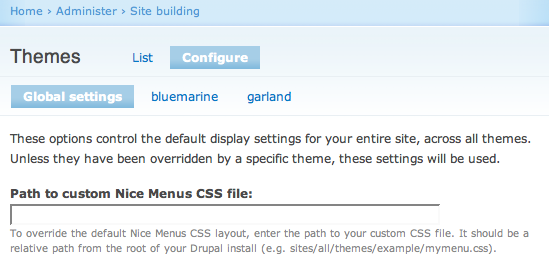
The module includes a default CSS layout file (nice_menus_default.css) which is loaded for all pages. If you don't like the default layout, it is suggested that you create a new customized CSS file, and replace the default CSS file at Appearance → Settings → Global settings → Path to custom Nice menus CSS file
(admin/appearance/settings). In Drupal6: Administer -> Themes -> Configure -> Global settings -> "Path to custom nice menus CSS file". This ensures smooth future upgrades as no editing of the module files is necessary. Also note that you should not edit the regular nice_menus.css file since this contains the "logic" that makes Nice Menus work. A good starting point for your custom file is to make a copy of the default file, then edit it to taste. You can look through Nice Menus CSS Examples for some basic CSS edits.
If you would like to have some menu items that are not clickable but still be able to use the menus, check out this tip using a little bit of JavaScript in a theme override, Non-linking menu items with javascript.
Advanced theming
If you're creating or modifying your own theme, you can integrate nice menus more deeply by making use of these functions:
theme_nice_menus() -- themes any menu tree as a nice menu.
theme_nice_menus_primary_links() -- themes your primary links as a nice menu.
If you really know what you're doing, you can probably even customize the menu tree in creative ways, as those functions allow you to pass in a custom menu tree.
If you have other tips or tricks for working with Nice Menus, feel free to create a child page by click the "Add child page" link below and add it!


