
On this page
Posting to Twitter
This is documentation for Drupal 7, which is no longer supported. Learn more and find resources for Drupal 7 sites
This guide explains the steps to configure the Post to twitter form field when editing content.
Instructions for:
Twitter 7.x-6.x
placeholder
Twitter 7.x-5.x
Start by following the Twitter Installation instructions. It is important to set your Twitter Application keys and to make sure that your application at http://dev.twitter.com has read and write permissions.
Enable Twitter Post. And go to Administration > Configuration > Web Services > Twitter. Then open the POST tab to view Twitter Post settings.
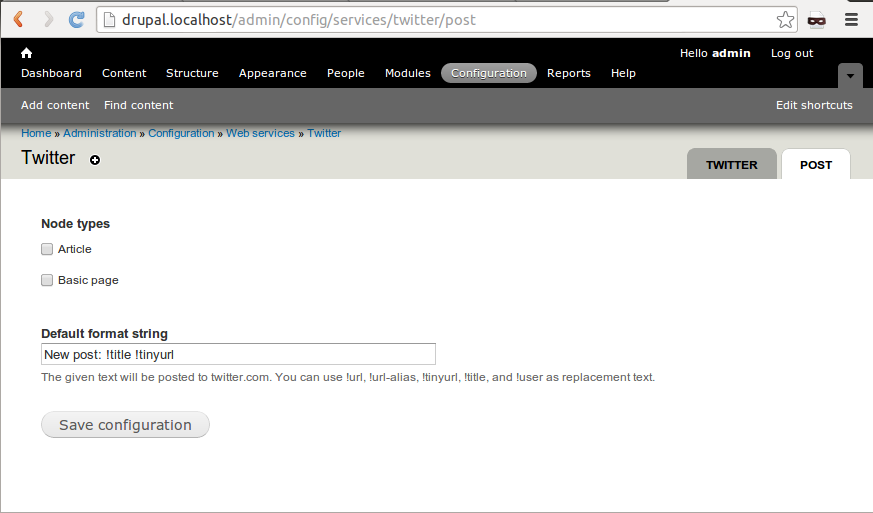
Select the content types from which you want to be able to Post to Twitter and edit the wording of the default Twitter message that will be posted. You can use different replacement tokens as shown under the field.
Several Twitter accounts can be attached to the single Drupal user, but this will require that the user logs in to Twitter as the different users. A user can select to have the Twitter account made global, which will allow other users to post to Twitter in the name of this account. This will typically be used for announcing content to a site wide Twitter-account.
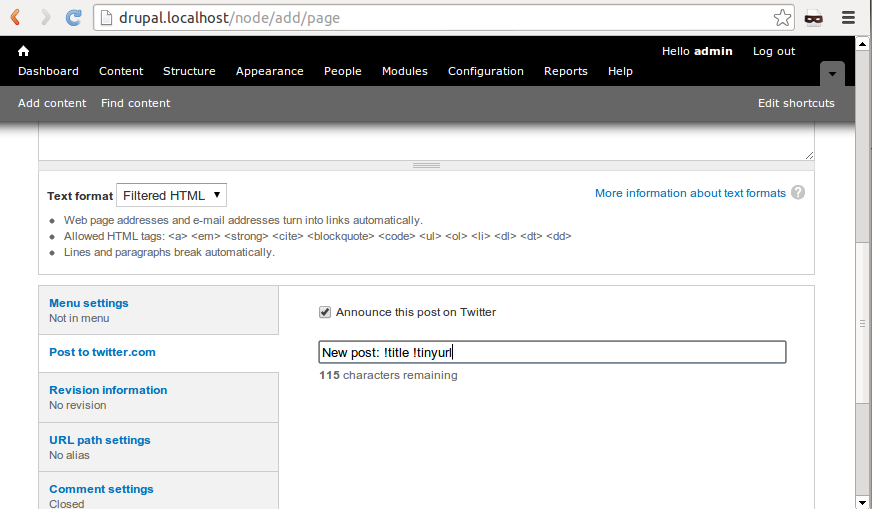
Now when you create or edit content that it is allowed to be posted to Twitter you should see an Post to Twitter.com. Unpublished nodes are not tweeted.
Allowing multiple users to post using single twitter account.
Go to Administration > Configuration > Web Services > Twitter.
In authenticated account section make sure Global is checked and click on Save Changes to update information.
Next go to Administration > People > Permissions and search for Twitter Post. Next select appropriate roles in Post a message to Twitter and Post a message to Twitter using a global account, which will allow the associated to post tweets using single twitter account that you have marked as Global in previous step. Then Save Permissions.
Make sure you have selected the content type which are to be posted to twitter page in
Administration > Configuration > Web Services > Twitter > Post. If you want the new content to be posted automatically then check on Post to Twitter by default. Keep it unchecked if you want users to post only limited content as tweets. Save Configuration.
In the selected content type you will now find a new tab Post to twitter.com. You may find the Announce this post on Twitter already checked. Now all new post will be posted automatically to your twitter timeline.
Twitter 6.x-5.x
Make sure the Twitter and OAuth-modules are installed correctly and that all your credentials are set up properly, meaning that you have registered your application with Twitter and entered the OAuth Consumer key and OAuth Consumer secret from the registration on the Twitter settings page in Drupal /admin/settings/twitter.
Select the content types you want to be able to announce on Twitter under the Post tab /admin/settings/twitter/post and edit the wording of the default Twitter message that will be posted. You can use different replacement tokens as shown under the field.
Also set the OAuth cryptography to RSA-SHA1 under the OAuth-settings /admin/settings/oauth
This is the basic setup, which will allow Drupal to communicate with Twitter using OAuth. There are even more details on this process here.
But each user whose postings are supposed to go out as Tweets also needs to go into his or her user settings /user and go to the Edit tab /user/%/edit where % is the user ID and there select the sub tab Twitter accounts /user/%/edit/twitter.
The user has to add his or her Twitter account details here by clicking the button Add account. This will take the user to Twitter where a confirmation is needed. The user needs to log in or already be logged in to Twitter to confirm the connection. After this the user will be returned to Drupal, and the account will appear with different options, which can be changed as wanted and then saved.
When all this is done, the user should now see a Post to twitter.com option when editing nodes of any type selected to be “postable” to Twitter. Check this box and leave or edit the default post text as wanted, and the post will be tweeted when the node is saved and published. Unpublished nodes are not tweeted.
If several Twitter accounts are attached to one user or global accounts are attached to the node type, the user can select which account to tweet to in a selector below the text field.
Help improve this page
You can:
- Log in, click Edit, and edit this page
- Log in, click Discuss, update the Page status value, and suggest an improvement
- Log in and create a Documentation issue with your suggestion
