Community Documentation

Imagecache Profiles (Drupal 7)

Last updated November 3, 2011. Created by flip on October 21, 2011.
Edited by jat77. Log in to edit this page.

Imagecache Profiles module allows you to set user profile pictures that are consistent throughout your site and allows avatars on the user profile pages to be a different size. The module also allows for style definitions to be defined for images used in Comments and Nodes.

The standard Image styles in Drupal 7 core are; thumbnail, medium and large. If a different Image style is desired, it can be created.

Part 1. Create a new Image style to use with ImageCache Profiles.

Here is an example of how to create a new Image style, your settings can vary.
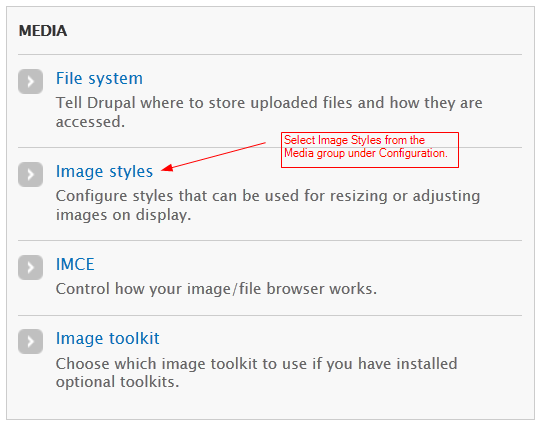
  1. Go to Configuration › Image styles. Click "Add style"
  2. open style

    add style

  3. Input a Style name, for this example, make it "tiny":
  4. After Style "tiny" is created, in the edit screen:
    • select an EFFECT
    • edit style

    • select "Resize" from the Select a new effect fieldgroup, and Select "add"
    • set width and height to 20
    • select "Add effect"
    • select "Update style"

Part 2. Installation Instructions

  1. Download, install and enable the ImageCache_Profiles module
  2. profile select

  3. Enable user pictures.
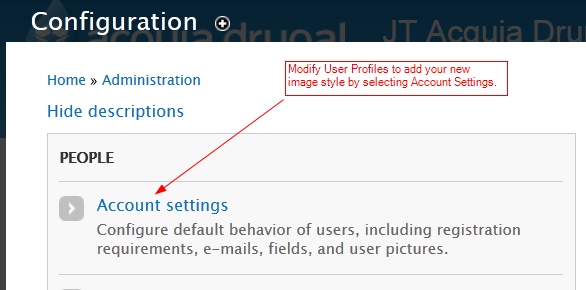
  • Go to Configuration › Account settings › Under PERSONALIZATION: Click "Enable user pictures."
  • If setting a default picture it should use a relative url path (ex. sites/default/files/default-picture.png)
  • Select the Custom Image style(s) that were added in Part 1, or use the Drupal 7 core default sizes:
    • Default Picture display style: Select the Image style to set the default user picture size throughout the site
    • Profile picture display style: Select the Image style to set the user picture size on a user's profile page
    • Set new profile image style

    • Comment picture display style: Select the Image style to set the user picture size within comments
    • Node picture display style: Select the Image style to set the user picture size within nodes
  • To prevent upscaling, these dimensions should be the dimensions of your largest preset (in this example it is 200):
    • Set picture minimum width in pixels: 200
    • Set picture minimum height in pixels: 200
  • Set up Picture settings at bottom of Account settings page:
    • Set picture maximum dimensions to 1600x1400
    • Set picture maximum file size to 1024
    • Set your picture guidelines text to: "Photo must be larger than 200x200 pixels." To prevent upscaling, these dimensions should be the dimensions of your largest preset.
  • Save configuration
  • Adding a profile picture to panels

    If you and want to add an Imagecache profile picture to a profile panel page (including the one that comes default from Advanced Profile Kit module) , then you can add it very easily by editing a panel page (e.g. profile), go to content tab, then add a pane to one of the regions, then choose the User picure. and SAVE! There should now be a picture of the user, resized to your profile imagecache profile preset.

    About this page

    Drupal version
    Drupal 7.x
    Level
    Beginner
    Audience
    Programmers
    Keywords
    Content, Content Display, Media, Theme Enhancements, User Management

    Site Building Guide

    Drupal’s online documentation is © 2000-2013 by the individual contributors and can be used in accordance with the Creative Commons License, Attribution-ShareAlike 2.0. PHP code is distributed under the GNU General Public License. Comments on documentation pages are used to improve content and then deleted.