
How to setup free shipping
This is documentation for Drupal 7, which is no longer supported. Learn more and find resources for Drupal 7 sites
Ubercart has a very flexible shipping quotes system that allows you to create all sorts of shipping options for your customers. Setting up free shipping is simple, just follow the steps below. This HowTo discusses free shipping when order total is greater than a certain amount, but you can follow these same steps if you want to place different conditions on free shipping.
Offering free shipping for orders over a given dollar amount is a two step process. The first step is to set up the shipping method (or methods) you want to use for orders less than or equal to your cutoff amount. The second is to set up a Flat Rate shipping method to charge $0 for orders over your cutoff.
Before you start, you will need to have the Ubercart core "Shipping quotes" module and the Ubercart core "Flat rate" module enabled, so do that now.
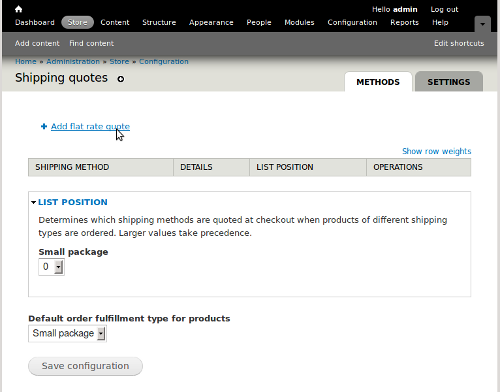
The first step is to go to admin/store/settings/quotes, where you may enable the shipping method(s) you want to use. By default, there are no Flat Rate methods shown, so click on "Add a flat rate quote" at the top of the page.
Name your Flat Rate method something like "Free Shipping for orders over $xxx" - the exact name doesn't matter, just use something meaningful to your customers. The "title" is shown only on administration pages, the "label" is what your customer will see. Set both the "Base Price" and the "Default product shipping rate" to zero and press "Submit". 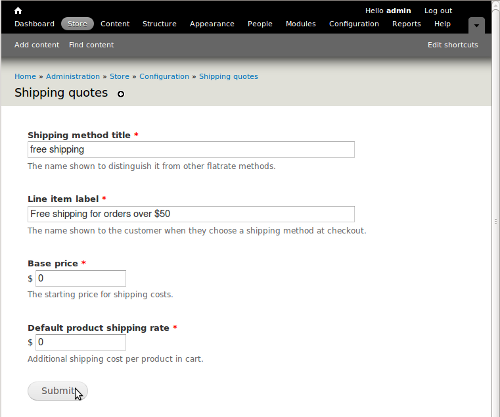
(If you want to also charge a flat rate for orders under your cutoff, you should now select "Add a new shipping method" again to create a second flat rate with the appropriate dollar amounts.)
Now that your shipping methods are set up, you'll have to configure Rules to display each quote to the user only under certain conditions: Namely, when the order total is above or below your cutoff value.
At this point you should be back on admin/store/settings/quotes. Click on the "edit" link next to the shipping method you just created.
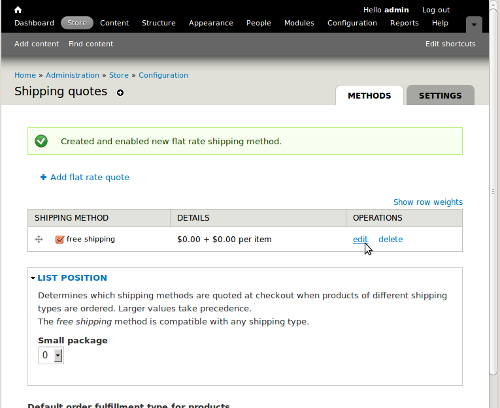
You will see a form with a table labeled "Conditions". Click "Add a condition".
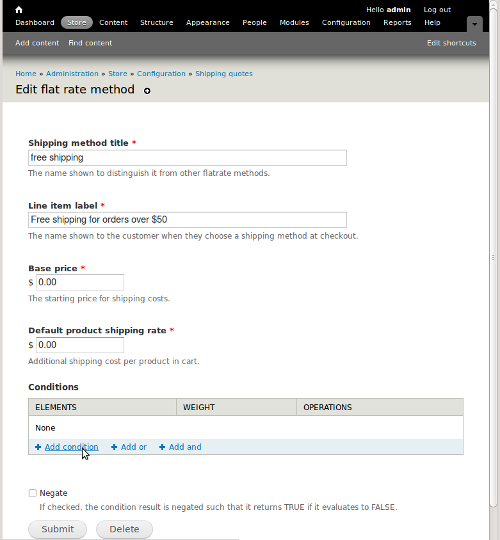
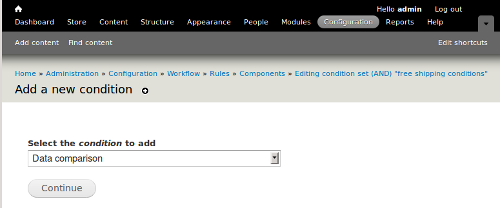
The condition should be "Data comparison" (continue)
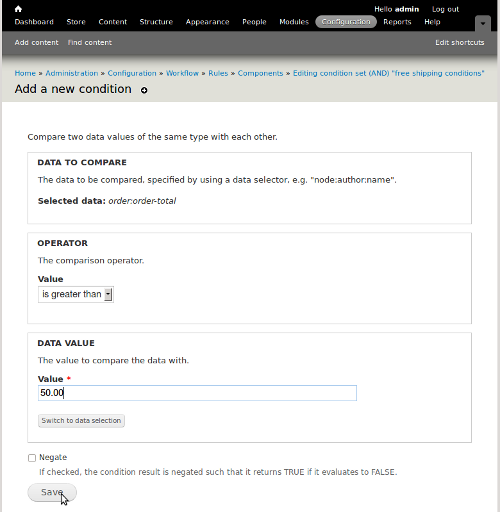
the selector should be "order:order-total" (continue).

Choose a comparison operator ("is greater than") and enter the dollar amount in the "Data value" box. Press "Save".
When your customer checks out, the shipping options that appear will now depend on the order total. If you did everything right there should only be one option, "Free Shipping", shown if the order total is greater than your cutoff!
Help improve this page
You can:
- Log in, click Edit, and edit this page
- Log in, click Discuss, update the Page status value, and suggest an improvement
- Log in and create a Documentation issue with your suggestion
