
On this page
- Go to /admin/content, edit the view with contextual menu on top right of view.
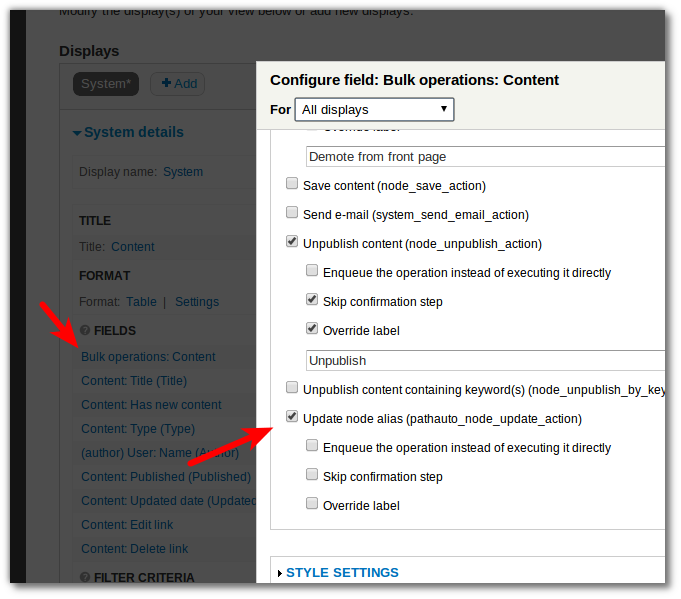
- Then Click the "Bulk operations: Content" field. Then click the "Update node alias" checkbox and save.
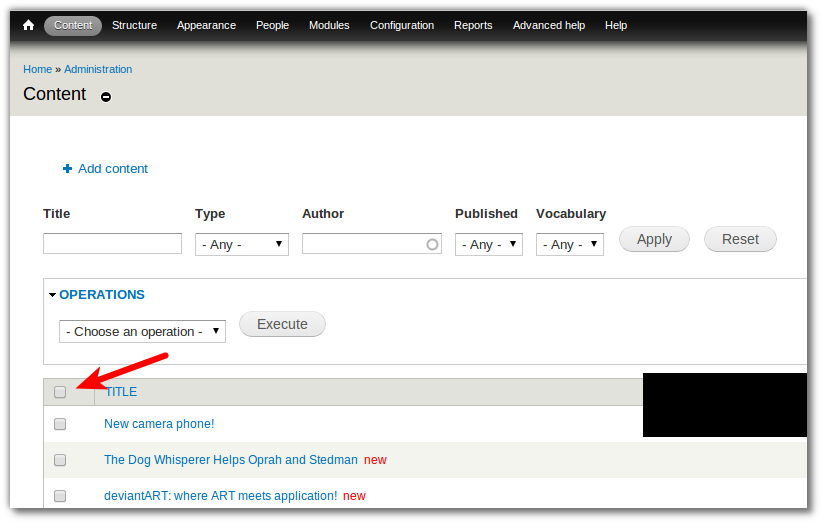
- Go back to /admin/content and select all nodes
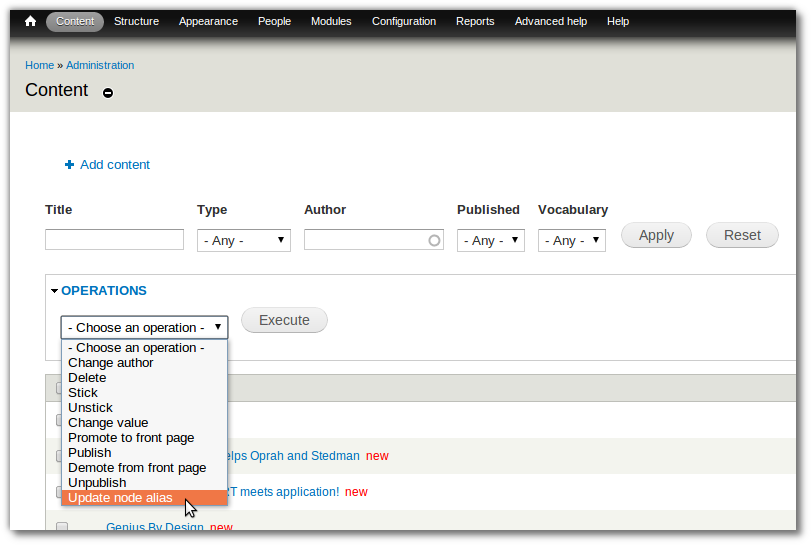
- Choose an operation, then select "Update node alias", then execute!
- Get Views Bulk Operations
- Advanced usage
Bulk updating Pathauto aliases - Using Views Bulk Operations
You are browsing documentation for an older version of Drupal, which is not supported any longer, and the information may not be correct. See current documentation for Contributed modules
Quick and fast method for D7 by using Pathauto 7.x-1.2, VBO 7.x-3.0 and Admin Views 7.x-1.0:
- drush dl views_bulk_operations
- drush en views_bulk_operations
- drush dl admin_views
- drush en admin_views
Go to /admin/content, edit the view with contextual menu on top right of view.

Then Click the "Bulk operations: Content" field. Then click the "Update node alias" checkbox and save.
Go back to /admin/content and select all nodes
Choose an operation, then select "Update node alias", then execute!
===================
Although pathauto in 6.x-1.x provides a utility to "bulk generate paths", this one-off action fails on thousands of nodes, and does no "batch" processing.
This results in timeouts, memory overruns, and failure. (Pathauto token generation can be expensive, and becomes painful over thousands of nodes)
This "batch" issue is being addressed in 6.x-2.x & 7.x
Until then, you still have an alternative, and it's better!
The pathauto 6.x-1.x module already exposes the pathauto path-rebuilding function as a node operation that can be applied through the content management screen, or if using "Views Bulk Operations" - as a bulk operation there.
This means you will be able to select only and all nodes of a desired content type, and do them all in a "batch" mode without processing overruns.
Get Views Bulk Operations
See the project itself for install and configuration options.
Once enabled, a new action "Update URL alias" becomes available as an available action within VBO. (when editing the view, and the Style: Bulk Operations settings)
You will want to turn that on.
At the same time, ensure that VBO will use "batch mode" ( To execute operations: "Use Batch API" )
Once that is on, the update task will show up on the VBO screen, and you can, for example, choose to regenerate updated alias paths for 3000 'Article' type nodes without doing the same for 15000 'Image' type nodes.
Advanced usage
The global pathauto settings do not allow for any extra logic, though sometimes you want to do different things to different content (especially if working with bulk imported content, or re-architecting)
You can set the pathauto settings to aggressively discard or overwrite any existing paths, then trigger the bulk update over a selection of pages you have defined through VBO. (ones you really need to rewrite)
After that you can change the global pathauto settings to just 'update' or 'leave existing aliases' for other content from then on. Or vice versa or something else.
Without VBO, you could do one or the other of these updates, but not both.
It takes a few more steps, but it's possible.
Help improve this page
You can:
- Log in, click Edit, and edit this page
- Log in, click Discuss, update the Page status value, and suggest an improvement
- Log in and create a Documentation issue with your suggestion
