
Configuring Easy Social
You are browsing documentation for an older version of Drupal, which is not supported any longer, and the information may not be correct. See current documentation for Contributed modules
The following is an overview of configuring Easy Social.
Configuration
Go to the configuration page at "admin/config/content/easy_social":

Here you can configure global settings for all Widgets as well as how many blocks (if any) you want available. You can also override the global settings for each block.
Blocks
In order to create one or more Easy Social blocks, just change the setting and click "Save configuration". When the page reloads there will be extra fields at the bottom of the block form where you can override the global settings for each block you created.
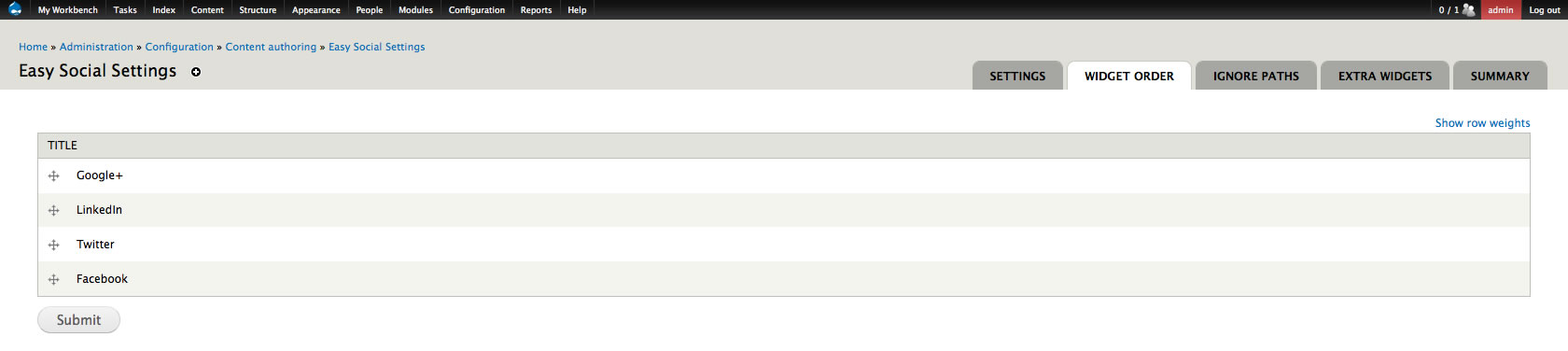
Changing Widget Order
We can change the order in which Easy Social Widgets appear. To do this, click on the "Widget Order" tab or go to: "/admin/config/content/easy_social/order":
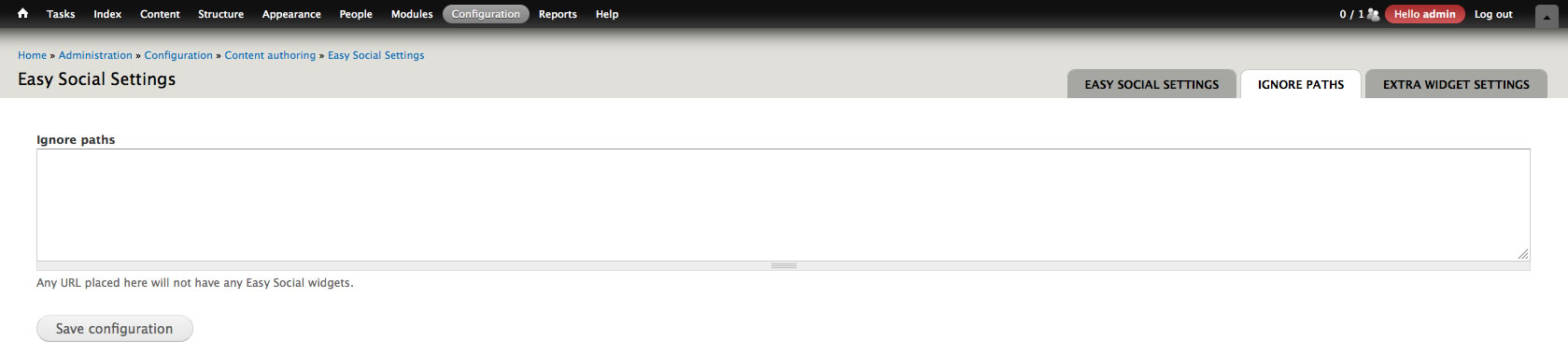
Ignoring Certain Paths
In some situations you might not want Easy Social to appear. In order to do this click on the "Ignore Paths" tab or go to: "admin/config/content/easy_social/ignore-paths":
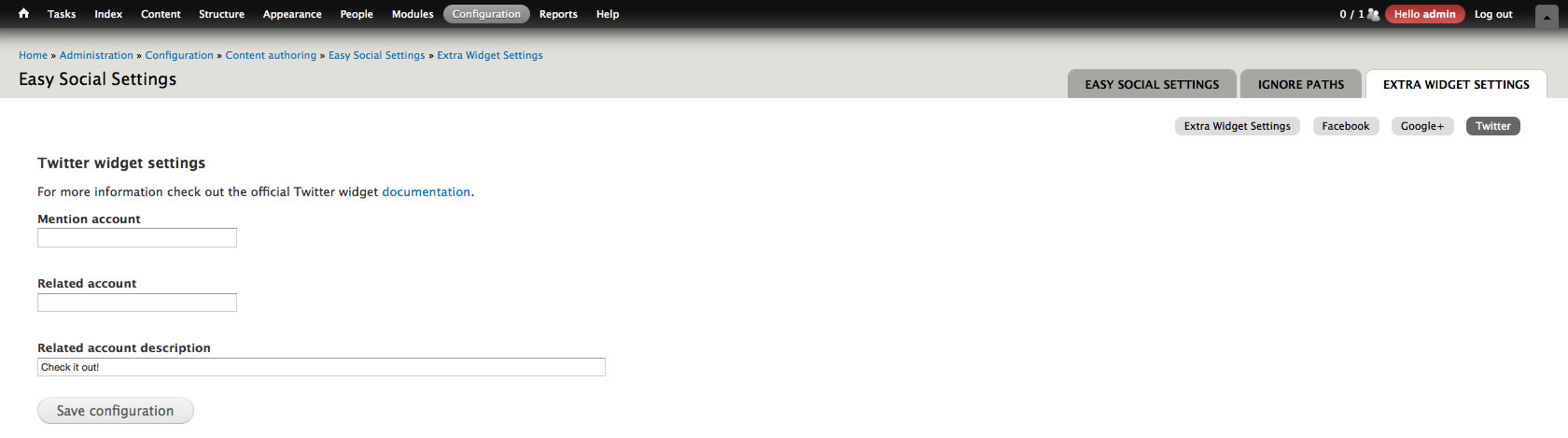
Extra Configuration Options for Widgets
Some widgets have more configuration options, in order to access them click on the "Extra Widget Settings" tab or go to "admin/config/content/easy_social/widget-extra:"
Help improve this page
You can:
- Log in, click Edit, and edit this page
- Log in, click Discuss, update the Page status value, and suggest an improvement
- Log in and create a Documentation issue with your suggestion
