
On this page
Insert-mode features
This is documentation for Drupal 7, which is no longer supported. Learn more and find resources for Drupal 7 sites
The Vimrc Project
This page is part of the documentation for the vimrc project. For other documentation pages, check the links in the sidebar or go to the top documentation page.
Comments
When editing a PHP file, start an in-line comment as usual:
// This is a comment.
When you start a new line, the comment leader will be inserted automatically:
  // This is a comment.
  //
This is convenient, until you get to the end of your comment:
  // This is a comment.
  // This is the second and last line of the comment.
  //
To delete the comment leader (and whitespace), just type <C-U> (i.e., CTRL-U: hold down the Control key and type "u".)
Start a documentation block by entering /** and start a new line. The comment leader will be inserted automatically, with the correct indentation:
        /**
         * The first character I typed on this line was "T".
         *
         * A space was added automatically on the previous line and this one.
         * The space on the empty line was removed automatically.
         *
To close the block, just type / and vim will give you the correct **/.
Code snippets
Using the snipMate plugin (See the Recommended plugins page of these docs), you can expand the many snippets we provide. For example, typing hook_block and then a tab character in a D7 module expands to this outline:
/**
 * Implements hook_block_info().
 */
function calendar_block_info() {
  // Your code here
}

/**
 * Implements hook_block_save().
 */
function calendar_block_save() {
}

/**
 * Implements hook_block_view().
 */
function calendar_block_view() {
}

/**
 * Implements hook_block_configure().
 */
function calendar_block_configure() {
}

/**
 * Implements hook_block_list_alter().
 */
function calendar_block_list_alter() {
}

/**
 * Implements hook_block_info_alter().
 */
function calendar_block_info_alter() {
}

/**
 * Implements hook_block_view_alter().
 */
function calendar_block_view_alter() {
}

/**
 * Implements hook_block_view_MODULE_DELTA_alter().
 */
function calendar_block_view_MODULE_DELTA_alter() {
}
Automatic completion
For an introduction to insert-mode completion, see section 24.3 in the vim users' manual. For more details, see :help ins-completion in the reference manual. This page describes only the features specifically supported by the vimrc project.
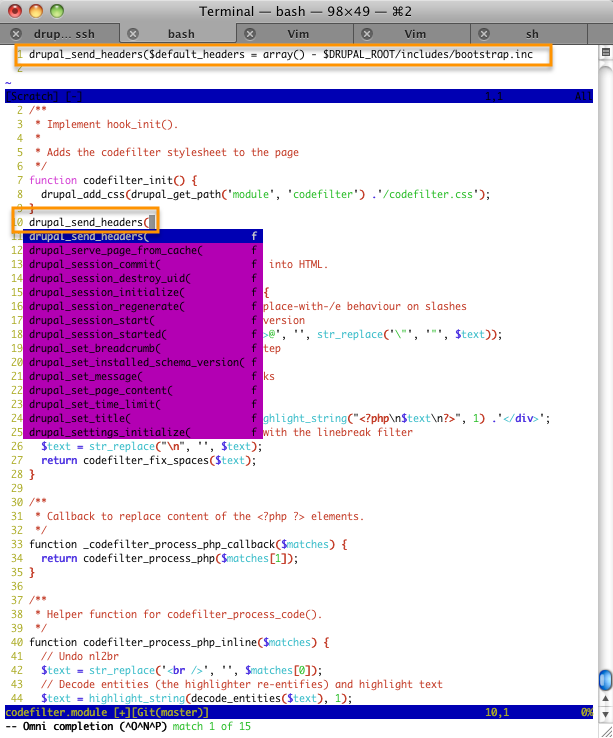
When editing a PHP file, use <C-X><C-O> to complete a keyword. If there are several completions, then you can use <C-O> or <C-N> to cycle to the Next match or <C-P> to go to the Previous one. You can also use the Up and Down cursor keys. Furthermore, if you are completing a function name, then a small preview window (:help preview-window) will open, showing the function declaration. See the screenshot below.
This should work for
- PHP built-in functions;
- Drupal core functions;
- functions in the current file;
- keywords in a
.infofile (not PHP).
Of these, (1) should always work, thanks to the PHP completion script that comes with the standard vim distribution (:help ft-php-omni). For (2), vim needs to know what version of Drupal you are using; as long as it can find a .info file, this should be automatic. For (3), you need the external program Exuberant ctags: see the Tagbar section of our installation page for details. Eventually (4) should be automatic, but as of early 2012, see the autocompletion section of our installation page.
Help improve this page
You can:
- Log in, click Edit, and edit this page
- Log in, click Discuss, update the Page status value, and suggest an improvement
- Log in and create a Documentation issue with your suggestion
