
3: Blocks
Drupal 7 will no longer be supported after January 5, 2025. Learn more and find resources for Drupal 7 sites
The initial version of this section of the Community Documentation came from the book Drupal 7: The Essentials, courtesy of NodeOne and Johan Falk.
Regions and blocks
When you visit a node page in Drupal – or any other page – Drupal pulls out the content corresponding to the current URL and formats it to make it possible for a web browser to display. On the URL node/1, for example, Drupal displays the content for the node with ID 1. But it is not just the content of node one that is displayed; there may also be elements like menus, search forms, related content, latest comments on the site, and much more.
Both the main content and the other elements are displayed as blocks, placed in one of the regions of the website. These blocks can be moved around, and there are basic, as well as more sophisticated, ways of adding new blocks to your website.
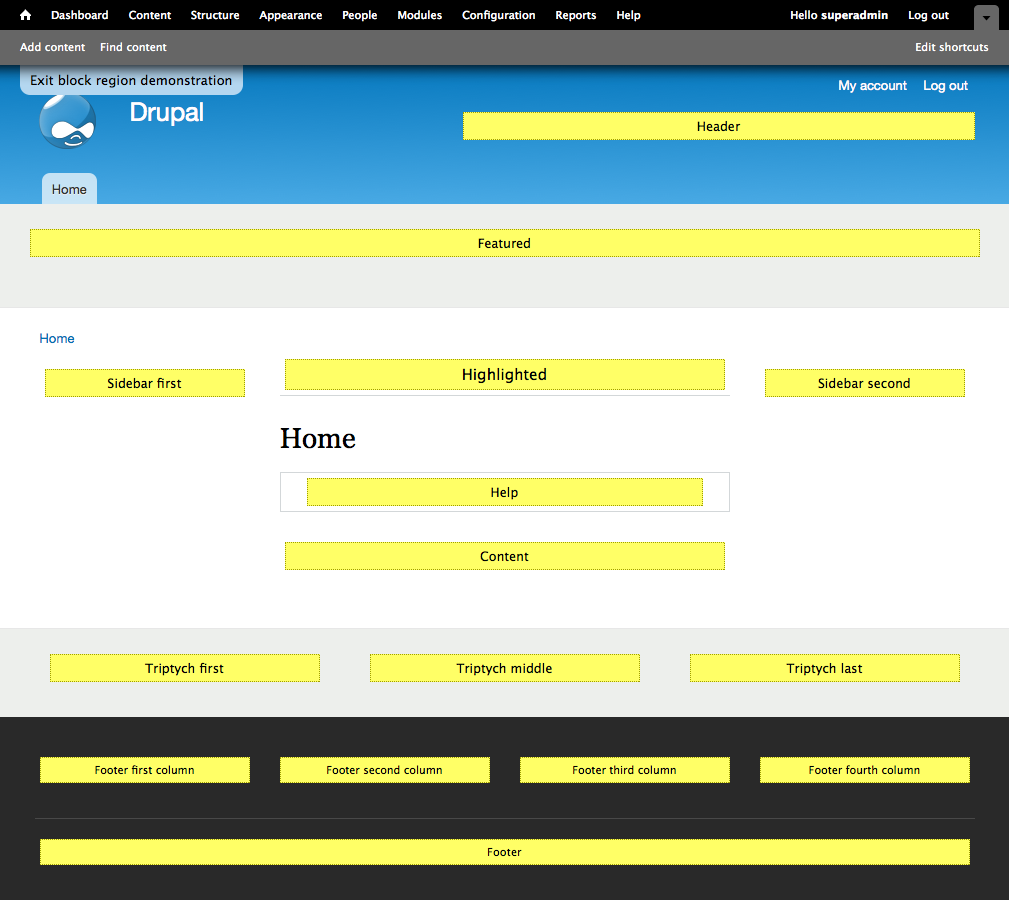
Figure 3.1: Blocks are placed in one of the regions of the website. The Demonstrate block regions link on the administration page for blocks gives an overview of the regions available in your current theme.
You can reach a list of all available blocks on the site by using the administration toolbar to select Structure and then Blocks. (See figure 3.2) The blocks are grouped by the region where they are placed – which could, for example, be Sidebar first or Content. There is also a list of blocks under the subheading Disabled, meaning they don't show up at all. You can move blocks to a new region by using the select list of region names, or by simply clicking on a block's sorting arrow and dragging it to another region's subheader.
Above the list of blocks is the link Demonstrate block regions. It leads to a page where all regions are printed clearly on an empty site template, making it easy to get an overview of the available regions. (See figure 3.1) Don't miss the Exit block region demonstration link to return to the block list.
.png)
Figure 3.2: The administration page for blocks shows all the blocks available on the site, grouped by the regions in which they are placed.
TIP: The theme your site uses will dictate which regions are available. (Themes dictate the presentation of Drupal sites – see Appendix 1 for more details.) You may use the tabs on the block administration page to distribute your blocks for every enabled theme. On a standard installation, the Seven theme is used on administration pages, while Bartik is used for all other pages.
Block settings
In the block list, there is a configure link available for each block. Each link leads to a page where you may change the settings for the block (see figure 3.3).
- Block title: This can be used for overriding the title of the block as it is shown to users. To hide the title, enter <none>.
- Region settings: This is an alternative way of moving the block between regions, similar to the select lists in the block overview list.
- Visibility settings: These settings provide some basic options for determining when the block should be visible or not:
- Pages: This allows for showing or hiding the block based on the URL of the viewed page. You may use * as a wildcard to replace the entire URL or just parts of it. Any pattern will be compared with both the internal paths ('node/1') and URL aliases ('information/about-us').
- Content types: This can be used to show the block only when selected node types are viewed.
- Roles: This can be used to show the block only to users with the selected roles.
- Users: Enabling this setting allows users to determine if the block should be visible or not. (These blocks then become available on each user’s account edit page.)
Apart from these settings, many blocks also have their own particular settings. The block for most recent comments, for example, has settings for how many comments should be displayed.
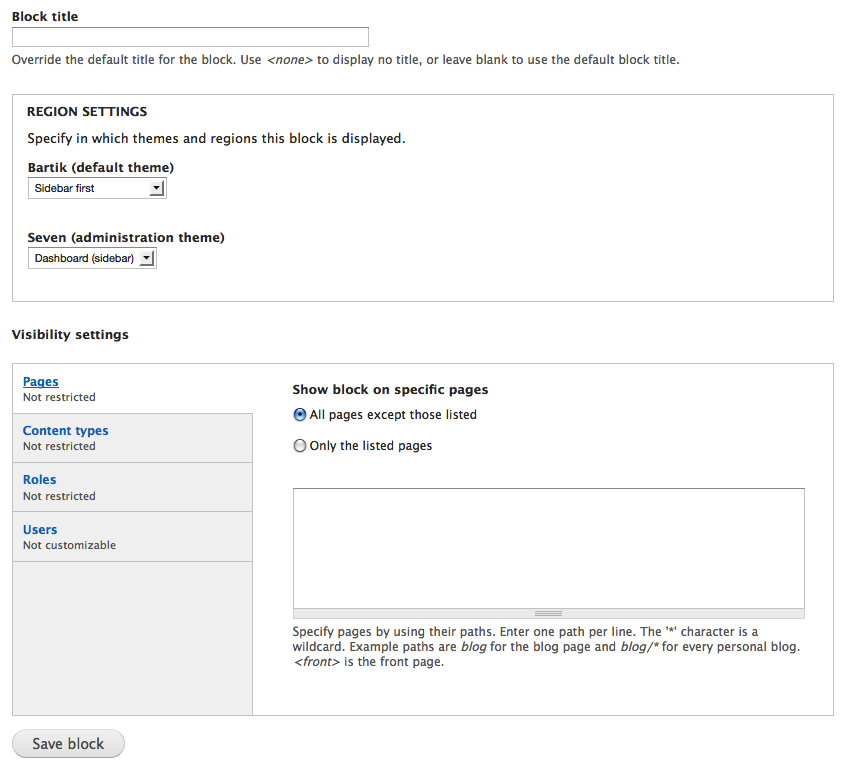
Figure 3.3: Every block has its own settings - for example, some settings determine in which context the block should be shown or hidden.
Adding blocks
Many modules provide the block list with new blocks, and there are also a lot of modules which let you, as an administrator, create new blocks through configuration. (One example is the Views module, which is described in Chapters 8-10.) To create the most basic blocks, though, you only need the Block module itself and the add block link right above the block list. This leads to a page where you can create a block with static content.
Complements and alternatives to blocks
Block management can quickly become a mess on large and complex Drupal sites. In response to this problem, a number of modules have been created. Here are the two most important to know:
- Context: Among other things, this module helps set visibility rules for blocks in a more flexible way.
- Panels and Page manager (part of Chaos tools suite): These modules replace the regular block system with panel panes. Compared to blocks, these panes make it far easier to access and use contextual information.
These modules provide more functionality by complementing or replacing the block system. Panels and Page manager are described in a little more detail in Chapter 13. The Context module will not be discussed further in this book.
Try your skills
The tasks described below continue the suite in the previous chapters, with Boss issuing orders about changes to a standard Drupal installation, and an equally fictional Intern coming up with new ideas.
Enabling blocks
Hi, it’s Boss.
The traffic on our site is going well! I noticed there are new comments all the time, so I thought we should make them visible to our visitors. Could you make a list of newest comments appear at the top of the left sidebar? Call the web consultant if you encounter problems, or make use of the intern if you want to. Thanks.
//Boss
Block visibility settings
Hi, it’s Intern.
I’m trying to keep track of how much the website is actually used, and I thought it would be a good idea to see how many people are logged in at any given moment. I know there’s a block for this, but I thought it might be a good idea to only show this block to administrators and editors, and try it out for a week before making it public. I'm not sure how to do this – could you do it?
//Intern
Custom blocks and more block visibility
Hi, it’s Boss.
The site is going splendidly! I’ve written a welcome message that I would like all visitors to see in large type at the top of the front page. The web consultants says that you could use the "featured" region for this – you maybe understand what they mean, but it's all gibberish to me. The welcome message is included below. Remember: it should only show on the front page! Thanks.
//Boss
P.S.: The message is “Welcome to our successful site!”
Videos by "Wunderkraut Sweden":
Exercise: https://vimeo.com/33518055
Solution: https://vimeo.com/33518179
Changing block titles
Hi, it’s Boss.
I don't like the title "Navigation" for the left-hand menu. Could you remove it? Thanks.
//Boss
Videos by "Wunderkraut Sweden":
Exercise: https://vimeo.com/33518961
Solution: https://vimeo.com/33519019
Moving blocks
Hi, it’s Intern.
Two friends of mine have independently of each other suggested that we move the search box to the site header – a suggestion that makes sense to me. Let me know if you agree, and I’ll move it (or you can just move it yourself).
//Intern
Videos by "Wunderkraut Sweden":
Exercise: https://vimeo.com/33519077
Solution: https://vimeo.com/33519133
Help improve this page
You can:
- Log in, click Edit, and edit this page
- Log in, click Discuss, update the Page status value, and suggest an improvement
- Log in and create a Documentation issue with your suggestion
