
On this page
Testing microdata
You are browsing documentation for an older version of Drupal, which is not supported any longer, and the information may not be correct. See current documentation for Contributed modules
Microdata gives you a way to communicate rich information with scripts and other Web services. It is crucial to test your microdata to ensure that it is communicating what you want it to.
Figuring out what you want to say
First, as outlined in the steps for placing microdata, you need to figure out what you want to say. For example, a local business might want to communicate the following using Schema.org's LocalBusiness itemtype.
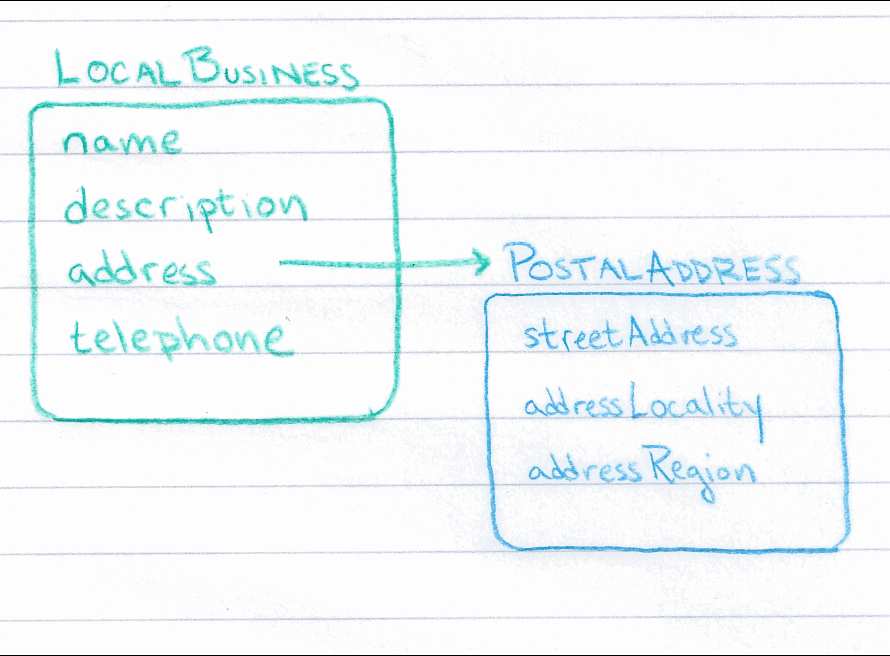
In microdata, this information would look something like:
<h1>Beachwalk Beachwear & Giftware</h1>
<div>
  <meta id="md1" itemprop="name" content="Beachwalk Beachwear & Giftware" />
  <div id="md2" itemprop="description">A superb collection of fine gifts and clothing to accent your stay in Mexico Beach.</div>
  <div id="md3" itemprop="address" itemscope="" itemtype="http://schema.org/PostalAddress">
    <span itemprop="streetAddress">3102 Highway 98</span>
    <span itemprop="addressLocality">Mexico Beach</span>,
    <span itemprop="addressRegion">FL</span>
  </div>
  <div>
    <div class="field-label">Phone:</div>
    <div id="md4">
      <div itemprop="telephone">850-648-4200</div>
    </div>
  </div>
</div>
<meta itemscope="" itemtype="http://schema.org/LocalBusiness" itemref="md1 md2 md3 md4" />
You might note that this HTML snippet is different from the snippet on the Schema.org page. In Drupal, an entity's fields can be placed outside of its <div> by tools like Views and Panels. To ensure the relationship between the entity and its fields are preserved, we have to depend on a more complex microdata attribute called itemref, but the placement of the itemref is taken care of automatically by Microdata module.
Testing your microdata
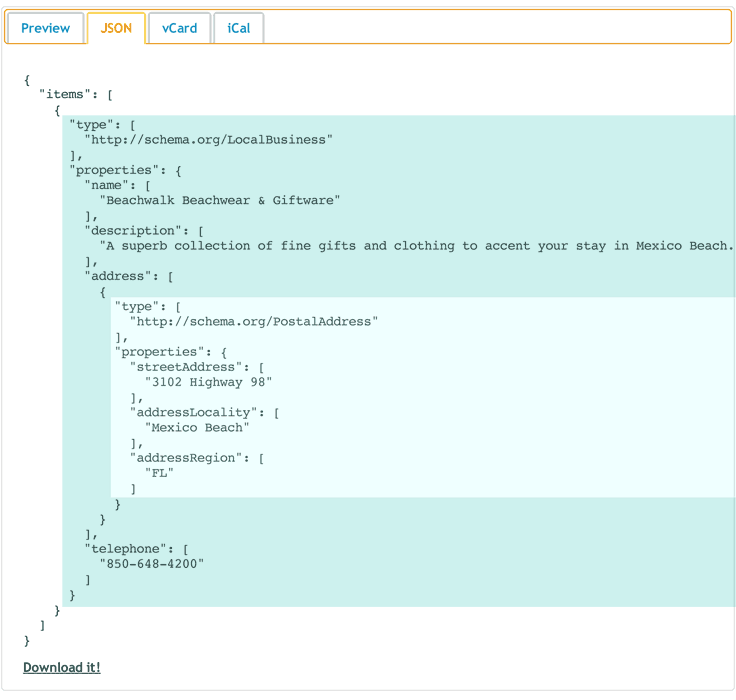
Test the microdata by copying the whole snippet (or the whole page when testing your site) and pasting it in the Live Microdata tool. You can also try the SEO Moves tool if you are using Schema.org.
When you click on the JSON tab, you will see the JSON object that has been extracted using the microdata API. This shows the local business, which has three properties with string values, and one property with an item value, the postal address. I have added color backgrounds to show which properties belong to which item.
Help improve this page
You can:
- Log in, click Edit, and edit this page
- Log in, click Discuss, update the Page status value, and suggest an improvement
- Log in and create a Documentation issue with your suggestion
