
Using the Airing Grid Scheduler in Fill Mode
Click on Scheduling in the Admin Toolbar.
The default grid will display projects (identified by Project ID) to be aired on the current day as well as projects to be aired in the same time range every week from the current day. The time slots are color-coded depending on the status of the airing:
- White (i.e. no color) is "Normal," indicating that an airing is scheduled with an episode selected
- Red is "Normal, no episode," indicating that an airing has been scheduled without an episode selected
- Yellow is "Live," indicating that a live airing has been scheduled with a device selected
- Green is "Live, No Device," indicating that a live airing has been scheduled without a device selected
- Brown is "Less Than 20 Minutes," indicating a fill that can share a time slot with an episode of a non-standard length
In the navigation area, use the dropdowns to select a different day, time, and/or channel. Click on the "Yesterday" and "Tomorrow" links at the top to go to a different consecutive day. Make sure the Mode is "Fill Mode/Show All." Below the navigation block, there are clickable individual tabs for each 6-hour range in the day.
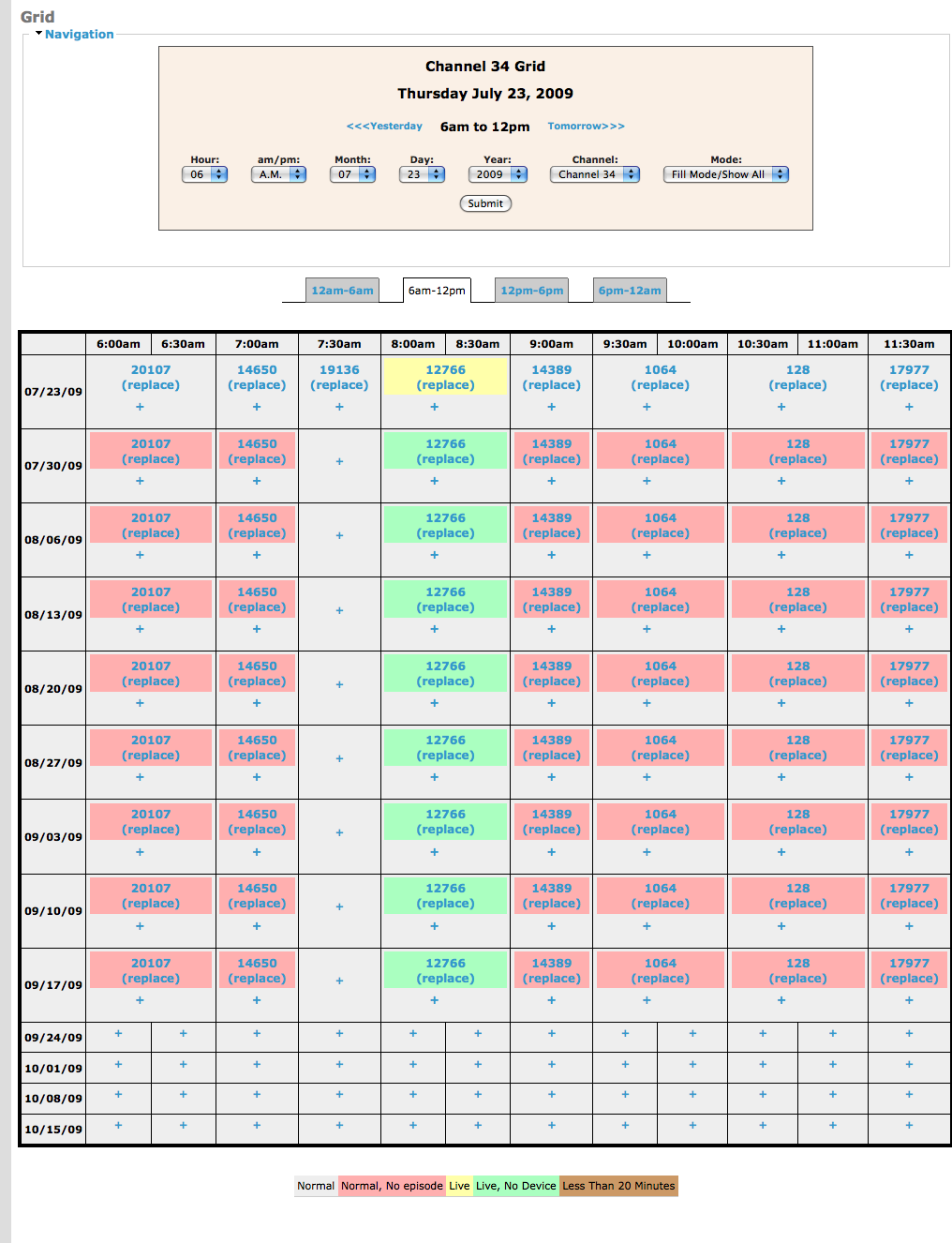
Time slots with no Project ID indicate that they are in need of an airing to fill them. Click on the plus sign (+) in the desired time slot to go to the page to submit an airing.
Enter either a project name or a Project ID. As you type in a project name, the site will list all names containing the letters entered. (See how to find a project if you don't already have one in mind.) Enter an episode number and fill in or make selections in the rest of the fields. (In order to schedule an airing, the project must already have at least one episode checked in.)
"File Attachments," "URL Path Settings," "Menu settings," "Authoring information," and "Publishing options" should be left in the default settings.

The confirmation provides links to view and edit the airing, access the project page, change to a different episode, and more. The resulting grid will display your new airing in the appropriate time slot.
Error messages will display to let you know that a given airing cannot be scheduled as entered.
Ex.
Ex.
Help improve this page
You can:
- Log in, click Edit, and edit this page
- Log in, click Discuss, update the Page status value, and suggest an improvement
- Log in and create a Documentation issue with your suggestion
