
Transcription Admin Guide
Last updated on
30 April 2025
Creating a Transcription Document
A transcription document must be created first. Then related transcription pages are attached to a saved document.
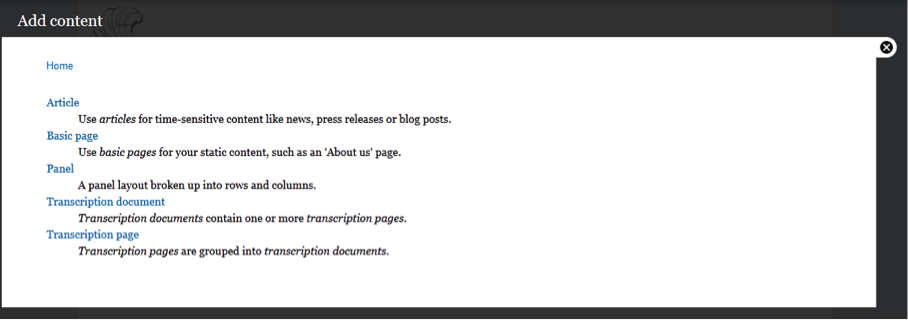
- Click the ‘Add content button’ in the upper right when you hover over the up arrow:

- Click on ‘Transcription Document’

- Enter the full Title

- Enter the Friendly Title or short title
- Choose the Difficulty
- Click Choose file.
- In the dialog box browse to the file name that corresponds to the ARC ID col.
- For documents with num pages > 1, chose the *-1 file
(Optional: Click Upload to change default alt text)
- Set the Publication Date from the drop down menu
- Now set the National Archives Identifier with the ARC
- Add the URL
- Click Save
Create a transcription page
- Create a Document Page by going to the ‘Add content’ page then clicking ‘Transcription page’
- Skip the body field
- In the ‘Transcription Document’ field find the right document that you just created. The field is set to autocomplete begin typing the full title and find the correct document

- Upload the file corresponding to the correct page number
(Optional: Click Upload to change default alt text) - Enter the Page Number associated with the uploaded file
- Click Save
- Repeat for each page in the document until all pages are in the system
Help improve this page
Page status: Not set
You can:
You can:
- Log in, click Edit, and edit this page
- Log in, click Discuss, update the Page status value, and suggest an improvement
- Log in and create a Documentation issue with your suggestion
