Views data export is a module that allows you to export the data from a View into a CSV, XML and other data types.
You must first create a View Page that will display the information that you want to filter and export (You will go to the path of this page to generate the export once done). The View can be whatever display/format type that you need as it will be the interface that the user will filter by and then export data from.

Add the fields that you want to display and include in the export, then add the exposed filters that you want to filter by in order to create custom exports (user role, status, pretty much any field you need). Make sure you check "Remember Last Selection" in the exposed filters you're using.
Add a new Display and select Data Export to create the display that will serve the export. Under Format you should see "CSV File", click that to change to the desired data type. Under settings next to the file you can find file name, download options, data sanitation options, etc.
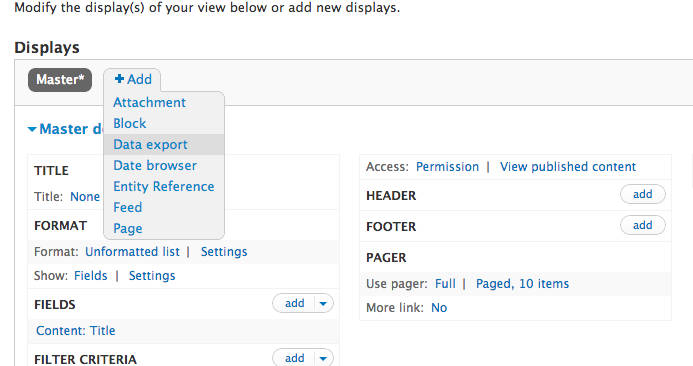
Note: Add the desired Fields to be included in the CSV-file to the 'Data Export' display, for example fields with a lot of content like 'Body'. The 'Page' display fields will be shown on the page itself.
Assign a path under "Data Export Settings", then click on "Attach To" and attach it to the display that you created first (probably called "Page"), this is very important as it will render the button at the bottom of the first view, this way you can export whatever result you filter. You have the option to turn on batch export, for large datasets
Ensure that the 'path' for the data export is a file, with an extension matching the format. ie: /export/foo.csv . Otherwise the file will be downloaded without a file association.
Ensure that the 'pager' settings are set to 'display all items' for the data export. Otherwise the results will be limited to the number per page in the pager settings.
To not show all nodes by default, update 'Advanced > Exposed form > Exposed form style' from 'Basic' to 'Input required'.
Navigate to the path of the View Page to generate your report.
Resources


