
Uploading and Displaying Videos
The easiest way to see the Ooyala module in action is to download and install the Ooyala Video feature on a copy of your site. The feature adds a content type along with a simple view to display videos and is a great way to see how all of the different pieces of the module fit together.
Drupalize.Me offers a free video on installing and configuring the Ooyala module...Installing and Configuring Ooyala
Enable the Ooyala Video module
This is best done with Drush, as it will automatically download all of the dependencies required to enable the module. Otherwise, use the dependency list on the modules page to download any missing required modules.
$ drush -y en ooyala_video_example
Add your Backlot API keys
Browse to the Ooyala settings page under Media in the Configuration section (admin/config/media/ooyala/settings) and add your API keys. Without your API keys, the Ooyala module will be unable to communicate with your backlot account. A trial account can be obtained at the Ooyala website.
Upload a video
Once your API keys have been confirmed, click Add content to add a new Video to your site.

A Video field is added to the standard node form. Note that the Description field is explicitly plain text so the text can be used as the description in the Ooyala backlot.
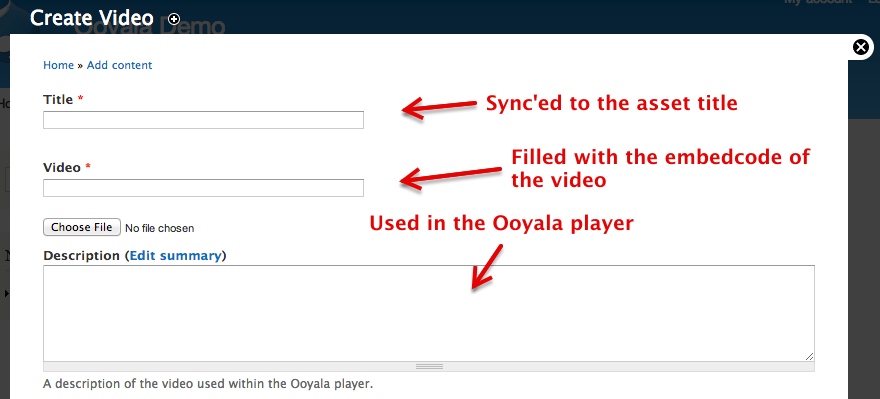
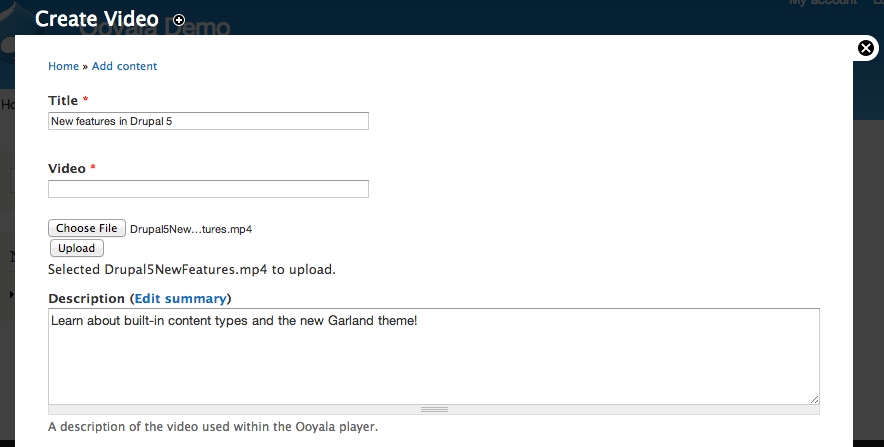
Once a title, video, and description have been selected, select Upload to upload your video to the backlot.
It may take some time for the video to be processed. Once it has been transcoded, it will be viewable on the newly saved node.
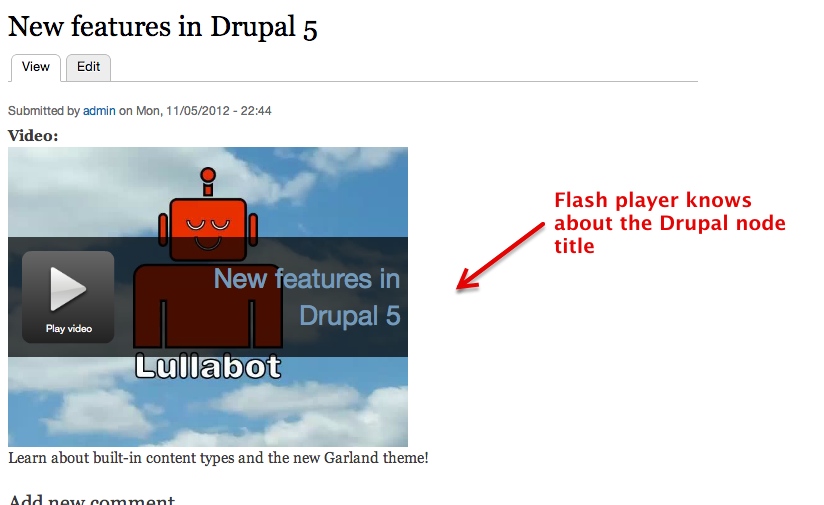
As well, a simple View of videos is created, showing all of the videos uploaded to your site. Edit the view to see how it's built.

Help improve this page
You can:
- Log in, click Edit, and edit this page
- Log in, click Discuss, update the Page status value, and suggest an improvement
- Log in and create a Documentation issue with your suggestion
