
 The 2026 Drupal Business Survey is open. Your response will help shape the future of the Drupal business ecosystem.
On this page
Hours
You are browsing documentation for an older version of Drupal, which is not supported any longer, and the information may not be correct. See current documentation for Contributed modules
The Room Reservations module allows the administrator to set the hours when the facility is open. This is done using the Default Hours and Daily Hours configuration pages. The module will then limit all reservations to the open hours.
Once the hours have been entered, as described below, you must run cron.php in order for the open hours to appear on the reservations calendar.
For a facility that is normally open the same hours every week, setting the open hours will be a quick and easy process. Use the Default Hours page to set the normal open hours for each day of the week, Sunday through Saturday. Then use the Daily Hours page to indicate any exceptions to the default schedule. For example, if your facility is closed on December 25th, and this date falls on a Wednesday when you are normally open, you would use the Daily Hours page to indicate that the facility was closed on that particular day.
Default Hours
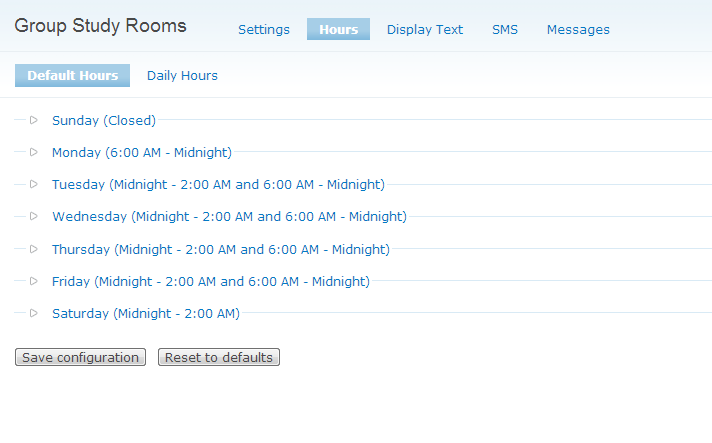
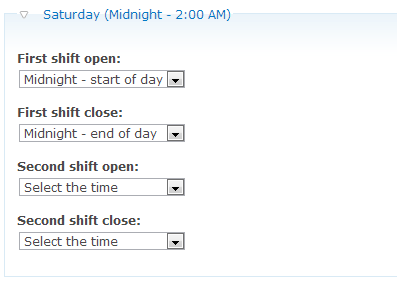
As an example, imagine a facility that is open each week from 6 am to 2 am, beginning Monday morning and ending Saturday morning. The facility is then closed for the rest of the weekend. The hours of the facility would be those shown in the image above.
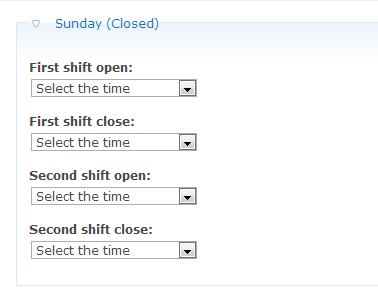
To indicate that the facility was closed on Sunday, you would expand the hours for that day and set the schedule as shown below.
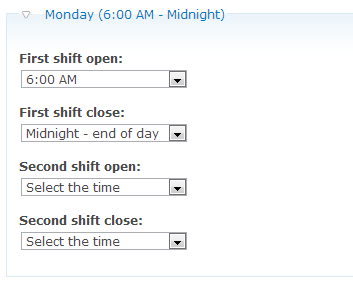
The facility would open Monday morning at 6 am and remain open for the rest of the day. Expand the information for Monday and set the schedule as shown here.
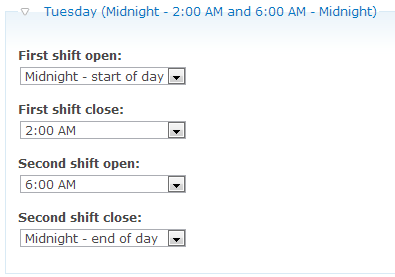
On Tuesday through Friday, the facility would be open from midnight to closing time at 2 am. It would then reopen at 6 am and remain open for the rest of the day. Select each day, Tuesday through Friday, and set the schedule as shown below.
If the facility was ever open for a full 24 hours on a particular day, the schedule would be set like this.
Daily Hours
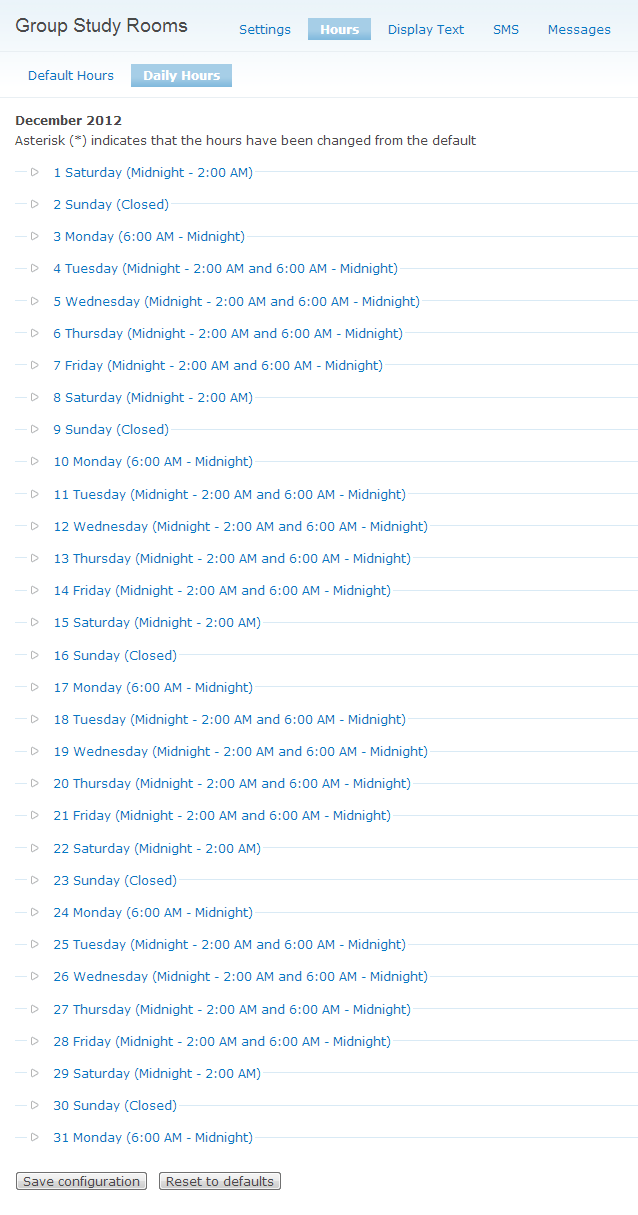
The Daily Hours page is used to indicate any exceptions to the hours set as the default hours. Exceptions can be set for the current month and the two months after that. When the page first opens, you are presented with a select box for choosing a month.

Select a month, and then a page is displayed showing the facility hours for each day of that month.
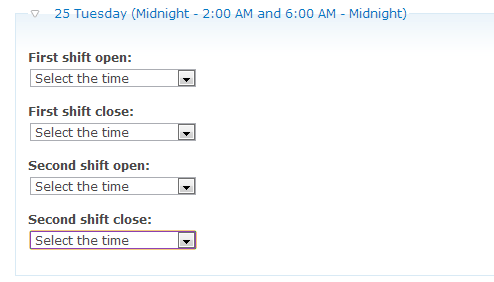
To change the hours for December 25, expand that day and enter the new schedule.
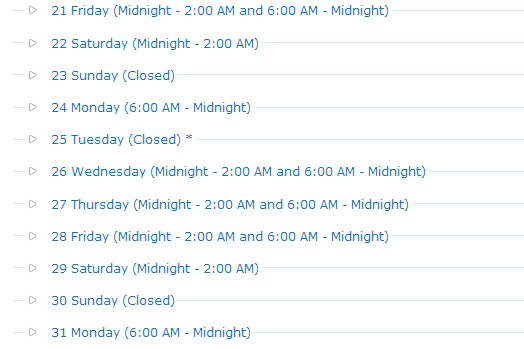
When the page is saved, the new hours for that day will be shown. Please note that any day that has been changed to an exception is indicated with an asterisk after the date.
Help improve this page
You can:
- Log in, click Edit, and edit this page
- Log in, click Discuss, update the Page status value, and suggest an improvement
- Log in and create a Documentation issue with your suggestion
