
Reservations: Configuration
Configure Reservations
Reservations API Settings
1) Go to . . ./admin/config/reservations/reservations
2) On Reservations API Settings configuration page select options for:
- Default Reservation Status
- Max Advance
- Max Minutes before Difference Warning
- Hours of Operation
- Hours after checkout open that item is due when pushing forward over closed days is allowed
Default Reservation Status
This setting is related to the Reservations: Create new content (Confirmed status) permission.
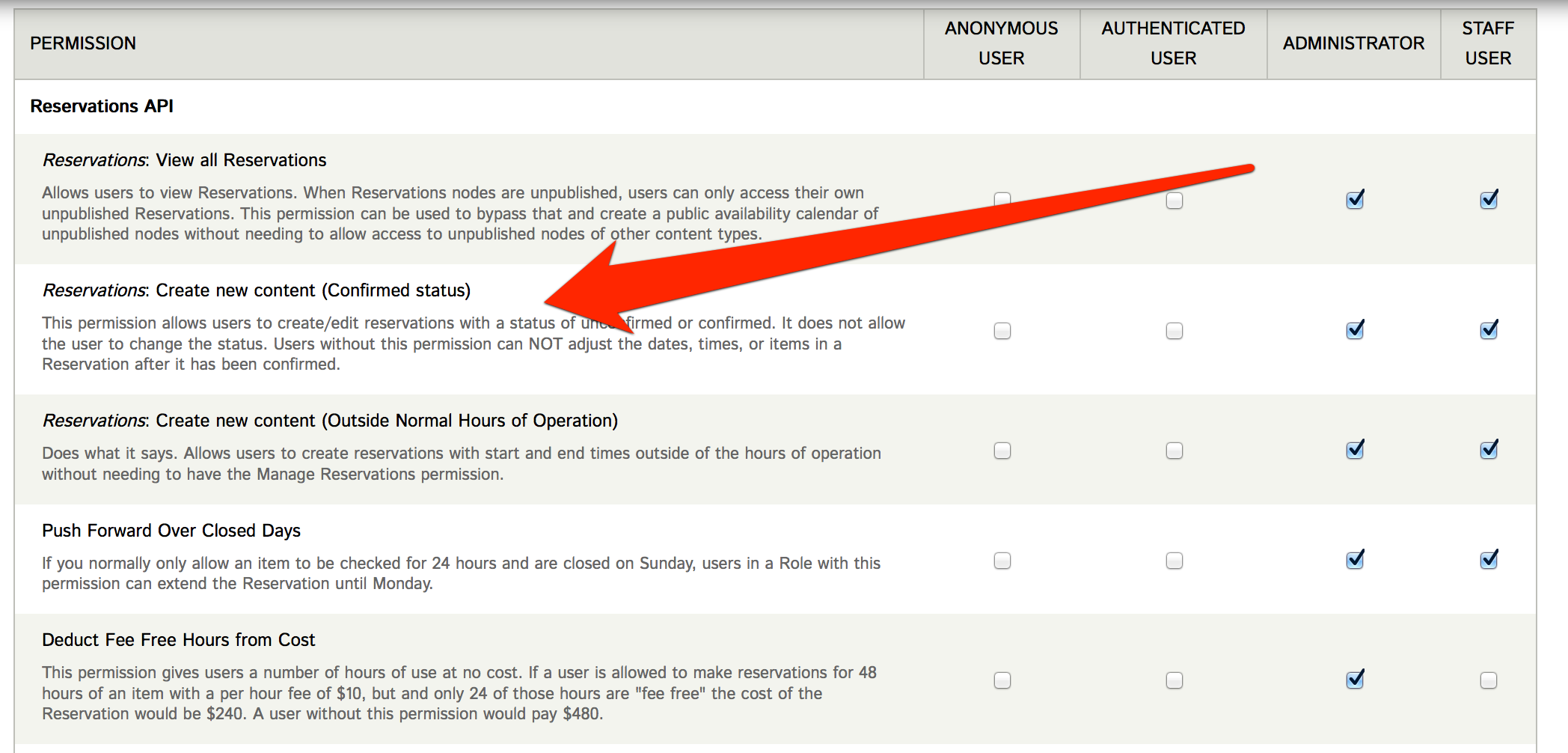
This permission allows users to create/edit reservations with a status of unconfirmed or confirmed. It does not allow the user to change the status. Users without this permission can NOT adjust the dates, times, or items in a Reservation after it has been confirmed.
So in a common workflow, producers have the ability to change or even delete an unconfirmed reservation they have made until a staff member confirms it. Once it is confirmed, the user who made the reservation can still access the node, but they can no longer edit it.
Taxonomy: Reservations Inventory
Go to . . ./admin/structure/taxonomy/reservations_inventory
Add terms for different categories of inventory.
These taxonomy terms appear as select options when creating reservable item content types.
Taxonomy: Reservable Content Type Groups
Navigate to Structure > Taxonomy and choose 'Add Terms' under 'Reservable Content Type Group'.
Add terms for different categories of reservable items.
These taxonomy terms appear as select options when creating reservable item content types. A good starting place would be to add a term of 'Cameras', a term for 'Audio', a term for 'Lighting', etc.
Add Reservations Content Types
Go to . . ./admin/structure/types/add
1) Choose a Content Type name for the particular resource or equipment type.
2) Configure Submission form settings, Publishing options, Display settings, Comment settings, and Menu settings similar how they configured for the Easy and Moderate cm modules.
3) Under Reservations settings, select the desired options for:
- Reservable item type
- Status
- Inventory
- Grouping
- Reservation Rules
- Rate per hour
- Late fee per hour
- Fee free hours
- Minimum hours for cancellation with No Show
- Bucket Specific Settings
- Spare items
- Choose if this is going to be a bucket or a resource. Use a bucket to create interchangeable items that can be reserved such as a camera. Buckets reference interchangeable items. The actual item does not have to be chosen until the reservation is checked out. You would probably not want to create a single bucket for ALL camera models, but if you had 3 Canon XH-A1 cameras, you would create a bucket called 'Canon XH-A1'. Choose resource if the item is unique -- for example, the station van would likely be a resource.
- Set to active to allow this type to be reserved.
- It is a good idea to set a maximum number of hours for a reservation to optimize server performance.
4) Add additional fields as desired, such as fields for:
- Manufacturer
- Model Name
- Serial Number
- Purchase Date
Bucket Items
If you created a content type for a bucket, you now need to add the individual inventory items to that bucket. We will continue with our above example, assuming you added a new content type called 'Canon XH-A1' that is a bucket type.
Now browse to Content > Add Content. Look for the section labeled 'Reservable Types' and the Canon XH-A1 should be listed. Click Canon XH-A1. You can now enter in each individual camera.
Give the camera a title, such as 'Canon XH-A1 001'. Fill in additional fields as necessary (this is where if you added a serial number field to the Canon XH-A1 reservable content type you would have the opportunity to fill out this field).
Under the reservations setting, choose the appropriate default booking availability (usually you will leave this as 'available').
You will now see this listed in the Reservations inventory. Browse to Reservations > Current Inventory and you will see the Canon XH-A1 bucket with the number of individual items within it. If you click on the number, it will list the specific items and their current status.
Reservations Inventory
Go to . . ./admin/config/reservations/inventory
Reservations Printable Contract
Go to . . ./admin/config/reservations/contract
Complete printable contract fields for:
- Contract header
- Contract boilerplate
- Contract footer
Reservations UI
Go to . . ./admin/config/reservations/ui
The Reservations UI configuration page has an option to hide reservable Content Types
Help improve this page
You can:
- Log in, click Edit, and edit this page
- Log in, click Discuss, update the Page status value, and suggest an improvement
- Log in and create a Documentation issue with your suggestion
