Adapt modules for OpenLayers 7.x-2.0-beta4 and future versions
Affected modules

You are browsing documentation for an older version of Drupal, which is not supported any longer, and the information may not be correct. See current documentation for Contributed modules
Note that projections have been integrated in 7.x-2.x and will not be available in releases before 7.x-2.0-beta4!
See Wikipedia's explanation for an introduction into map projection. Roughly speaking, they define how the earth's 3D shape is flattened to display it on a plane surface. Projections do also define which point on the earth is given by which coordinates.
In most cases it's fine to just use the predefined projection EPSG:4326 or EPSG:3857/EPSG:900913 but you might need other projections to use maps by local map agencies or to archive high precision.
Defining projections makes them available in the layer setup as well as in the map configuration screens, in case the projection is used by at least one layer.
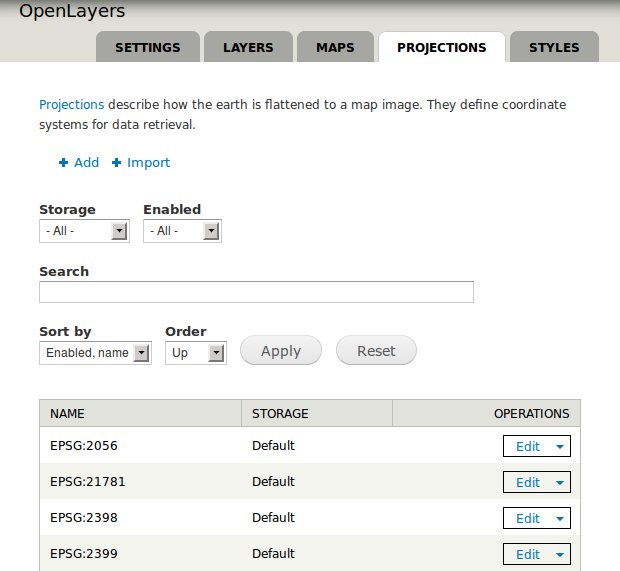
Goto Structure → OpenLayers → Projections and then click add above the list of the predefined projections.
You'll be presented with a form to enter the definition of the projection. It looks very technical but in about all time you'll just enter data that was given by the data provider of your map. The combination of Authority (e.g. EPSG) and Code (e.g. 4326) does identify a projection. The Definition tells how coordinates get converted. One can thus display maps of any source but show coordinates in another more familiar projection to the user such EPSG:4326 as used in most consumer devices. The Boundaries ensure that no data is requested outside of bounds definition where no sensible data would be available (e.g. the Swiss projection gives no valid data in the U.S.).
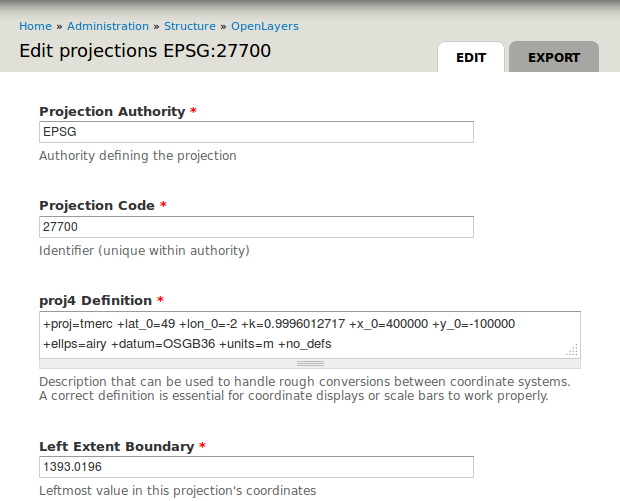
In case you know which projection to use but don't have its definition, check Spatial Reference which hosts a lot of definitions. Once done finish by clicking Save button.
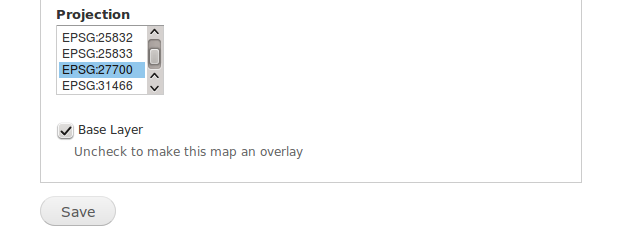
Navigate to Structure → OpenLayers → Layers and click Add above the list as before with the projections. Enter the settings of the desired layer and select any projection that is supported by the very layer from the box near the form's bottom. Then save when satisfied.
Navigate to Structure → OpenLayers → Maps and add or edit a map. Choose Layers & Styles from the menu on the left and you'll be presented with a list of projections of which each is followed by some layers.
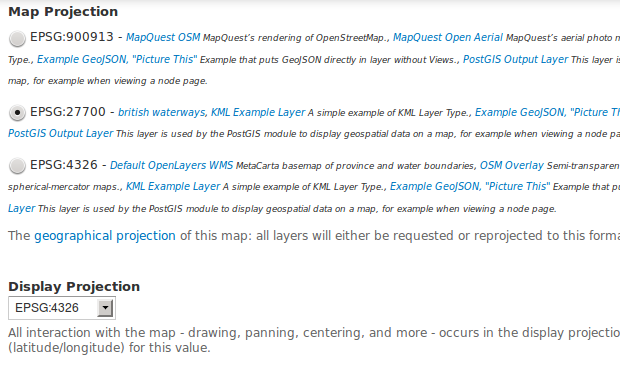
The Map Projection needs to match the data sources that shall be used whilst the Display Projection defines which coordinates the user will see. Then scroll down and make sure your map has at least one base layer.
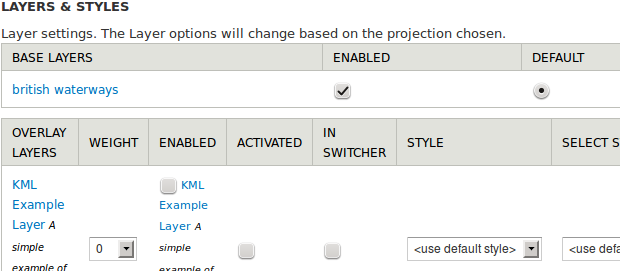
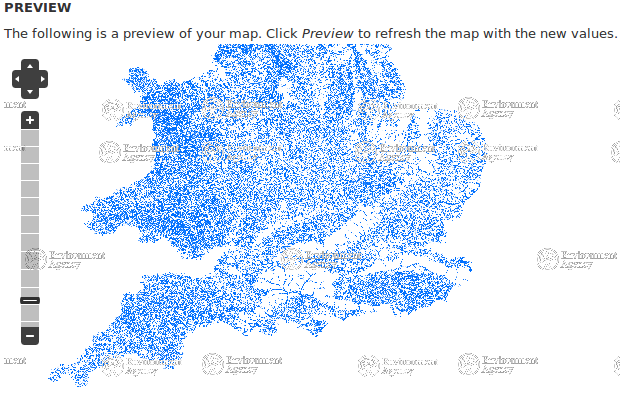
Scroll to the bottom of the page and click Save and edit to display the new map with custom projection.
Affected modules

Drupal is a registered trademark of Dries Buytaert.
