

Asset Bonus
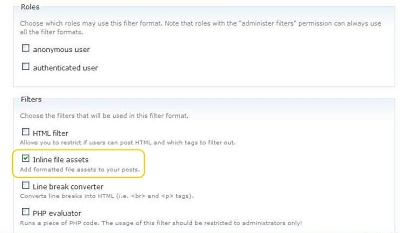
Make sure you have the asset (http://drupal.org/project/asset) module installed and activated (Administer>Site building>Modules). Now go to
Asset CCK
There are a number of DIFFERENT ways that you could add "assets" to a node, this page describes adding an "asset field" to a node, not how
Asset Embed
Make sure you have the asset (http://drupal.org/project/asset) module installed and activated, both the “asset” module and the “asset embed”
Asset Import
Make sure you have the asset (http://drupal.org/project/asset) module installed and activated, both the “asset” module and the “asset import
Asset Panels
First make sure you have asset and asset_panels (http://drupal.org/project/asset), panels (http://drupal.org/project/panels), and CCK (http:
Asset YouTube
Make sure you have the asset (http://drupal.org/project/asset) module installed and activated, both the “asset” module and the “asset
Asset module for Drupal 6 and above: migration guide
There are many alternatives for the asset module in Drupal 6 that make an upgrade from the Drupal 5 version redundant. A popular solution is
Integrating with TinyMCE
Install the modules
Views integration
First make sure you have both asset (http://drupal.org/project/asset) and views (http://drupal.org/project/views) installed and activated.

