Community Documentation

Updating modules

Last updated March 7, 2013. Created by hailu on April 24, 2008.
Edited by 2020media, mattgilbert, RoloDMonkey, arianek. Log in to edit this page.

Updating modules is a more involved process than installing or removing modules. The steps should be followed closely, as all these steps are necessary to ensure the stability of your website.

Check for Module Specific Update Instructions

Check the module's project page "Read Documentation" link as well as the tarball (ie README.txt, INSTALL.txt, UPGRADE.txt, etc) for any module specific update instructions. This is typically necessary when updating modules that involve the usage of 3rd party libraries. Be sure to read and understand all module specific requirements before proceeding with the updates.

Backup your Files and Database

Your website's database contains all of its content, as well as all of its settings and configuration. As such, any operation which modifies it could, although unlikely, be potentially damaging. Backing up your website's files will ensure that you can revert back to the point when things were working. We highly recommend you take steps to back it up before performing this procedure. More information about taking backups may be found at http://drupal.org/node/22281.

Disable Module

You must first disable the module. Here is a tutorial that covers how to disable a module Follow only part of the instructions listed there. Stop at the section labeled “Uninstalling a module” and only perform the first section of steps for disabling a module. Note that there is a discussion in the Drupal community about disabling or not modules before updating them.

Put site in maintenance mode (off-line)

Go to /admin/settings/site-maintenance

Reinstall Module

Next is reinstalling the module. The Update module also provides a download link which may be used to download the updated version instead of going to Drupal.org. Delete the outdated module's files and upload the new ones as if you were installing the module for the first time.

Run update.php

Update.php is a script that is used to update the database after modules, themes, or core have been updated/upgraded. (A new version of a module may change the structure of the database, and this script adjusts the database to fit the updated module.) As the database contains all of the content and the settings of your website, this is an essential step to ensure its continued operation.

  • The update.php script can be called two different ways. You may go to the main administration page and click on the “update.php” link on the front page, or you may go directly to http://example.com/update.php in your browser.

  • You will require admin privileges to perform this update. The first account created on your site will have the required privileges.

  • If you do not have the proper privileges, you will receive this screen. Either log in or follow the instructions on the page to perform the update.

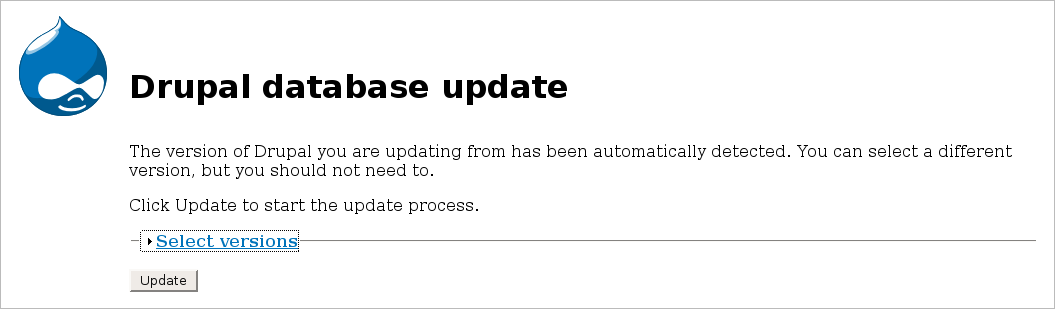
  • Once you have the proper privileges, you will see this screen. Click on the “Select versions” link to expand the section.

  • These dropdown boxes contain database updates specified by modules you have installed. If you are not developing your own module or troubleshooting, you should leave them alone and just click the “Update” button. The correct items should already be selected by default -- either “No updates available” if there have not been any database changes, or a number, which is simply an ID number of the database update being applied.

  • This next page may take a small amount of time to load, as the server is modifying your database. This page will display any errors that may have occurred during the process. If none have occurred, your module updates are complete!

Put site online

Go to /admin/settings/site-maintenance

Comments

Details

0. Test the new version of the module on your test site. (Goes without saying except when we don't have time.)

1. You must take your site offline during this process. If you have a multi-site installation, then that means all sites.

2. In Drupal 6, I believe Update status is in core and not a separate module

3. Under Reinstall modules, don't overlook

Delete the outdated module's files

If you don't remove the old modules, as I have learned the hard way, Drupal may continue to report that you need the update.

Note: If the old module contains 4th party programs like FCKEditor, TinyMCE, etc. then removing the whole module means that you have to re-install/re-configure these other programs.

4. On a multi-site with multiple databases, I believe you have to run Update.php on each site.

Why is experience so painful?
__________________________________________________________________________________

Aweigh - not all who wander are lost.

__________________________________________________________________________________

Aweigh - not all who wander are lost.

Between the "Reinstall

Between the "Reinstall Module" step and the "Run update.php" step, there should be another step named "Re-enable Module".

When upgrading the CCK module just now, I ran update.php before re-enabling the module and it threw an error asking me to do so first, and then run update.php again.

This was upgrading cck-6.x-2.0-rc10 to cck-6.x-2.0.

Drush module automates some upgrade steps

The drush module automates a significant part of the module upgrade process and can be invoked from the command line. It is especially helpful if you are installing or upgrading a lot of modules on a regular basis.

best practice sequence for upgrading contribs

The docs team is discussing right now #346718: more discoverable info on update/upgrade of modules and core what is the best way to present the update/upgrade manual. So while we get it all right I give you the best practice update/sequence.

PS. It all started when I googled for "drupal update module" - and struggled to find the right page with the right update sequence - http://drupal.org/node/142767#comment-950446

So, to confirm, you would recommend the following?

Upgrading modules while doing a major Drupal version upgrade (e.g. Drupal 5 to 6):

1) Download the latest version.
2) Unzip it.
2.5) Disable old module through admin panel
3) Delete the old module + folder.
4) Replace old with new on server.
4.5) Re-enable the new module through admin panel
5) Run update.php to update the database

vs. Upgrading modules when not upgrading Drupal:

1) Download the latest version.
2) Unzip it.
(do not disable the old module)
3) Delete the old module + folder.
4) Replace old with new on server.
5) Run update.php to update the database

I probably misunderstand something about what happens when a site is put in maintenance mode or what the implications are of a module being "enabled." It sounds as if the files required by a running module, or required for setup of a new module version, are suddenly being removed to allow for the new module. Wouldn't it / why doesn't that cause problems?

Also: What is the procedure for upgrading to a -dev version of a file? If I try to use Update Manager, it says the module already exists and does not let me copy over it. So is that why I would have to use the manual procedure you lay out here?

Thank for your help.

Link error: Backup your Files and Database

The link in the paragraph about Backup your Files and Database doesn't go any where.

_____________________________
Pay It Forward at Drupal
When you ask a Forum question, look for one you can answer.

More information link refers to page itself

"More information about taking backups may be found at http://drupal.org/node/250790."
The link is the current page.

Link fixed

Good catch Ashford. Thanks.

I updated the link to the current official backup documentation page at http://drupal.org/node/22281

Disabling a module to upgrade

Disabling a module to upgrade it is, imo, bad advice. I'm not sure why this instruction is in there. Modules might need to access their code in order to run update code, and if the module is not enabled, it cannot do that. These instructions are causing real problems for Panels and CTools users attempting to upgrade their modules, and I'm taking the blame for it.

Instead, modules should be left enabled and the site should be put in maintenance mode.

-- Merlin

[Read my writing: ehalseymiles.com]
[Read my Coding blog: Angry Donuts]

Upgrading from Drupal 6.17 to 6.19

Hi Merlin,

I just put my site online recently. I do have a testsite, so I upgraded that database first. After I did so, I couldn't see any of my content even after I re-enabled my modules. I went into the administration page and found the blocks section. For some reason, the upgrade deleted all of the changes I made to my blocks. I had to go through and redo all of my previous settings.

Upon reading this part of the handbook, I noticed that I missed a step b/c I did not run an update script. Is this why my blocks were messed up? I also noticed that you said modules should not be disabled during an upgrade. Is this true if I'm upgrading the entire database (like to 6.19) or just one module? Bluehost insists that I should disable them, so I'm confused.

Thanks

Thanks for your comment merlinofchaos. I agree. So does most of the Drupal community. I have updated this documentation page. I Strike through the "disable module" section and added a note.

Now that the community agrees that modules should be left enabled during update and "Updating Modules" has been edited to reflect that, there's another instruction that seems to be in conflict.

Under Reinstall Module, it says,

"Delete the outdated module's files and upload the new ones as if you were installing the module for the first time."

If you follow those instructions and delete your module, what's the point of keeping the module enabled? Is the instruction to delete simply out-of-date?

Skipping over past releases

What if you haven't updated a site for awhile and when you run Update status, modules have progressed through several releases beyond what is installed on your site?

Will jumping to the current recommended release cover DB updates from skipped releases?
-OR-
Should you step though all past releases (ugh)?

Should you step though all

Should you step though all past releases (ugh)?

No

And to repeat Melin of Chaos

And to repeat Melin of Chaos advise:

  • Modules should be left enabled
  • The site should be put in maintenance mode
  • Thank you

    hi,
    i am new to drupal and with the help of ur forum i am able to upgrade my modules very easily ...Thank you very much

    Block module from being updated

    I would like to know how to block a module from being updated.

    Sometime a module is patched to fix or add a certain feature or issue. Or I have to modify (as a last resort) a module to add a function the client requires.
    I don't want another developer who does not know about this update to go and update the module.

    Currently what I do is to document the changes in a (offline) node. I also change the version number in the .info file to DO NOT UPDATE as well as adding what I did to the description.

    But not everybody go look in modules or the update page first before they make an update.

    Is there a better system in place for this?

    Quentin Campbell
    Digital Solace (Pty) Ltd

    +1 to this. I currently

    +1 to this. I currently document patched modules outside of the system but to have some indicator/block inside Drupal would be an improvement.

    Remove Old Files or Not?

    There seems to be a lack of clarity on whether you need (in Drupal 7) to remove the old module files before running the update. The official Drupal 7 documentation doesn't suggest you do it. The automated upgrade process doesn't suggest you do it. Despite that, is it still considered best practice?

    You need to remove the old

    You need to remove the old files, then add the new ones, then run the update. This process should be very brief, and be done while your site is in maintenance mode because obviously your site will not function in this state.

    The reason to do this is that simply untarring over existing files will not remove any files that were deleted in the update, and that can cause problems if the presence of those files is detected and something causes them to be used. This is particularly noteworthy on package modules like CTools where occasionally an entire module is removed or renamed and you end up with a conflict because the old files remain even though they shouldn't.

    -- Merlin

    [Read my writing: ehalseymiles.com]
    [Read my Coding blog: Angry Donuts]

    As module maintainers, I have

    As module maintainers, I have taken to emptying files for a few releases rather than simply deleting them in order to try to curb problems created by this, but not everyone is aware they'll need to do this, and sometimes we forget that we have to take this extra step to protect users.

    -- Merlin

    [Read my writing: ehalseymiles.com]
    [Read my Coding blog: Angry Donuts]