

Closed (fixed)
Project:
GeSHi Filter for syntax highlighting
Version:
5.x-2.x-dev
Component:
Administration interface
Priority:
Normal
Category:
Task
Assigned:
Reporter:
Created:
19 Jun 2008 at 13:00 UTC
Updated:
20 Jan 2009 at 08:00 UTC
Jump to comment: Most recent file



Comments
Comment #1
hass commentedComment #2
hass commentedComment #3
hass commentedHow illogical is this?
If HTML filter cleaned up the code geshifilter cannot filter anything afterwards as every not allowed tags are removed from code.
Comment #4
soxofaan commentedGeSHi filter uses a prepare pass, where all the tricky stuff (">", "<", etc) is escaped. In the process pass, everything is decoded again before applying syntax highlighting.
HTML filter does not have a prepare pass,
so if you put HTML filter before GeSHi in your input format, you actually get this pipeline:
1) GeSHi filter prepare: escapes tricky stuff in code blocks
2) HTML filter process: sees nothing special in code blocks
3) GeSHi filter process: decodes and adds syntax highlighting
Comment #5
hass commentedHowever this is VERY illogical as we all know that HTML filter kill arbitrary HTML code and this is why i move this before this filter. I'm not able to see this prepare logic from UI side.
Additional if I follow this illogical logic, the variant with
...[javascript]...[/javascript]is not working.Comment #6
soxofaan commentedI understand that it may seem illogical when you assume that the source code to highlight is HTML, which is probably your use case.
But for a user that wants to highlight just C++, Java, Python or Ruby code, the point where HTML comes into the game (from the user's perspective) is *after* the GeSHi filter. From this point of view, putting the HTML filter before GeSHi filter would be harmless, while putting it after GeSHi filter would remove the syntax highlighting stuff again.
It's possible to have a setup where HTML filter comes after the GeSHi filter, but then you need to add some tags to the HTML filter white list. And this is not what one typically wants: the white list should be as small as possible, the white list should be targeted at users, not used for fixing problems with other filters.
It's just much easier to offer an out of the box experience by avoiding to put the HTML after GeSHi filter.
Also note that this is also how it is be done with codefilter, which is used for the syntax highlighting on drupal.org. If you put HTML filter after codefilter, it doesn't work either.
I agree that there are are no clues about preparing and escaping in the input format UI, but I would not call this a bug in GeSHi filter.
Moreover there is a tool in the GeSHi admin pages to detect filter conflicts with information on how to fix them, so if you still consider this a bug, there already a "fix" available.
Concerning your problem with the highlighting of javascript: I think this should be a separate issue as I don't see how it's related to the filter ordering.
Anyway, did you set the "Tag/language attribute value" for Javascript to "javascript" in the languages tab of the GeSHi admin pages?
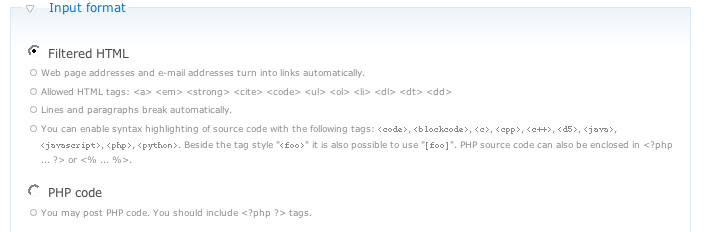
Differently put: is there a "<javascript>" listed in the relevant input format description below the node text area?
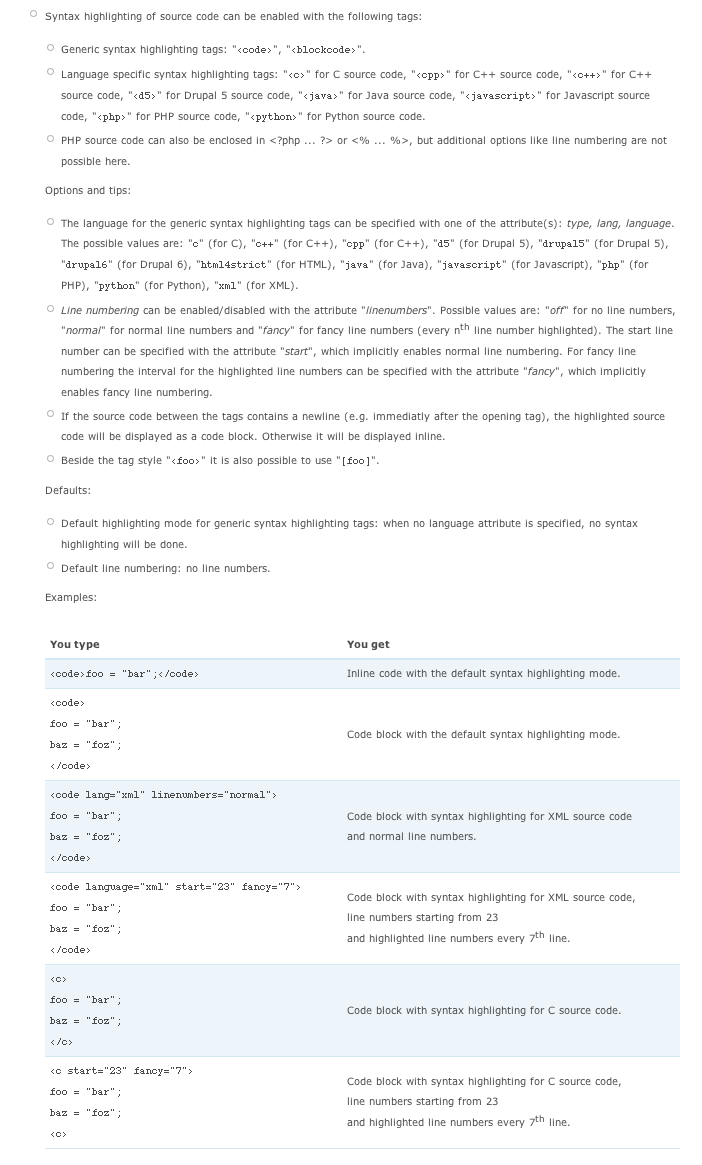
(see attached screenshots)
Comment #7
hass commentedSorry for the delay. I'm changing this into a task as I think there are many missing infos that should be worked on. When I installed the module I expected it would work out of the box. None of the readme tells us how the syntax is. I completely reviewed the code and try to find out what could be wrong, but after 2 hours I started to play as it was to complex to understand all in a short time.
1. It would be perfect if you could provide the correct syntax of the filter in the README.txt. As already written on the project home
2. It's not logic that I must configure "Tags" myself. I taken a look on the config page and thought "Geshi language code" have it's definitions and if I'd like this definitions I don't need to configure anything. So I left the "tag" field empty.
3. Additional I haven't understood that I must add
<javascript>into the field of allowed tags. I thought this will automatically work as it is already implemented in the Geshi filter and I have *enabled* the language to be highlighted. As #2 and #3 are duplicated/tripled work it would be a very good idea to make this only *one* step task. Maybe append the activated geshi filter tags as allowed tags without user interaction. If I check the language highlighting you can be sure I'd like to highlight this language and don't like to add<javascript>by hand to the allowed tags list and enter the same as tag name.4. It would be good to check the filters order on install stage. If the HTML filter have a higher order, make the Geshi filter solve the order problem themself. However your filter compatibility check is great for later this could be done on install stage to get a running install after installation.
After you explained me with your screenshots what I'm missing - this seems all usability issues. Let me say it took me 4 times and ~10 hours to get this module working... this is really toooo much and I'm not unfamiliar with Drupal. 3 times I simply thrown the module away and thought it is not working at all.
I hope you are able to solve the above usability issues in a reasonable way as it would make more people's live easier and I'm pretty sure I'm not the only one with this problems.
Comment #8
hass commentedAside - do you know why d.o doesn't use Geshi filter? Codefilter doesn't allow many languages to be highlighted... and I wished it would highlight JS, CSS, Drupal5, Drupal6, PHP and some others...
Comment #9
soxofaan commentedThanks for the thorough usability review, as maintainer it is sometimes difficult to know how the first use experience is.
The help is on purpose not in a readme file because those type of files suffer too easy from outdatedness, cruft, are easily neglected, are not very accessible and can not be localized.
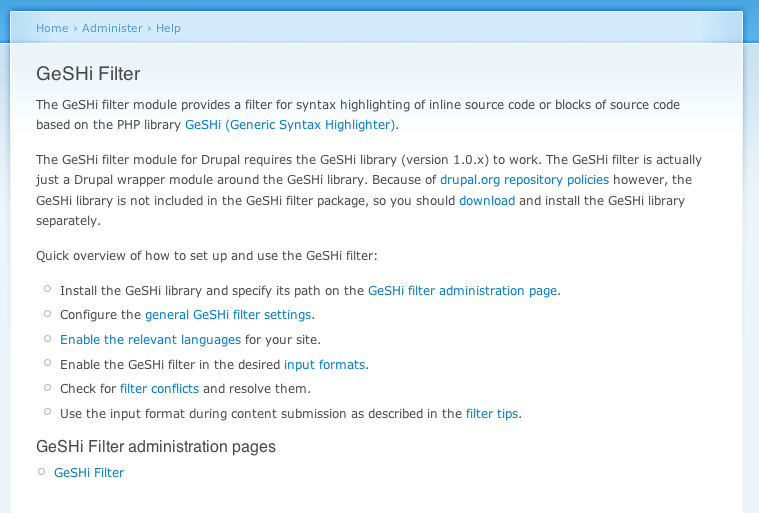
I chose to use the built-in help infrastructure from drupal instead. At the top of module's general settings, there is a short help string and a link to more help, which leads to q=admin/help/geshifilter (see screenshot), where the administration of the module is explained.
The usage description of the filter is, as the other filters, in the compose tips, both in short in the input format selection widget as in "More information about formatting options" (see screenshots).
Automatic setting the language tags seems a bit aggressive to me, as adding all those top level tags can lead to conflicts with other filters. Moreover it's not always possible to find a good language tag for all available languages (e.g. "[c]" is a bit short, and should it be "[cpp]" or "[c++]") ?.
Anyway, it's probably a good idea to set the language tag for most languages that are enabled by default (php, drupal5, drupal6, javascript, java, python, ruby)
This won't work, because at install time the GeSHi filter isn't enabled in any of the input formats, so there is nothing to check for.
Moreover, I feel that making the GeSHi filter solve the problems itself is a bit too intrusive. I wouldn't like a module that fiddles with other modules settings. I prefer conflict detection above, automated resolving.
I know there is some interest to use GeSHi filter on d.o, but before a module is used on d.o it needs a thorough (security) review. GeSHi filter is rather large and it uses a third party library, so it's not a trivial task.
To wrap up:
* setting some language tags by default on install is ok for me
* there is documentation available in the (admin) interface, but you couldn't find it. How would you address this, where would extra pointers be needed?
Comment #10
hass commentedFilter order: Why not doing a select on the filters and search for HTML filter. Use the order value-1 for Geshifilter and you are fine. The main issue about this is simple - if I would have found a plan what i need to configure it wouldn't be so difficult to configure. Well there is documentation, but all settings are scattered around the system. One in filters, others in input types and others in Geshi settings and you cannot know what is required to get it working! That's the main issue. If there is a plan like
1. set up your global geshi settings
2. go to the filters and configure it, don't miss to add default "tags" and add don't forget to add them to the allowed tags field
3. enable the filter for specific input types
4. check the filter order and make sure HTML filter is lower than Geshi filter
This small road map in the README and I haven't had so much start problems!
Tags: [c] is short, but I don't see the problem. Are you aware that other filters use this? [c] is correct as [c++] is different code type - it's not the same language, maybe [cpp] is better in this special case... but from usability I'm not sure if I expect "cpp" for "c" as a "c"-programmer...
Why not automatically "add" this to the allowed tags settings? I don't know why you make it more difficult than it must be. If I actively enable a language for highlighting - why should I not add it to the allowed tags!? There is another setting that tells you allow
<foo> and [foo]or<foo>and[foo]only. This setting could be used to determine if the preconfigured tags in a [] style are allowed / available as filters. Aside - this settings is another thing that duplicates some configuration steps. Please keep in mind if you have ~30 allowed tags in the filter list you will loose overview and that you are able to add them in your order makes things unbelievable difficult to configure!I need to take a look why i've overseen the docs... could be the case that I'm thinking that software must be intuitive and must work without reading a book first :-). I'm very reluctant to read "books" if there could be a "3 line roadmap" in the readme :-). Maybe it's only because I'm so fixated on the readme - about how to install a piece of software. I wouldn't expect this as I need to know this *before* I install it!
Comment #11
soxofaan commentedA first patch with some documentation tweaks
and automatic setting of the language tags for the default enabled languages.
I'm not sure if I understand what you meant, but it's not needed to add the language tags to the white list of the HTML filter anyway, because of the prepare pass of the GeSHi filter. HTML filter will not see any of these tags.
The stuff you need to know before installing (how to download and install the GeSHi library) is in the readme file. But the other stuff (language tags, filter tips, ...) is easier to explain after install because you can offer easy clickable links to the appropriate pages instead of just cryptic URLs (like example.com/?q=filter/tips).
Anyway, I added some extra pointers in the README file.
Comment #12
soxofaan commentedcommitted patch from #11 in http://drupal.org/cvs?commit=162474
Comment #13
soxofaan commentedported to HEAD and committed patch from #11 in http://drupal.org/cvs?commit=162477
Comment #14
hass commentedLooks good to me :-)