

Closed (fixed)
Project:
Views (for Drupal 7)
Version:
6.x-2.2
Component:
page displays
Priority:
Normal
Category:
Support request
Assigned:
Unassigned
Reporter:
Created:
27 Dec 2008 at 13:03 UTC
Updated:
7 May 2009 at 10:40 UTC
Jump to comment: Most recent file


Comments
Comment #1
Dave.Ingram commentedHi there,
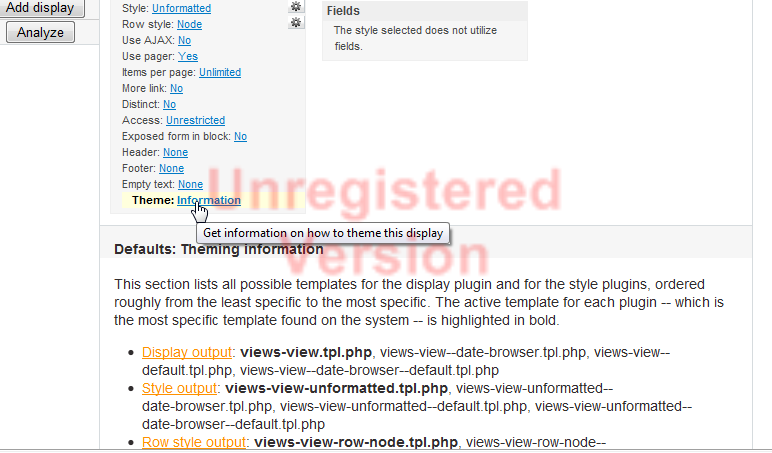
Theming views is not too difficult, especially for specific fields. I've attached a screen shot of the getting started. Here's what you do:
1) Go into your view
2) Choose the display on the left that you wish to theme.
3) Click on "Theme Information" at the bottom of the left most column.
This is where the complexity begins, but it's really quite simple once you understand what you're doing. What you have to decide is what exactly you want to theme, and you have a lot of choices. First of all, you can theme only specific fields, or you can theme up to the entire view using template files. There's a lot of information that can be found on this at http://drupal.org/theme-guide/6.
For views, the first thing you see when clicking on Theme Information is links to the types of things you can theme. For the header only, you would want the one that says something like "Field Node: Title". Next to this is a list of possible file names. The one you want depends on how much you want to change. The first one is the least specific and the last one is the most specific (pretty much) ..so for example views-view-field.tpl.php changes every field in every view, where views-view-field--workflow-pending--page-1--title.tpl.php (just one I happen to have open) styles only the title field in the workflow-pending view, and in the page-1 display.
Now click on the Field Node: Title link and you will see the exact code that would go into your .tpl.php file. Now you can just add some HTML around where it says "print $output;" and make it "
<h3><?php print $output; ?></h3>" or something of that nature.So to continue with the exact steps from above:
4) Create a file in your themes directory named after the appropriate file name shown to you in the "Theme Information" box
5) Click on the link for the template you have selected
6) Copy and paste all code into your new file
7) Make appropriate changes
8) Click on "back to theming information"
9) Click on "Rescan template files"
10) Save your view, and visit the appropriate page
You should now see your changes reflected on the view.
This may seem like a lot to do just to get some H3 tags wrapped around a title, but this is a very flexible system and once you understand it you can make your view look like absolutely anything you want.
Comment #2
held69 commentedHi Dave,
This one worked right of the bat!
Thank you very very much for your very clear and detailed explanation, it couldn't be better.
Writing up these 10 steps really made this one simple as could be.
Great stuff :-)
Cheers and thanks again!
Byron
Comment #3
Dave.Ingram commentedHappy to help. Have fun!
Comment #4
dawehnerso this can be marked as fixed.
thx for helping!