Last updated February 20, 2011. Created by jbrauer on August 2, 2009.
Edited by jenlampton, add1sun, etay, LeeHunter. Log in to edit this page.
The Gigya Module for Drupal provides a single API that aggregates authentication and social APIs from Facebook Connect, MySpace ID, Twitter, Yahoo, LinkedIn and OpenID providers including Google, AOL and WordPress.
Gigya’s Module for Drupal makes it easy to:
- Authenticate users via Facebook, MySpace, Twitter and other OpenID providers.
- Increase site traffic by sending status updates to social networks.
- Increase user acquisition by enabling people to invite their friends to your site.
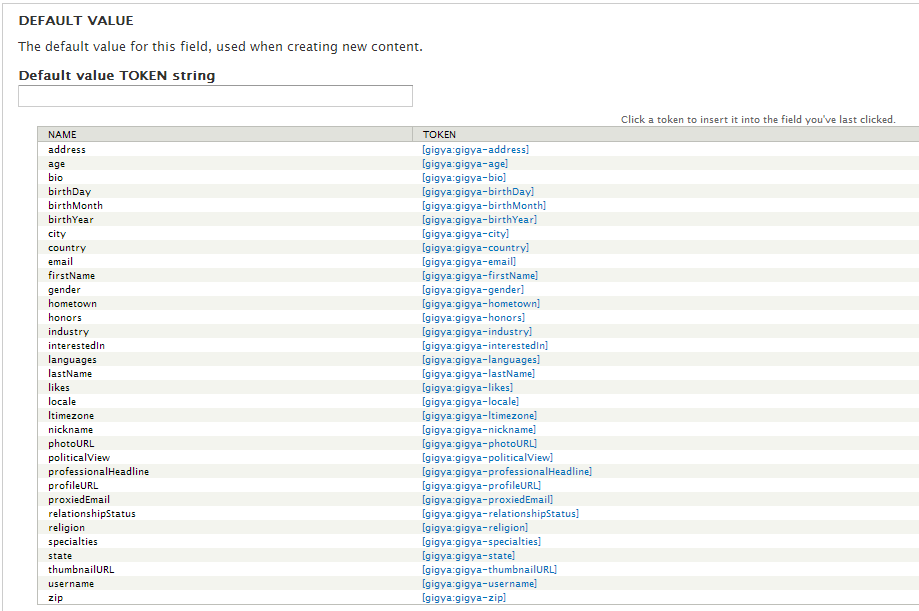
- Customize the user experience by integrating account information from social networks.
There is a webinar, which provides a walkthrough of an older version of the Gigya Module. This video includes tips for implementing Gigya socialize on your Drupal site.
Getting Going with Gigya
Installing the Gigya Socialize module requires more than downloading and enabling the module.
Step 1: Setting up your Gigya Account
- Sign up for an account on the Gigya website.
- After you have an account, configure your 'site details' in the Site setup section. (The Socialize Setup wiki page on Gigya's site provides detailed instructions for the required steps to setup your site, and specific directions for setting up applications in Facebook, MySpace and Twitter.)
- For Social Integration:
- You will need toSet up your own 'applications' on each of the the Social Networks you would like to integrate with on your site. (Gigya can provision those applications for you, but it may take a few days.)
- Note: For Facebook: make sure to Enable status updates in Facebook.
- Note: For Google, Yahoo!, and AOL you need to make sure OpenID is checked.
- Note the Gigya API Key and the Secret Key from Gigya's Site setup page, you will need these when configuring the Drupal module on your own site.
Step 2: Installing the Gigya module on your Drupal site
- Download the module and install per the usual process.
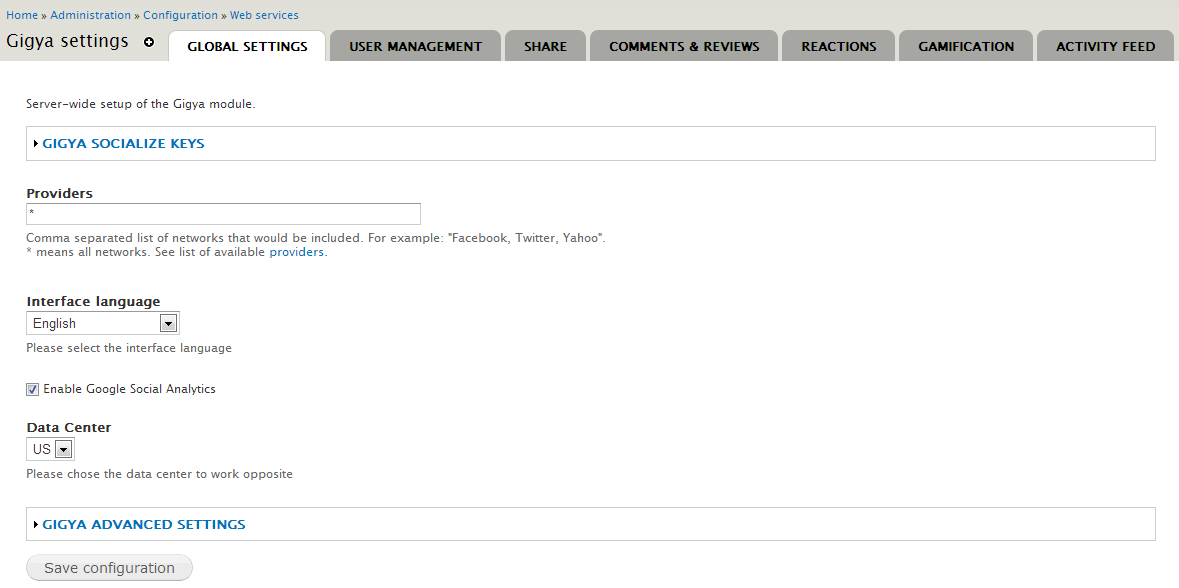
- Go to Administer > Site Configuration > Gigya.
- Paste the Gigya API Key and the Secret Key in the corresponding text-areas at the top of the page.
- Enable the features you would like to use on your site.
Step 3: Configuring Gigya Socialize Actions in Drupal
- Go to Administer > Site Configuration > Actions.
- Add actions from the Make a new advanced action available section:
- Share Comments
- Select share comment data via Gigya....
- Click Create.
- Configure the messages that will be displayed to the person posting the comment, as well as what should appear within the social networks.
- Note that you may want to add the same action 3 different times for when comments are created, updated, and deleted if you want the messages to read differently for each trigger.
- Share Content
- Select share node data via Gigya...
- Click Create.
- Configure the messages that will be displayed to the person posting the content, as well as what should appear within the social networks.
- Note that you may want to add the same action 2 or 3 different times for when content is created, updated, created OR updated, and deleted if you want the messages to read differently for each trigger.
- Share Membership information
- Select share user data via Gigya...
- Click Create.
- Configure the messages that will be displayed to the person changing their profile, as well as what should appear within the social networks.
- Note that you may want to add the same action 1 - 5 different times for when accounts are created, updated, and deleted, or for when people log in and log out of your site.
- Share Comments
Step 4: Configuring Triggers to use your Gigya Socialize Actions in Drupal
- Go to Administer > Site Building > Triggers.
- Add actions for what your site should do:
- Share Comments:
- Click on the Comments tab.
- Assign the action(s) you defined above.
- Click Assign.
- Share Content:
- Click on the Content tab.
- Assign the action(s) you defined above.
- Click Assign.
- Share Membership information:
- Click on the Users tab.
- Assign the action(s) you defined above.
- Click Assign.
- Share Comments:
Comments
Gigya limits
1000 logins/month for free - then they shut down your site and ask for a lot of money...
Do your research before you invest too much time.
Is it?
Actually i am planning to use this module in my site.I am sure i will get more than 1000 users every month.So you are saying it is not advisable to use this module.
Siva
http://dailythanthi.com
Estimated $15k+ Annual Cost
Best info here: #769272: Gigya service cost for more than 1000 unique visitors per month is $15,000 per year Yep that is right
Joshua Stewardson
Covenant Web Design - Drupal Development Consulting