Thumbnails for my videos are not being generated for some reason. After uploading the video, no thumbs are shown to select (even though the radio box is there), and after submitting the story, I get several of these errors:
warning: filesize() [function.filesize]: stat failed for sites/default/files/video_thumbnails/23/video-thumb-for-23-1.png in /websites/news/public_html/sites/default/modules/video/plugins/ffmpeg.inc on line 180.
ffmpeg has permissions to the folder because the folder and sub-folder is created. It's just empty.
Here are my thumbnail creation settings:
-itsoffset -15 -i %videofile -an -y -f mjpeg -ss %seek -vframes 1 %thumbfile
Not sure if this should affect anything, but it may be relevant. I'm using SWF Tools to display the video on the page through Display Fields in CCK. The video displays correctly in Flowplayer, but there is simply no thumbnail there, just the default player.


Comments
Comment #1
jaarong commentedSorry about this, I just got an email back from my system admin that ffmpeg is not installed on our system. I'm not sure how Flowplayer was displaying .mov files, but that was what was leading me to believe the conversions were taking place. He's looking into building it.
Comment #2
jaarong commentedclosed
Comment #3
luf commentedSetup: Windows Server 2008 + IIS 7 + MySQL 5.1 + PHP 5.2
*SOLUTION FOUND*
To make the ffmpeg thumbnailer function correctly you need to do a few things and make sure they are done properly;
1. ffmpeg.exe needs to be located at C:\ffmpeg\ffmpeg.exe <- copy this directory and paste it in the Video Converter Path setting
2. ffmpeg.exe is a command script, if you are on Windows like I am then go to your server C:\Windows\cmd.exe <- open Security and set permissions for Internet Guest Account (usually: IUSR_computername) to READ AND EXECUTE
3. Go to Site Config > File System > make sure the Temporary Directory gives * IIS_IUSRS READ AND EXECUTE PERMISSIONS * <- VERY IMPORTANT
4. If you still receive errors but the movie uploads and is playable you have permission problems, took me hours to figure this out.
Enjoy.
Comment #4
imDhaval commentedhey luf i need your help
i am using windows 7
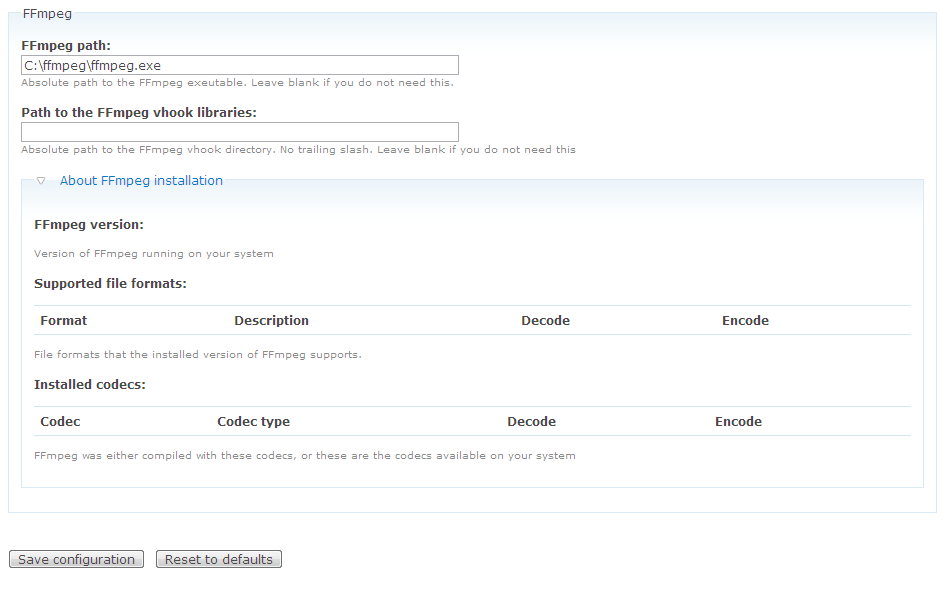
i put ffmpeg.exe at "C:\ffmpeg\ffmpeg.exe"
n at video page i set Video Transcoder path to "C:\ffmpeg\ffmpeg.exe"
now when i upload video , i got this
The system counld not determine the width and height of your video: sites/default/files/videos/videos/videos/britany.mp4. If transcoding, the system could have problems.n at FFmpeg Wrapper Settings page , i set FFmpeg path to "C:\ffmpeg\ffmpeg.exe"
but in About FFmpeg installation , i can't see the FFmpeg version info
i downloaded ffmpeg from http://ffmpeg.arrozcru.org/autobuilds
please help me......
Comment #5
imDhaval commentedComment #6
hypertext200This is bit strange when its Windows, we recommend you to use Linux environment. This will not function on the Windows as it doenst have flexibiility to do many things, but personally I know some guys has installed it properly on Windows and worked fine all. I have never tried and I dont have such a experience on Windows. I recommend your to use Linux.
Comment #7
imDhaval commentedi want to tell those who had succecfully installed it on Windows, please tell us how do u install it
i am sure many people like me are also facing this problem on windows
so who done it on windows, please create a tutorial &
heshan.lk put that tutorial on your site http://video.heidisoft.com
plz help us
Comment #8
hypertext200I have no any idea how it will work on Windows, and I dont have any windows experience, I'm Mac. I have heard some success stories and let them to write up on my site, but they didn't. Try on your hosting server it will work.
Comment #9
hypertext200I got these instructions from a user, I hope that will help full.
1. Install FFMPEG latest version which is supporting video conversions on Windows, its just a exe file.
2. Go to video settings select FFMPEG
3. Add FULL PATH to FFMPEG Eg : C:/ffmpeg/ffmpeg.exe
4. Create video field with enabled auto thumbanils and conversion.
5. Upload videos and run cron.
Comment #10
hypertext200