

Closed (fixed)
Project:
Acquia Prosper
Version:
6.x-1.0-beta4
Component:
User interface
Priority:
Normal
Category:
Support request
Assigned:
Reporter:
Created:
5 May 2010 at 01:26 UTC
Updated:
12 Mar 2012 at 22:53 UTC
Jump to comment: Most recent, Most recent file

Comments
Comment #1
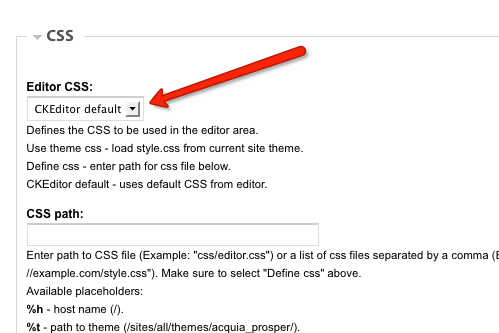
jeremycaldwell commentedThe easiest way to get around this is to edit your setting for the CKEditor module. Go to your CKEditor configuration page, configure a profile for it, then under CSS change the editor CSS to "CKEditor Default". That will change it from using the theme's CSS to the CKEditor's CSS and fix it for you.
Comment #2
fehin commentedWow! That was all? It worked. Thanks.
Comment #4
MamaGubs commentedI can't tell you how frustrated I am with this ckeditor problem. This is the second time I'm putting up a site and spending endless time fiddling around with trying to get the ckeditor to display the content without a dark background.
I've played with all the configuration options in the ckeditor configurations page, both the visibility settings and css settings, choosing ckeditor defaults whereever they offer them, and I cannot get rid of the dark background (yes, cleared caches). I'm using zero point theme this time (was Marinelli on the last one, which worked when I changed to ckeditor default under css). I'm searching around and seeing all kinds of solutions from people about changing the css files, but really, do you have to be a themer to use the ckeditor?? Is there something I am missing?
Comment #5
jeremycaldwell commentedNot sure how to help you since it sounds like you have tried quite a bit and still no success. The screenshot above in post #1 shows where to change which CSS file the CKEditor module loads. Once changed to "CKEditor default" it will load the CKEditor's CSS file for the text editor and not the theme's CSS file which contains the dark background image. Will have to configure this setting for each rule you have set up for CKEditor.
Comment #6
jcook4now commentedI was using a Zen subtheme and having the same problem. The ckeditor iFrame would have the correct background-color CSS (white) but the page inside that iFrame was still using the site's background-color (black). Since the body of the iFrame page has the class "cke_show_borders" - the solution was to add this line to my pages.css file in my Zen_subtheme/CSS folder:
.cke_show_borders {background-color:white;}
Hope this helps. . .
Jeff
Comment #7
425Media commentedI would just like to add something here. I went round and round with the same issue. I was changing the WRONG PROFILE.. I had 2 profiles, 1 that is called Default and one that was called Advanced. I was changing the DEFAULT profile thinking that it was the profile I was on. WRONG. I was using the Advanced profile. I went into the Advanced Profile and changed the Editor CSS section under the CSS section to CKEditor Default.
Issue solved. Hope this helps someone.
-Sean
Comment #8
jeremycaldwell commentedThanks Sean, that's good information. Marking this issue as "fixed" so it's still within the issue queue and easy to find.
Comment #10
jbova commentedI know this is a few months old, but I thought this could be of help.
I would like to elaborate on the comment by jcook4now. Changing the cke_panel_block class CSS is fine, but the default body background will still appear behind the drop down boxes, such as "format", "font", "size", and "styles". To fix this, you just need to set the background on two other CSS classes.
This will work. If you are using a newer Zen subtheme, you can place this in your css/page-backgrounds.css file in your theme folder.
Jim
Comment #11
MacRonin commentedJust wanted to add a note for anyone else who has the same variation as me. In Addition to the CKEditor I have the WYSIWYG module installed. While the basic concept is the same the location is different.
First you go to the WYSIWYG admin page at http://www.example.org/admin/settings/wysiwyg and then you modify any profiles for the relevant "Input format" You need to do that for each "Input format"
Comment #12
Anonymous (not verified) commentedsolution in post #1 worked for me...thanks!
Comment #13
Steady commentedJust to add, this was also driving me mad. Even the above didn't work for me. Somehow the various CSS changes I made to my local.css file just weren't getting activated. They were being overridden in priority either by the theme's css or by ckeditor's css files.
Then I noticed a setting within ckeditor, where you can specify which css file gets preference.
Under Editor CSS:
choose the Define css option
Then, under CSS path:
enter the path to the css file you want to have preference, such as this:
http://www.website.com/sites/all/themes/aquia_prosper/css/local.css
etc...
Then in the local css file, you can use a rule such as this:
.cke_show_borders {
background-color: #ffffff;
font-size: 16px;
}
I hope this helps someone.
Good luck,
Colin
Comment #14
goody815 commentedThanks Steady,
I'm marking this as fixed, but i'll leave it open for bit so people can find it
Comment #16
chiappa commentedI use the Wysiwyg module and the fix for me was to edit the CKEditor profile in Configuration -> Wysiwyg profiles. Under CSS -> Editor CSS I set it to: "Editor default CSS" and worked!
Comment #17
David Vespoli commented#10 worked perfectly and allows me to still load theme styles. Thanks
Comment #18
arruk commentedSolution #10 worked for me with one note.
Using WYSIWYG -- admin/config/content/wysiwyg/profile/full_html_no_magic_/edit
expand the CSS option
Look to see what your CSS path is. You can use define, you can use theme, you can use default. Make sure the code is in whatever CSS file is associated with your CSS path.
for example, I put it in: /sites/all/themes/jvn1/css/global.css because that's where my CSS path is pointing.
Hope this helps.