
Adding and Modifying Feeds
On this page
Adding feeds manually
To add a feed, click on the Feeds tab at the top of the screen, and then click the Add feed button:

You should see the Create feed form:
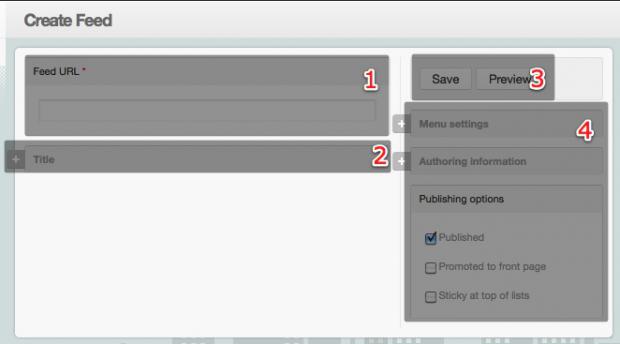
The only required information is the Feed URL input (1), which should contain a URL to a valid RSS or Atom feed.
By default, a title will be generated from the feed title, but you can supply a custom title by clicking on the (+) sign to expand the Title input (2) and fill in your own.
The other settings in (4) are typically only going to be useful when extending Managing News, so you should leave these at their defaults.
Finally, submit the form by clicking the Save button (3).
When the form is submitted, Managing News will import all of the feed items currently in the feed. Finally, you will be re-directed to the feed page where your feed should display in the left-hand column list of feeds.
You will need to set up a cron job in order to import new stories automatically after the initial import.
Importing lists of feeds in OPML format
Many news readers will export lists of RSS feeds in OPML format so you can easily import them into another reader without manually adding each feed.
Once you have your exported OPML file in hand, click on the Admin button (1), then click the Import OPML link (2) in the left-hand column (import/opml):
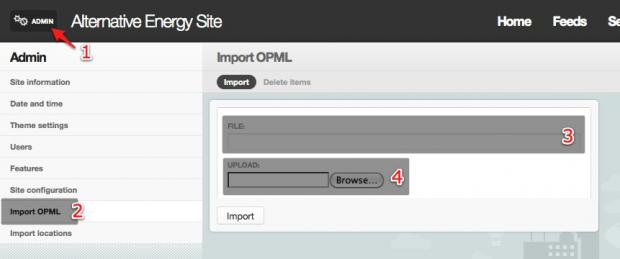
In the form on the right, you can type a path to a file in your file system (3), or upload the file directly (4).
Once your feeds have been imported, they will display in the Feeds section of the site. As with manually adding feeds, you will need to set up a cron job in order to import new feed items automatically after the initial import.
Editing and deleting feeds
To modify a feed, click on the Feeds tab and hover over the feed in the left-hand column that you would like to change. This will display a pencil icon:

Click the pencil icon to open up the Edit form, where you can change the title or source URL for the feed.
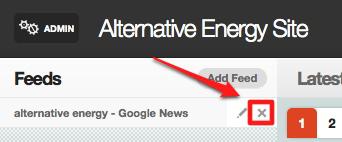
To delete a feed, click on the (x) icon that displays when you hover over the feed:
See also
Related pages
Help improve this page
You can:
- Log in, click Edit, and edit this page
- Log in, click Discuss, update the Page status value, and suggest an improvement
- Log in and create a Documentation issue with your suggestion
