Profile2

Getting Started with Profile2

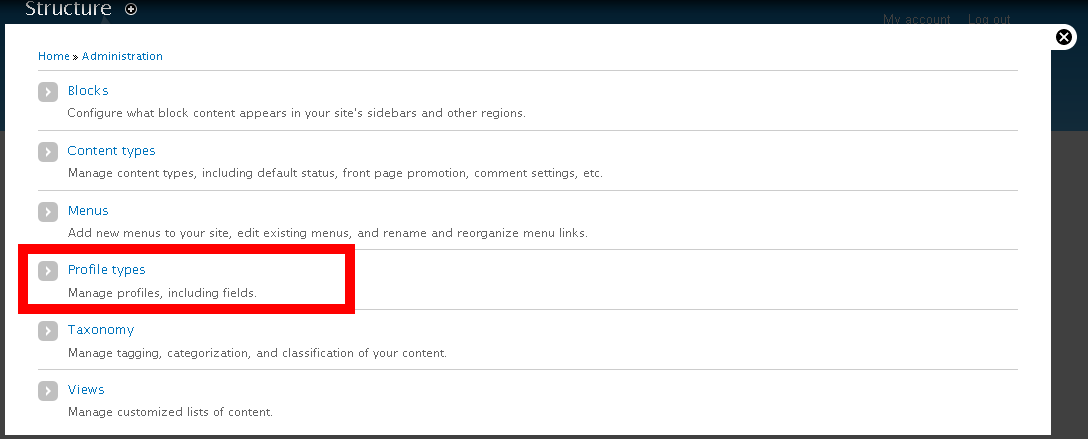
  • Creating and Managing Profile Types - To get started with profile2 you will need to create a new profile type or manage the default one. This can be found at admin/structure/profiles
    Profile types found in Admin Structure Menu
  • Creating and Editing your Profile - By default profiles can be created and edited at user/uid/edit. There should be a secondary tab for each profile the user has access to.
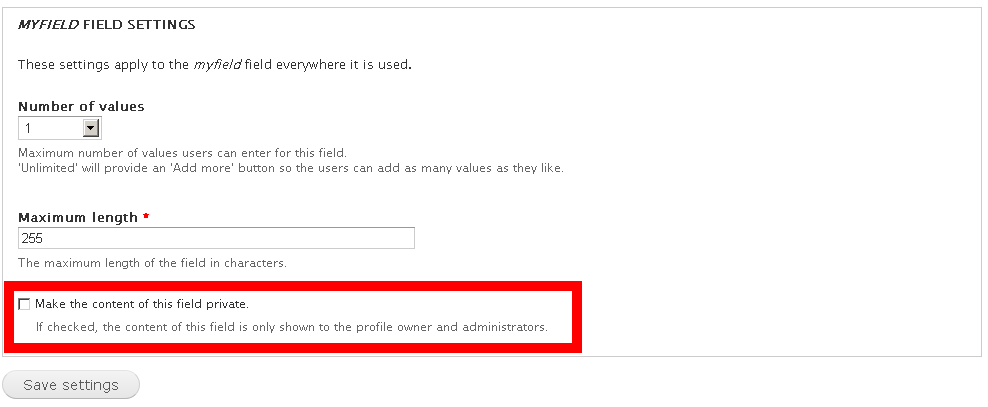
  • Private Fields - Private fields are only visible to the profile owner and administrators. Field privacy is managed through the check box at the bottom of field edit page (i.e. /admin/structure/profiles/manage/profile/fields/myfield).
  • Check box at bottom of field edit page

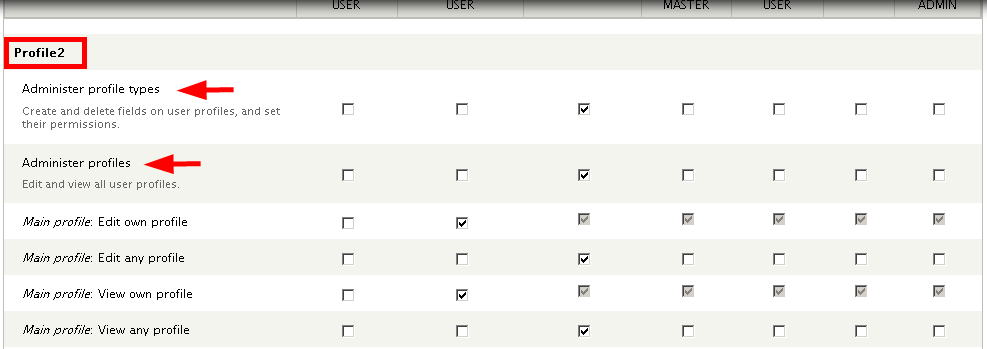
  • Profile Permissions - In order to make profiles creatable and visible to users you will have to manage the permissions for each profile type (located at /admin/people/permissions#module-profile2).

Profile Permissions

Profile Pages

The profile pages module (included with profile2) allows for profiles to be managed outside of the normal user edit page. Instead of a tab on the user edit page, the profile view and edit pages will be located at /profile-profile_machine_name/[user id].

Link to profile page with views

  • Add FIELDS "user uid" (The owner of the profile).Then check option "Exclude from display" in the field configuration window. Remember to put this field before any other field in FIELDS render, so that this token could be available for followed fields.
  • Add another FIELD, e.g. "nickname" and make each user "nickname" linked to associated user profile. When configure this field "nickname", click REWRITE RESULTS and check option "Output this field as a link". Click REPLACEMENT PATTERNS to ensure token [user] is available for this field "nickname". Write profile-profile_machine_name/[user] (e.g. profile-main/[user]) for Link path.
  • Save all configurations. The Field "nickname" in views will be linked to each user profile page.

For views integration with multiple profile2 types

When creating views with multiple profile types, you must create a relationship for each profile type. One relationship mapped to more than one profile type will result in duplicates in your view.

  1. Create Profile2 types;
  2. Create fields for Profile2 types;
  3. Create users and add Profile2 data;
  4. Create View (Show:User);
  5. Add relationship, (User:Profile) and give the identifier a unique name e.g. 'MainProfile'; IMPORTANT: select a single checkbox for one 'Profile type', e.g. 'Main profile';
  6. Add another relationship, (User:Profile) and give the identifier a unique name e.g. 'EducationProfile' and select the appropriate checkbox for 'Profile type', in my case 'Education profile';
  7. Add fields to view and select Profile2 field items. Use Relationship dropdown in 'Configure field' to associate w/ correct relationship;

The above comes from comments#71 & #72 at http://drupal.org/node/1114454.

Automatic profile label generation

The profile label is by default the same as the profile type label, however it's possible to customize the profile label via custom code or

HowTo: Export and import the structure of a profile2-type

This HowTo shows, how you can export and import the structure of a profile2-type to transfer the structure of a profile2-type from one

Profile2 and Views

The Profile2 module integrates with Views to allow listing of users with their profile information.

Theming with Profile2

User-profile.tpl.php

Guide maintainers

entrigan's picture