
On this page
Customizing Fonts with @font-your-face Module
Last updated on
30 April 2025
The @font-your-face module provides an administrative interface for browsing and applying web fonts from a variety of sources for use with Themes.
The following documentation was written to explain how to configure and install @font-your-face as part of a Community Media installation. The existing @font-your-face Documentation by sreynen contains extra useful information.
As some fonts and font APIs cost money, we recommend only using the Google Fonts API.
Enabling @font-your-face
- Navigate to Administer > Modules.
- In the @font-your-face block enable these modules:

- Scroll to the bottom of the page and click Save Configuration.
Enable Fonts
- Navigate to Administer > Appearance and click @font-your-face tab.
- To find a font, search by name or filter by subset. US English fonts are generally in the Latin subset.
- Click Enable underneath a chosen font to add it to your site.
- Click Apply in the top right to see your enabled fonts.
- Use the CSS Selector drop-down menu for each font to choose where you can use it in your theme.
- Select everything (body) to use a font everywhere - this means you will not be able to use any other fonts.
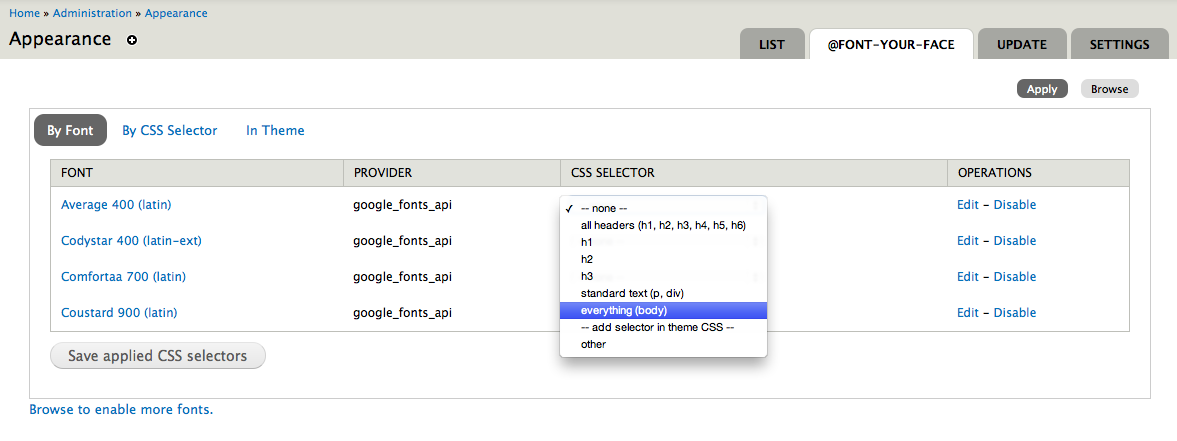
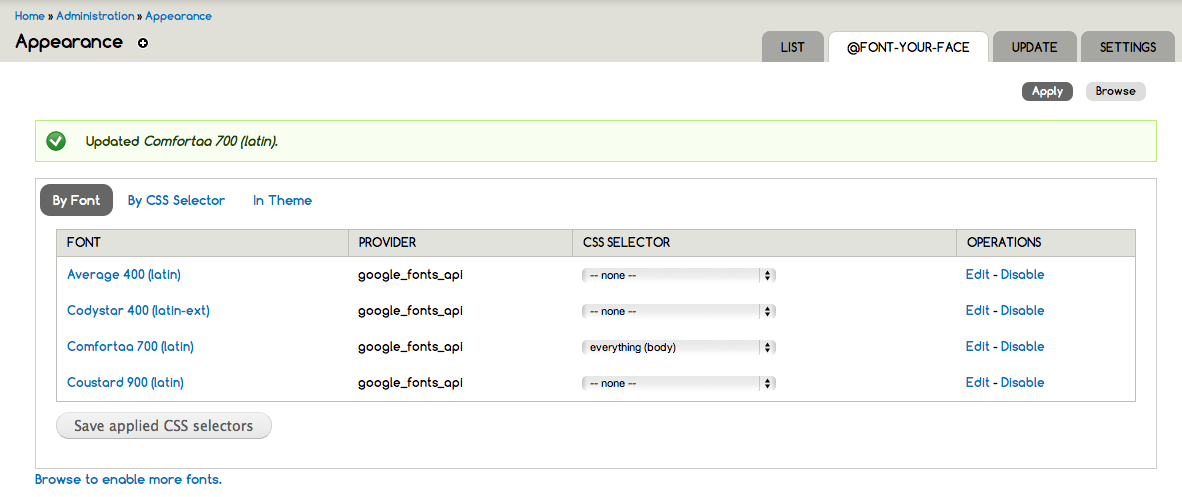
- Click Save Applied CSS Selectors to save changes. If you have selected everything (body) all of the onscreen text will now be rendered in this font:
Local Fonts
@font-your-face also enables adding local fonts, which can add unique flavors to your site.
There is detailed documentation on adding local fonts in the existing @font-your-face Documentation.
To add your own local fonts:
- Navigate to Administration > Modules and check the Local Font module and Save.
- Add your own local font. Navigate to Administration > Configuration > User Interface > @font-your-face settings and click on the Import Local Font tab.
- Browse to the appropriate font.
- Enable the font as described above.
Help improve this page
Page status: Not set
You can:
You can:
- Log in, click Edit, and edit this page
- Log in, click Discuss, update the Page status value, and suggest an improvement
- Log in and create a Documentation issue with your suggestion
