
Navbar
You are browsing documentation for an older version of Drupal, which is not supported any longer, and the information may not be correct. See current documentation for Contributed modules
The Navbar module (formerly called Mobile Friendly Navigation Toolbar) introduces a responsive administrative toolbar. It is a backport of the responsive toolbar that Drupal 8 ships with!
About
The Navbar module displays links to top-level administration menu items and links from other modules at the top of the screen.
Uses
Displaying administrative links and quick access to administrative functions.
The Navbar module displays a bar containing top-level administrative components across the top of the screen. Below that, the Navbar module has a drawer section where it displays links provided by other modules, such as the core Shortcut module. The drawer can be hidden/shown by clicking on its corresponding tab. Additionally, the vertical orientation of Navbar provides deep-level access into administrative functions without refreshing the page.
This documentation is for the 7.x-1.x Version.
Installation
The documentation below lists all of the modules and libraries needed to get Navbar to work.
You can also just use the drush make file in the module's path to scaffold the right libraries:
    cd sites/all/modules/contrib/navbar
    drush make navbar.make.example ../../../../../ --no-core  --shallow-clone
The path ../../../../../ should point to the root of your drupal install.
Once done, you should have:
- sites/all/libraries/backbone
- sites/all/libraries/modernizr
- sites/all/libraries/underscore
- sites/all/modules/libraries
You can then move the "libraries" module to "sites/all/modules/contrib/libraries" if you want.
Prerequisites
Modules
- Libraries module (version >= 2.0)
JavaScript libraries
Navbar will use the minified variants of each JavaScript library whenever possible. See libraries module documentation for details regarding installation locations specific to your site.
- Backbone library (version >= 1.0.0)
- Full source version named backbone.js (optional)
- Minified named backbone-min.js
- Underscore library (version >=1.5.0)
- Full source named underscore.js (optional)
- Minified named underscore-min.js
- A preconfigured version of the modernizr library
- Click the above link to take you to the Modernizr website with the appropriate configuration pre-checked
- Click the "Build" button to open the build modal window
- Click the "Download" link in the "Build" line
- Save as "modernizr-min.js" in your "modernizr" folder within the site's library folder structure
If you wish to generate a custom Modernizr build for use with other modules, be sure you have checked the following:
- Input Types (HTML5)
- SVG (Misc.)
- Touch Events (Misc.)
- Add CSS Classes (Extra)
- Modernizr.addTest (Extensibility)
- Modernizr.testStyles (Extensibility)
- Modernizr._prefixes (Extensibility)
- elem-details (Non-core detects)
The Modernizr library should be saved in a libraries directory with a lower-case "modernizr" name. The Backbone library should be saved in a libraries directory with a lower-case "backbone" name. The Underscore library should be saved in a libraries directory with a lower-case "underscore" name.
Steps
- Place the Navbar module in: your sites/all/modules directory; or your sites/[my site]/modules directory.
- Refer Library API documentation page.
Place the libraries in the sites/all/libraries directory. - Disable the Toolbar module before enabling the Navbar module. The Navbar module is incompatible with Drupal 7 core's Toolbar module.
- Enable the modules at: admin/modules
Check Status Report for error messages
Check Status Report for error messages. In Drupal 7 this is at admin/reports/status.
Any errors you see here will need to be fixed.

One cause of the above Modernizr error is if you do not use a lowercase m (i.e. "modernizr" rather than "Modernizr") for the directory name.
Another possible cause of a Modernizr error is if you did not download the source version of the library. While not loaded on the production site, the source code is required to determine the library version.
All Navbar libraries should appear in green on the Status Report:

Pointing to a specific library variant
The Modernizr, Backbone and Underscore library declarations each declare a 'source' and 'minified' variant that point to the source and minified file names respectively. The minified variant is selected by default, but you can override this on your site by setting a variable in a module. I've done this for Modernizr in a distribution install file since we can't produce a minified version of Modernizr during a drupal.org project build process. Here is an example.
// Use the source version of Modernizr since the build process can't produce
// a minified version from the library.
$variants = variable_get('navbar_libraries_variants', array());
$variants['modernizr'] = 'source';
variable_set('navbar_libraries_variants', $variants);
Mobile Friendly Navigation Toolbar administration pages
Configure Mobile Friendly Navigation Toolbar permissions at admin/people/permissions. Assign 'Use the administration toolbar' as applicable.
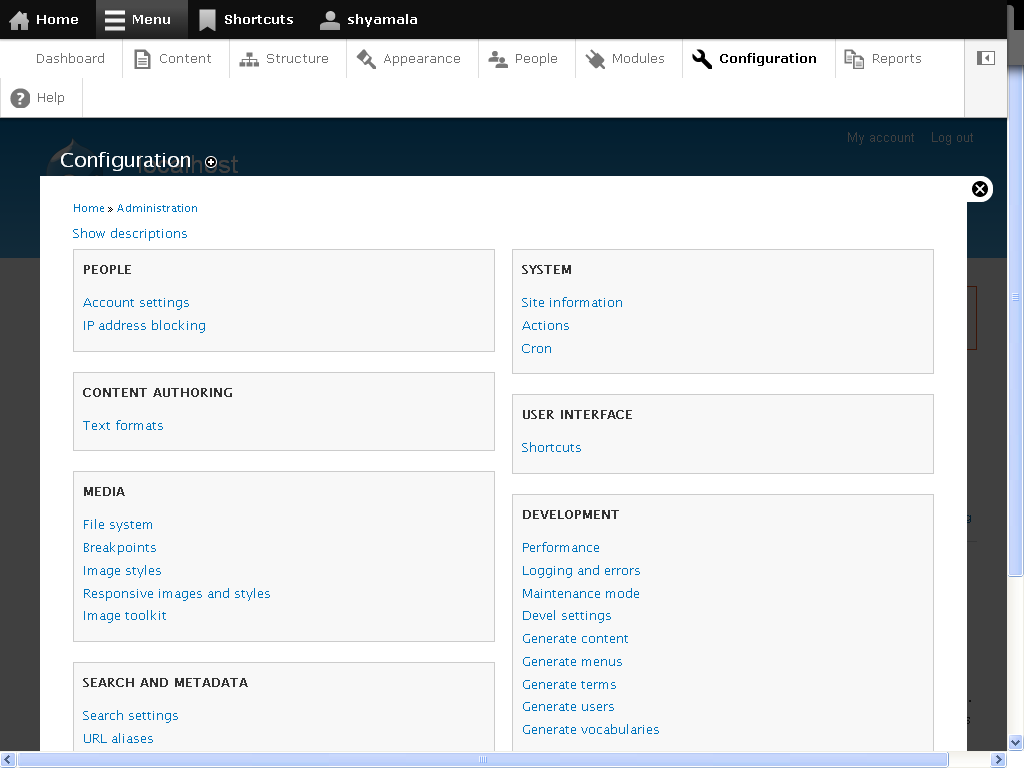
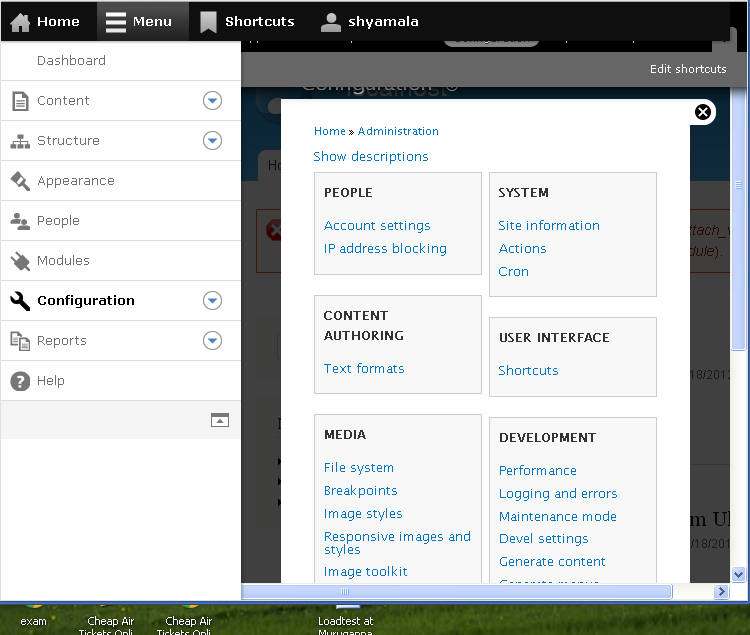
Resize the browser & watch the responsive navigation toolbar in action!
Navigation toolbar in a Desktop
Navigation toolbar in Smaller screens
Icons
The toolbar uses the SVG icons designed by ry5n: https://github.com/ry5n/libricons.
If you are creating a custom tab or menu item that needs an icon, either draw them from this library, request a new icon, or use an icon as a base for your needs. Do send a pull request to the libricons and give back if the icon your create fills a gap in the set.
Including styling assets for a menu item
If you add a top-level menu item that requires an associated icon, you can add the styling assets to the page with hook_navbar. Follow this example.
function workbench_navbar() {
  $items['workbench'] = array(
    '#attached' => array(
      'css' => array(drupal_get_path('module', 'workbench') . '/workbench.navbar.icons.css'),
    ),
  );
  return $items;
}
Help improve this page
You can:
- Log in, click Edit, and edit this page
- Log in, click Discuss, update the Page status value, and suggest an improvement
- Log in and create a Documentation issue with your suggestion
