
On this page
Commerce clone product variation documentation
Last updated on
14 June 2025
This documentation needs review. See "Help improve this page" in the sidebar.
How to install and use this module
This guide was written on Commerce Kickstart 2.0 (originally by bigmonmulgrew) with the demo store content enabled and the Admin Menu module enabled. It should be relevant to any standard installation of Drupal Commerce but may vary slightly depending on your exact set of installed modules.
- Download and install the module as you would with any other Drupal module
- Go to the modules section of your site configuration and enable "Commerce clone product variation"
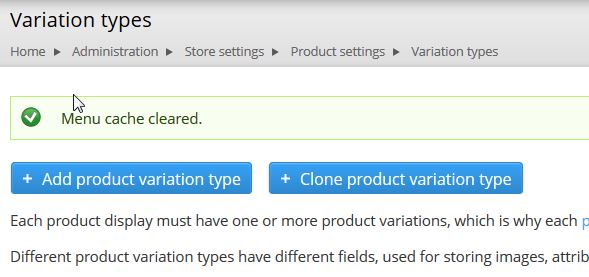
- Go to Products\Variation Types on the menu. You should see the "Clone Product Variation Type" button
- If the button does not show you need to clear your cache. If you have the Admin menu installed you can do this by going to "HomeButton/Flush All caches/Menu". If you don't you will have to go to your sites configuration pages. "Configuration/Development/Performance"
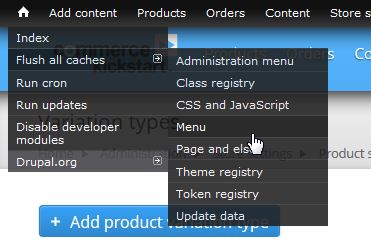
- Click on the "Clone Product Variation Type" button
- Type a name for your new product variation. In my example "Gloves"

- Choose an existing product variation to base it on.
- Click Clone
Help improve this page
Page status: Needs review
You can:
You can:
- Log in, click Edit, and edit this page
- Log in, click Discuss, update the Page status value, and suggest an improvement
- Log in and create a Documentation issue with your suggestion
