
 The 2026 Drupal Business Survey is open. Your response will help shape the future of the Drupal business ecosystem.
Setting up a migration group
This is documentation for Drupal 7, which is no longer supported. Learn more and find resources for Drupal 7 sites
Use the Salsify import wizard (Home > Administration > Content > Migrate > Import from Salsify, or http://example.com/admin/content/migrate/new/salsifymigratewizard) to create a group of migrations or to add migrations to an existing group.
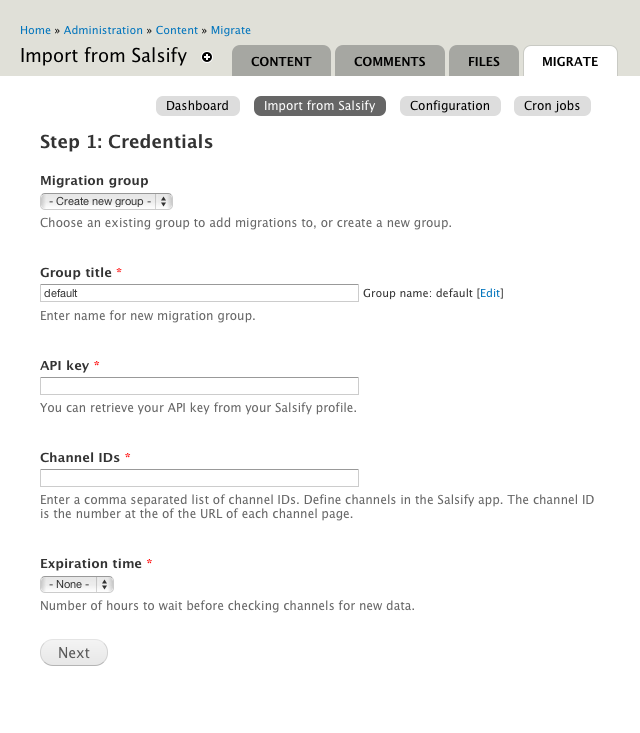
Step 1: Credentials
If your site has a previously configured Salsify migration group, you have the option of adding tasks to an existing group or providing credentials for a new group.
- API key
- You need an API key to connect to Salisfy. If you are adding tasks to an existing group, you can leave this blank and the existing key will be used. Otherwise, log into Salsify and get the API key from your profile.
- Channel IDs
- The channels you set up in Salsify determine which products and product fields can be synchronized with your site. Provide at least one channel ID to set up a new group. You can provide multiple channel IDs separated by commas. If you are adding tasks to an existing group, you can leave this field blank or use it to add new channels to the group.
- View or add channels on the Salsify channels page. To find a channel’s ID, click on the channel name and look at the URL. The channel ID is the last segment of the path (example:
https://app.salsify.com/app/channels/CHANNEL_ID). - Expiration time
- Set the expiration time to match the frequency with which you intend to sync data from Salsify.
After you have successfully submitted your credentials, a progress page will display until Salsify finishes publishing data for your new and expired channels.
Step 2: Select content
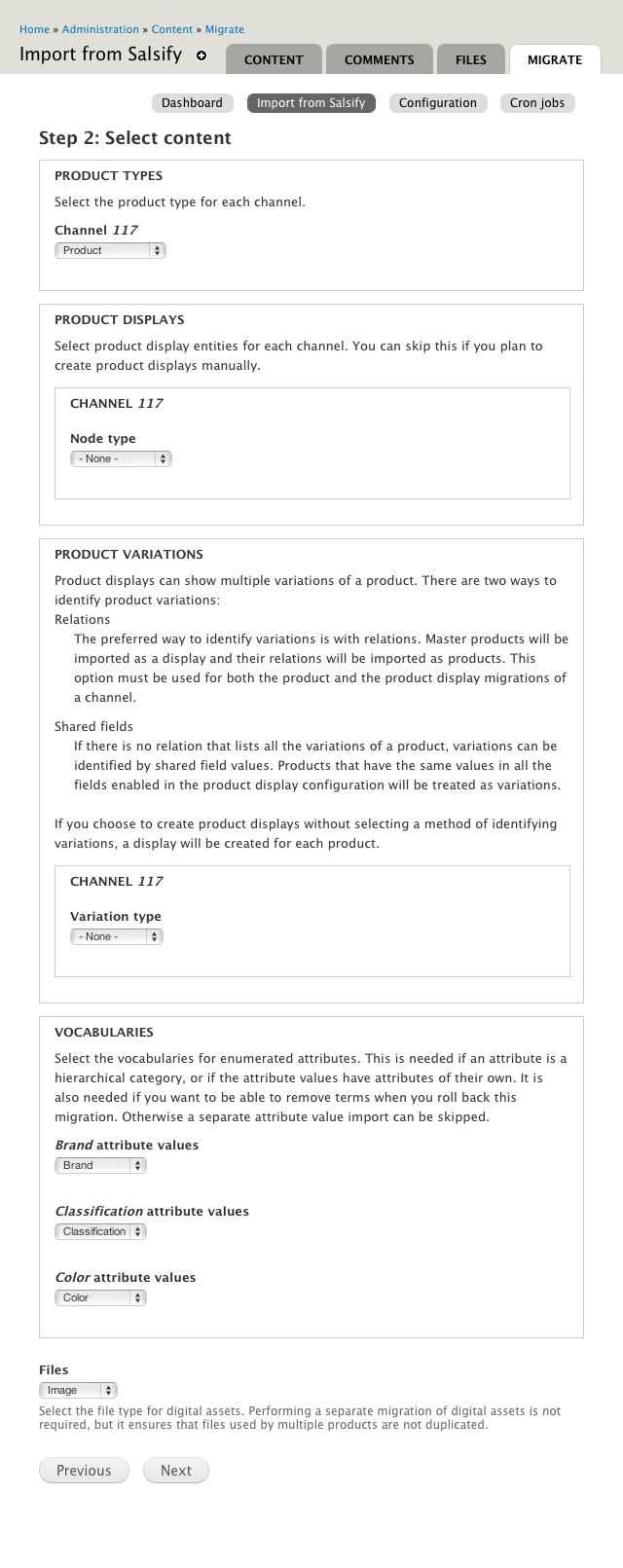
This step determines what migration tasks to create. The wizard will pre-select defaults where possible. Only migration tasks which are not already part of the migration group are shown.
- Product types
- You can assign each channel its own product type. Including fields for multiple channels in the same product type can make the product form slow and difficult to manage. Limiting each product type to fields from one channel improves performance.
- Product displays
- Any content type that contains a product reference field and is not provided by a Drupal Commerce module can be used as a product display. You can assign a different content type to each channel if necessary. Product references can add their fields to product displays, so content types do not need to have all the fields of the channels you assign them to.
- Variation type
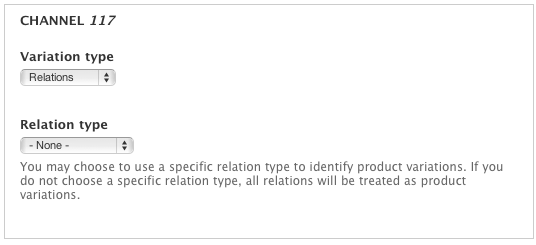
- It is possible to display multiple variations of a product by adding multiple products to the product reference field of a product display. If you have product variations, you have two options for identifying them. First, you can include only the fields that are identical in all variations in your product display. This is the shared fields variation type. Second, you can add product relations for all variations to the main product in Salsify. This is the relations variation type. You can choose a different variation type for each channel.
- The relations variation type offers the option of choosing a relation type. If you do not choose a relation type, all relations will be treated as product variations.
- Vocabularies
- Salsify properties with pre-configured values are called enumerated attributes. Enumerated attributes can be assigned to vocabularies. This enables you to track parent and child terms and map additional properties to taxonomy term fields. It also enables you to remove terms when rolling back migrations. If there is a taxonomy vocabulary with the name of a Salsify enumerated attribute, it will be selected by default. Attribute value migration tasks are shared by all channels in a migration group.
- Files
- Having a separate migration task for digital assets allows files to be shared by multiple entities. If the Media module is enabled, you will have several file types to choose from. If you do not create a migration task for digital assets, files will be added and removed along with the entities they are attached to.
Configure migration tasks
The wizard has a configuration page for each migration task. The configuration page has three sections: field mappings, source fields, and dependencies.
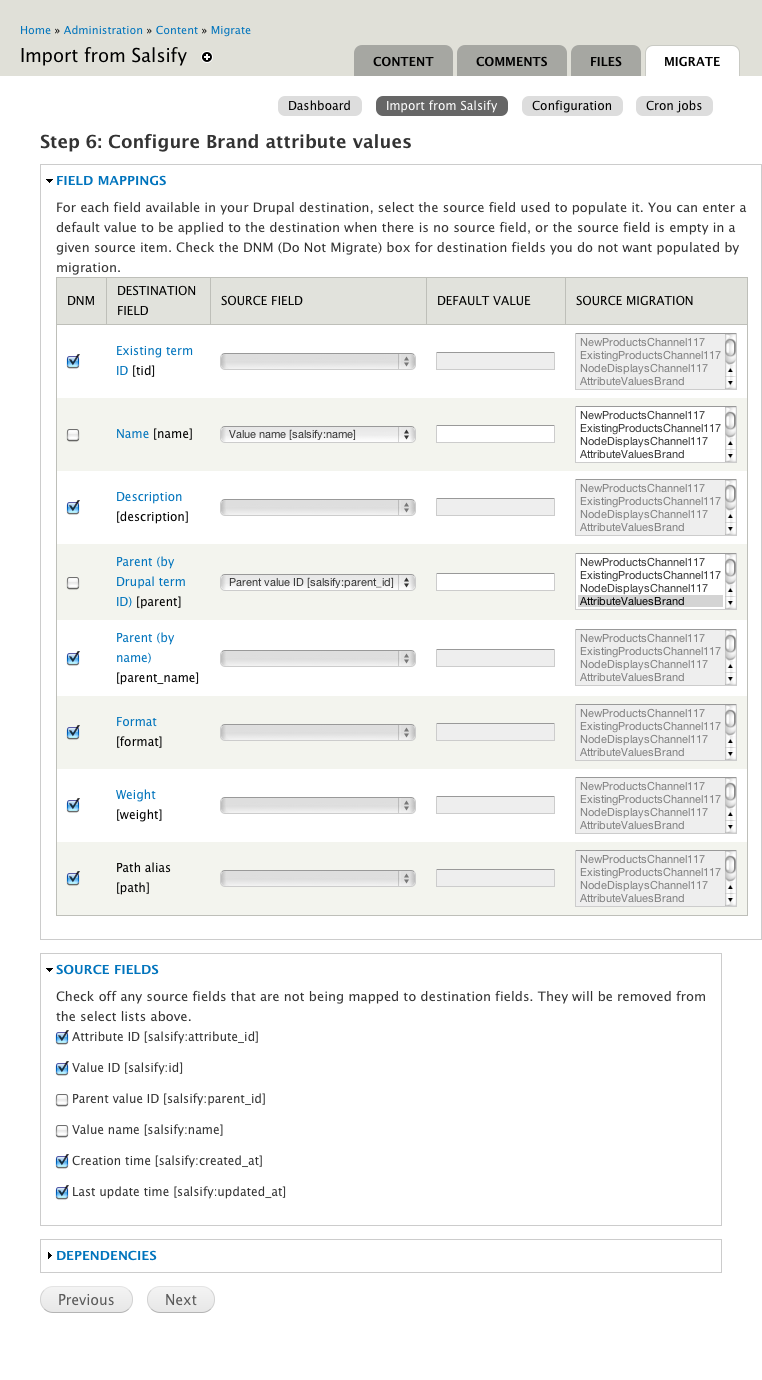
- The field mappings section specifies which Drupal fields will be populated by the migration task and what values will be assigned to them. The wizard sets default field mappings when possible. The defaults should work if Salsify property names match Drupal field names.
- The source fields section specifies which Salsify properties are available to the migration task. Source fields that are not used in field mappings are disabled by default.
- The dependencies section specifies migration tasks which must (hard) or should (soft) be completed before the current migration task begins. All Salsify migration tasks create placeholders for missing content, so setting dependencies is optional.
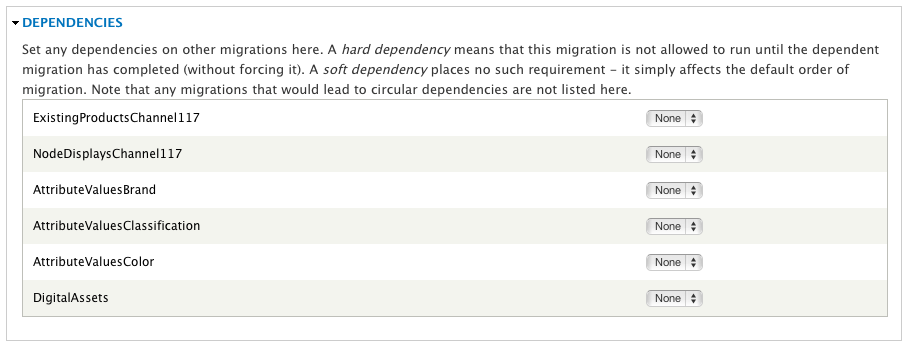
Key to field mapping columns
The field mappings section has five columns.
- DNM: Do not migrate. Set when no value is being assigned to a field.
- Destination field: Drupal field to send data to
- Source field: Salsify property to retrieve data from
- Default value: Value to use if data is not retrieved from source field
- Source migration: Migrations that map Salsify values to their Drupal equivalents. Used for product and taxonomy term reference fields.
Product migrations
There will be two product migrations for each channel. The new products migration imports products whose SKUs do not yet exist on the site. The existing products migration updates products with matching SKUs.
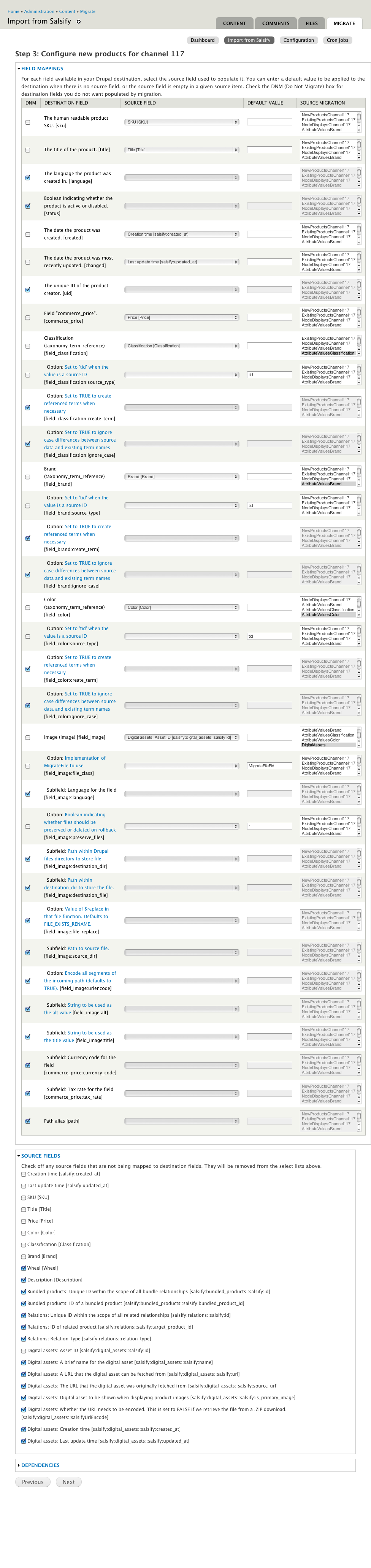
The existing products migration has fields for the Drupal product ID and product type to update.
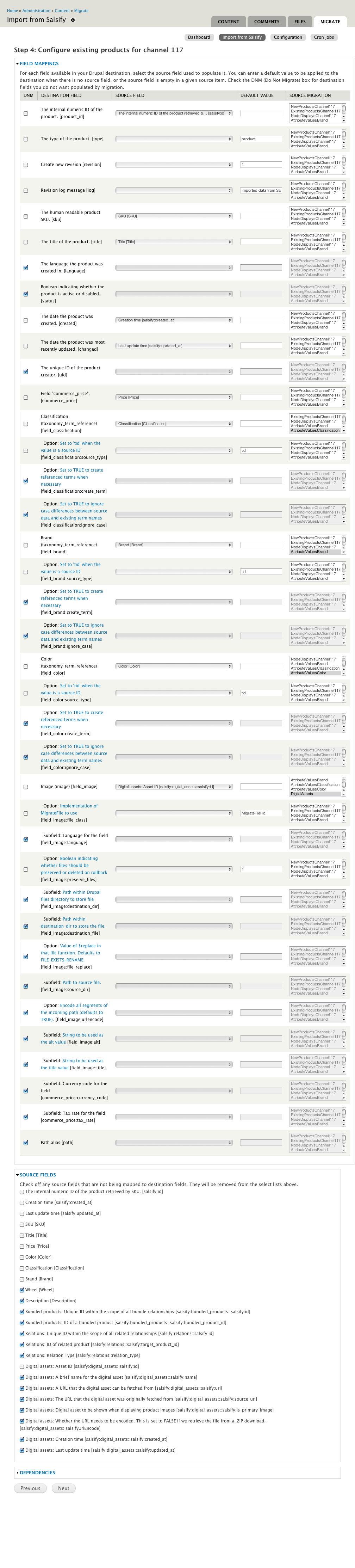
Too many fields will slow down the migrate wizard’s response and make the field mapping form unmanageably long. To reduce the number of fields, you should create product types that contain only the fields required by one type of product and create a separate channel for each product type.
Product display migrations
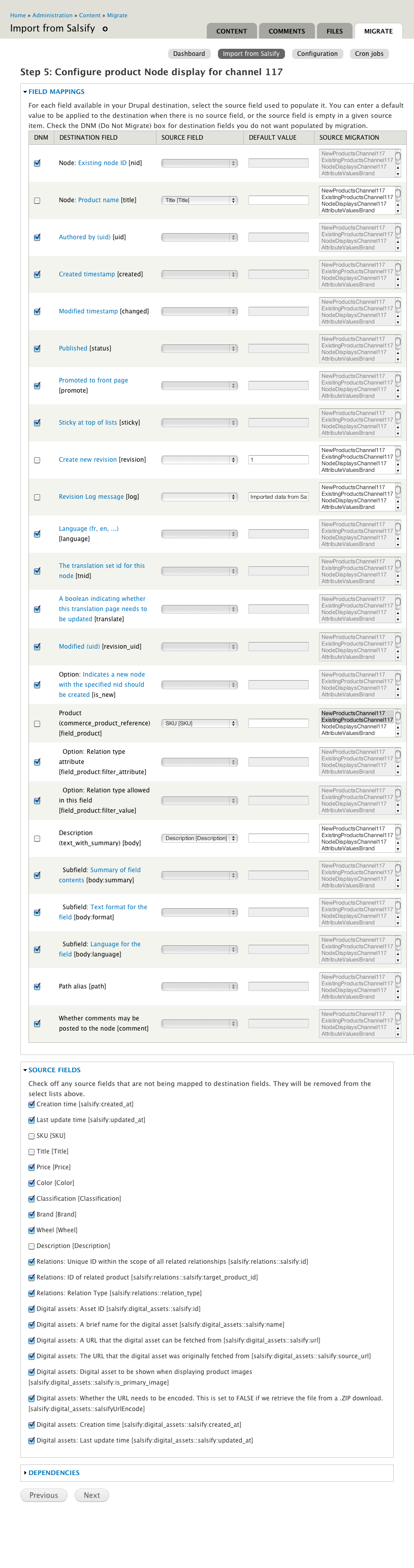
There will be one product display migration for each channel. If shared fields are being used to identify product variations, only source fields whose value is the same in every variation of a product should be enabled.
Attribute value migrations
There will be one attribute value migration for each enumerated attribute. An enumerated attribute has a pre-configured set of values and is the Salsify equivalent of a Taxonomy vocabulary. An attribute value is one of the preconfigured values of an enumerated attribute and corresponds to a Taxonomy term.
Digital asset migration
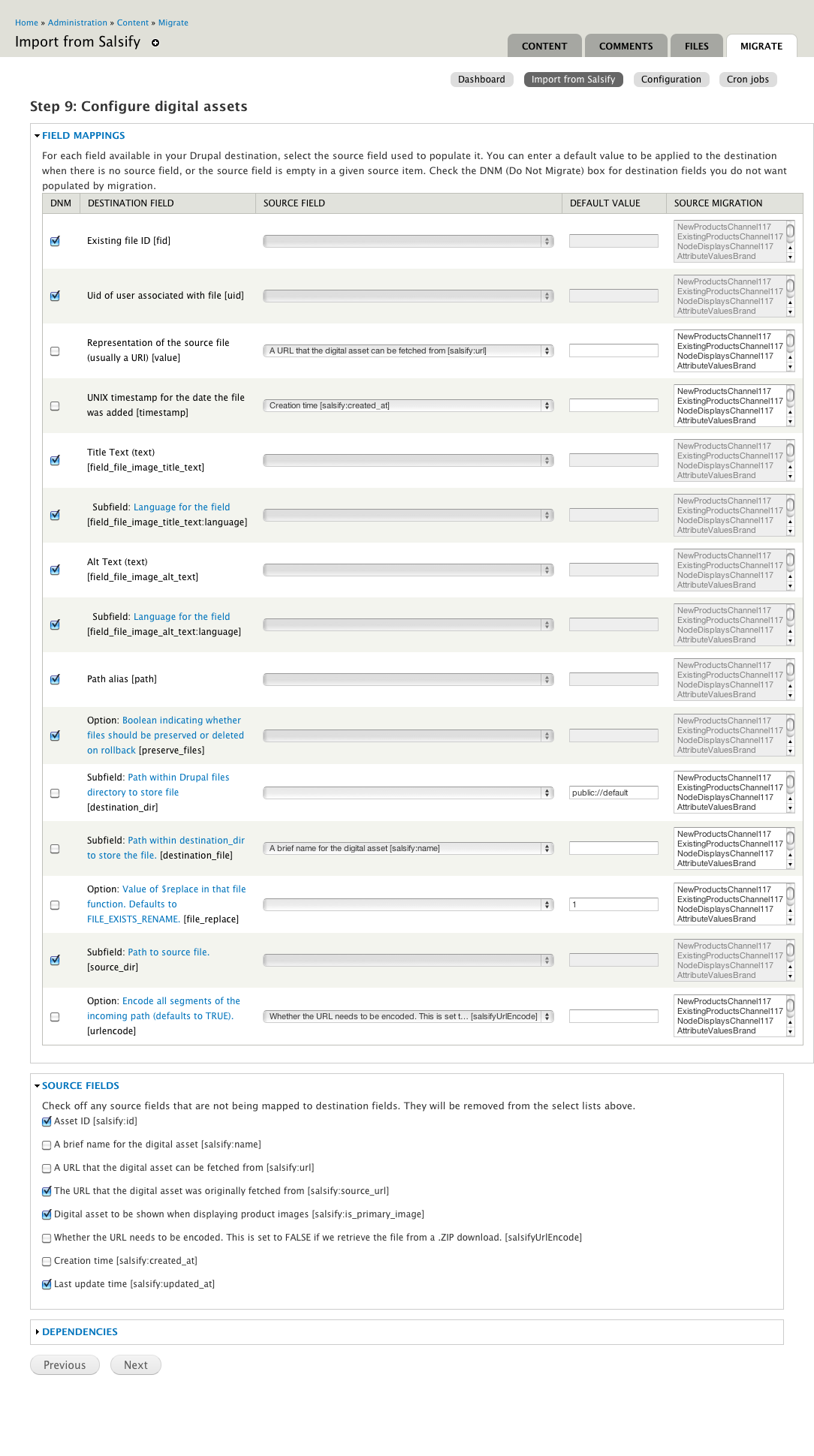
There will be one digital asset migration. By default, files will be stored in a directory bearing the name of the migration group.
Review tasks
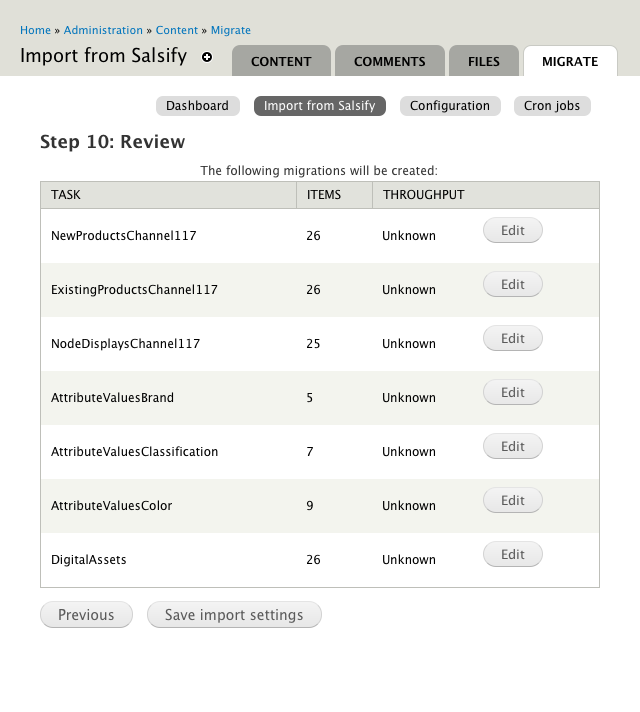
When you have configured all the tasks that you are adding to your migration group, you will be presented with the review page. You have the option of returning to steps one and two or modifying individual migration tasks. When you are done, save your settings.
Help improve this page
You can:
- Log in, click Edit, and edit this page
- Log in, click Discuss, update the Page status value, and suggest an improvement
- Log in and create a Documentation issue with your suggestion
