
Managing migration tasks
This is documentation for Drupal 7, which is no longer supported. Learn more and find resources for Drupal 7 sites
You can find your migration groups at Home > Administration > Content > Migrate or http://example.com/admin/content/migrate. Click the group link to manage individual migration tasks for a group.
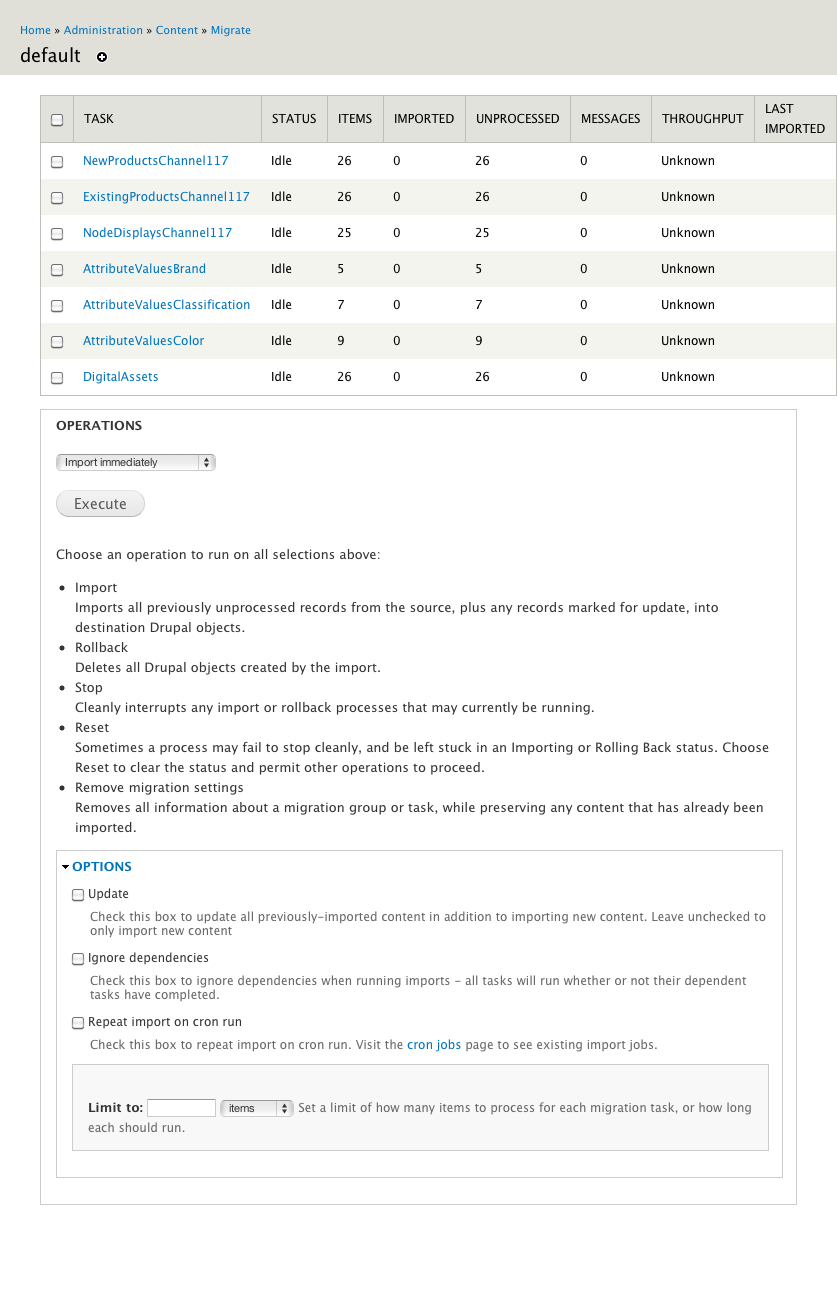
Import data
- Select desired migration tasks.
- Choose your migration options. If you have changed your field mappings, you should update previously imported content. If background operation is enabled, you can repeat imports on cron run.
- Select Import to pull in data.
View imported data
- Imported products are listed on the products page (Home > Administration > Store > Products or
http://example.com/admin/commerce/products) - If you use nodes to display products, product displays will be listed on the content page (Home > Content or
http://example.com/admin/content) - Attribute values are imported as taxonomy terms (Home > Administration > Structure > Taxonomy or
http://example.com/admin/structure/taxonomy) - If the Media module is enabled, files will be listed on the file page (Home > Administration > Content > Files or
http://example.com/admin/content/file)
Manage cron tasks
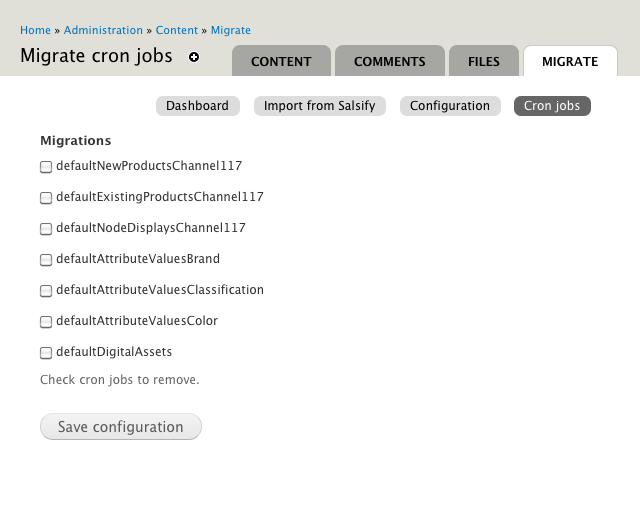
If you have enabled background imports, you can use Drush to run imports. This improves performance by bypassing your Web server. It also gives you the option of repeating imports on cron run. You can add Drush tasks to your task scheduler manually or through the UI. If you use the UI to set imports to be repeated on cron run, you can manage them on the cron jobs tab (Home > Administration > Content > Migrate > Cron jobs or http://example.com/admin/content/migrate/cron).
Change migration tasks
Click on the migration tasks to view and change their configuration. Use the Remove migration settings option to remove a task altogether. If you want to remove the content created by a migration task, you need to roll back the task before you remove it.
Roll back import
Select the rollback option to remove imported content.
Cautions
Rolling back imports can cause problems if your imports updated existing content on your site.
- Rolling back an attribute values migration can remove taxonomy terms that existed before the import. We do not have separate migrations to update existing taxonomy terms as we do for products.
- The existing products migration may update files attached to products. Rolling back the digital assets migration will remove those files. There are two ways to roll back digital assets without affecting existing products.
- Do not map file fields in existing products migrations.
- Do not import existing products, or remove existing products migrations.
Help improve this page
You can:
- Log in, click Edit, and edit this page
- Log in, click Discuss, update the Page status value, and suggest an improvement
- Log in and create a Documentation issue with your suggestion
