
 The 2026 Drupal Business Survey is open. Your response will help shape the future of the Drupal business ecosystem.
Goal:
Review a new or updated translation and either approve it for acceptance into the localization system or reject it.
Skills required:
Detailed steps:
- Set up prerequisites: Log in from Common Prerequisites for Contributors. You must also have the translation moderator role in a language group on localize.drupal.org in order to do this task (see Translation moderator role page for more information).
- Go to the home page for your language on localize.drupal.org.
- Click the Translate tab.
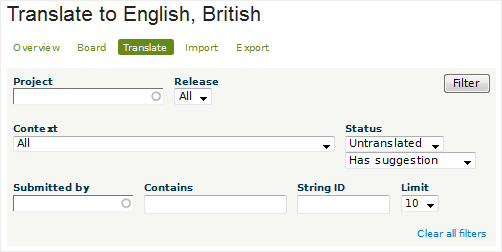
- Click the "Reveal more filters" link.
- Set the Status filter to "Untranslated" and "Has suggestion".
- Click Filter to display all untranslated strings (words or phrases) for the language where there exists a suggestion that hasn't yet been approved:
- Approve or reject each translation. This screenshot shows an example. The Source Text column shows the text in English and the Translations column shows the suggested translation:

To approve a translation: Click the radio button to the left of the translated term.
To reject a translation: Click the "forbidden" icon to the right of the translated term.
If you're unable to click these buttons, then you don't have the Translation moderator role. Ask to be given this role by one of the translation group managers for the language.
- When you're done reviewing the translated strings that appear on a particular page, click the Save changes button at the bottom of the page.
Note: There is no way of approving translations in bulk. Even if uploaded in batches, each translated string must be individually approved.