
On this page
Step 4: Run the installation script
This is documentation for Drupal 7, which is no longer supported. Learn more and find resources for Drupal 7 sites
To run the Drupal install script, point your browser to the base URL of your website.
The base URL means the document root (directory) where you placed your Drupal files (and is defined in your web server configuration file). If you have installed Drupal on a web host this will likely be a domain name such as http://www.example.com. If you installed Drupal in a subfolder, you should point your browser to the subfolder (for example, http://example.com/subfolder). If you installed Drupal on your desktop machine, the URL might be http://localhost/drupal.
If the installation process does not simply appear by entering the base URL of your site, add the file name install.php to the end of your site's URL (for example, http://www.example.com/install.php).
Installation process
After you run install.php, you'll be guided through several pages:
- Choose which profile to use for the installation (standard or minimal or your chosen distribution).
Most people should select the "standard" option. The standard option comes with default content types already enabled, such as Article and Page, and with appropriate publishing options already set. (Of course you can later edit these default content types and their settings, or add additional ones.) The standard profile also has a useful collection of modules pre-enabled for you.
The "minimal" option is targeted toward more experienced Drupal site creators who wish to set up their own content types with associated publishing options. The minimal profile has only three modules enabled: Block, Database logging, and Update status.
More info about built-in installation profiles.
Choose the 'name of your distribution', if you have downloaded a distribution and not a normal drupal at step one.

- If you want to install using a language other than the default English, click the Learn how to install Drupal in other languages link.

- If your installation directory is not yet configured properly, you'll be informed on this page. You can correct the settings individually and either refresh the browser screen or click 'Try again' to see whether there are any errors left.

Reported errors can include:
- Missing directories and/or incorrect permissions
The installer will attempt to automatically set up a number of directories, but this may fail due to permission settings. In this case you will find the missing directories listed.sites/default/filessites/default/privatesites/default/private/files
These directories should be set to the following permissions:
chmod o+w sites/default/filesOR
chmod 777 sites/default/files - Missing
settings.phpor incorrect permissions
Ifsettings.phpis missing or not accessible, follow the instructions in Step 3: Create the settings.php file. Note that you will need both thedefault.settings.phpandsettings.phpfiles.
- Missing directories and/or incorrect permissions
- Enter the database name, the username, and the password for the database that you created in Step 2: Create the database. This username and password information allows Drupal to access your database so the install script can create tables. Note that this is not the username and password for administering Drupal; these will be created in the next step.
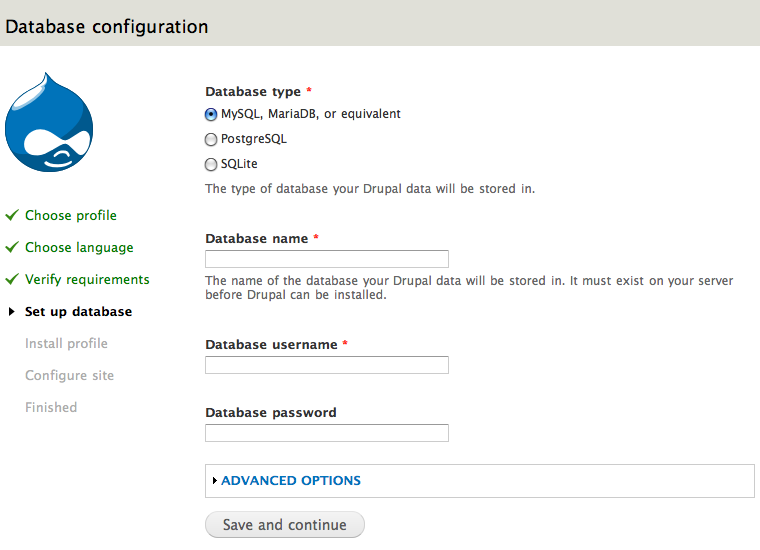
The Advanced options allow you to change the database host ('localhost' is usually used in this entry:
wamp/bin/apache/Apache2.2.11/bin/php.inias an example of the location on a Windows computer running WAMP). You can also change the port and the table prefix. You only need to change the port if you are using a non-standard port number. The table prefix is useful if you are installing multiple instances of Drupal tables that share the same database.Click Save and continue at the bottom of the page.
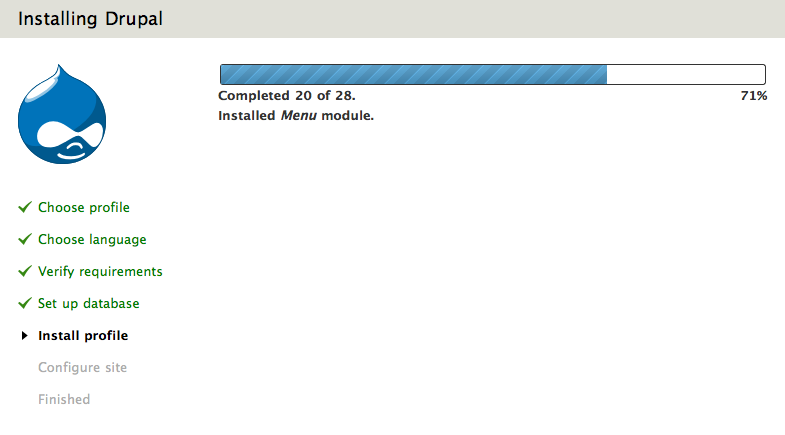
- A progress bar will appear and display notes from the installer regarding the progress of the installation. If no errors are encountered, the next page will automatically load in your browser.
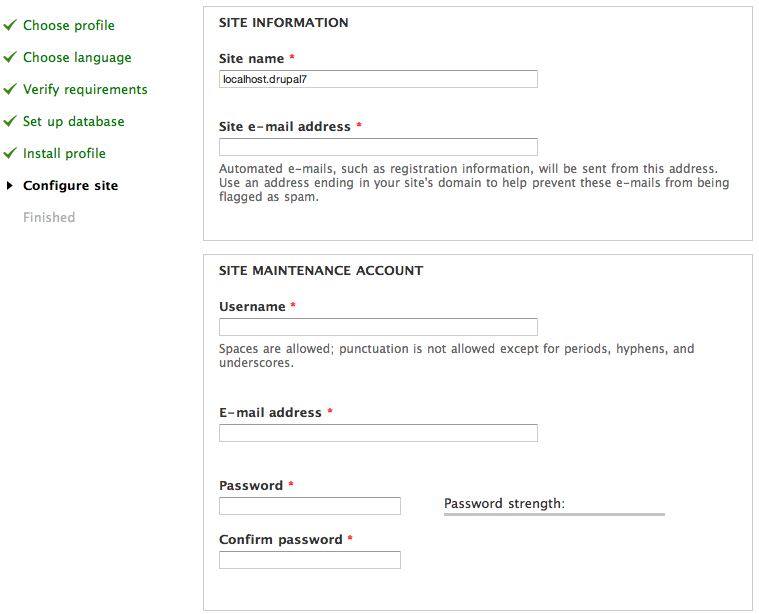
- After the installer completes, input the information for the first user account (which will be automatically assigned full administration permissions) and provide basic website settings.
- In the Site name field enter the name you wish to use for the site. You can also edit it later through the administration interface.
- In the Site e-mail address field, enter the e-mail address that will be used by Drupal when it sends out notifications such as registration information.
- In the Site maintenance account field, enter the Username, E-mail address, and password for the main administration account.
Note that as of Drupal 7 there is a distinction between the main administration account that you set up on this page, and the "Administrator" site administrator user role that you will see when you visit the "Roles" and "Permissions" pages in the administration interface. The account you set up in the Site maintenance account section during installation is a super-user who has overall control over every aspect of the management and configuration of the site. (For those of you familiar with the account from earlier versions of Drupal, this will be
http://www.example.com/user/1.)
- In the Server settings field, select your Default country and Default time zone.
- In the Update notifications field, leave both check boxes selected if you want your Drupal server to alert you when updates are required. Often updates relate to security issues and are important to perform. However, if you have restricted Internet connectivity (for example, if you are behind a corporate firewall) you may want to leave these settings unselected and then test them later.
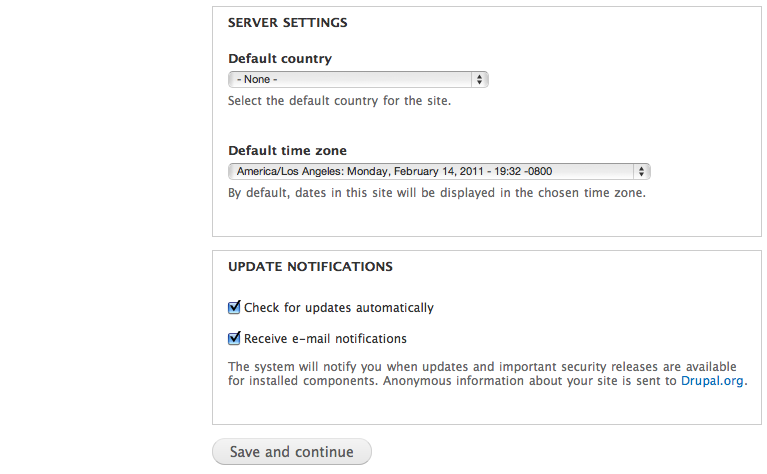
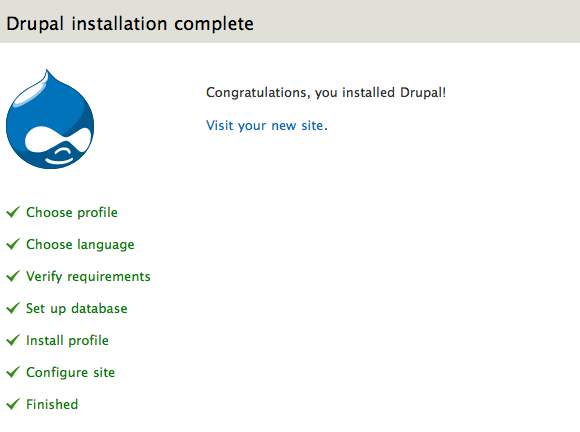
Click "Save and continue". On success you will see the Drupal installation complete screen. If there are any error messages, review and correct them now.
Secure your site
After the installation is complete, you will want to change the permissions on the settings.php file back so that it is protected:
chmod u=rw,o=r,a=r sites/default/settings.php
OR
chmod 644 sites/default/settings.php
If you make manual changes to the settings.php file later, be sure to protect it again after making your modifications.
Important: Failing to remove write permissions to the settings.php file is a security risk.
Although the default location for the settings.php file is at sites/default/settings.php, it may be in another location if you use the multisite setup.
Help improve this page
You can:
- Log in, click Edit, and edit this page
- Log in, click Discuss, update the Page status value, and suggest an improvement
- Log in and create a Documentation issue with your suggestion
