Using HTML Mail together with SMTP Authentication Support
You are browsing documentation for an older version of Drupal, which is not supported any longer, and the information may not be correct. See current documentation for Contributed modules
The Mail System module supports using one mail system to format your messages, and another to mail them. This tutorial explains how you may combine the rich formatting options of HTML Mail with the flexible sending options of SMTP Authentication Support.
Install Modules
First, you need to install at least the following modules:
The following modules are optional but recommended for maximum theming power:
Configure Mail System
After installing your modules, visit the Mail System Settings page at admin/config/system/mailsystem and click on the New Class fieldset to show its options (look at the screenshots 2 & 3 straight away to get this right). Then select HTMLMailSystem for the format method, and SmtpMailSystem for the mail method, and click on the Save Settings button at the bottom.
When the save button is clicked an .inc file with a new mail class in it is written to the files directory of the site. When using version 7.x-2.x of the Mail System module, this can cause a WSOD if the site's files directory is symbolically linked to a location outside of the Drupal install. See Issue #1369736: Alternative locations for "created" Class files? and Issue #1534706: Wrong directory structure called by require_once for more information.
Screenshot 2: Adding a New Mail Class
Select the newly-created HTMLMailSystem__SmtpMailSystem class for both the site-wide default mailer and the HTML Mail module mailer.
Screenshot 3: Selecting Site-wide and Per-module Mailers
Create a Mail Filter
If you installed the optional filter modules, you should probably create a text format for your email messages. Visit admin/config/content/formats/add to add a new text format. Since this filter will only be used by the mail system, you don't need to check any of the Roles. Select the filters to be applied to your email messages. If you use the Pathalogic filter, be sure and add a single slash / character to its Also considered local box.
Screenshot 4: Creating a Mail Filter Format
Configure HTML Mail
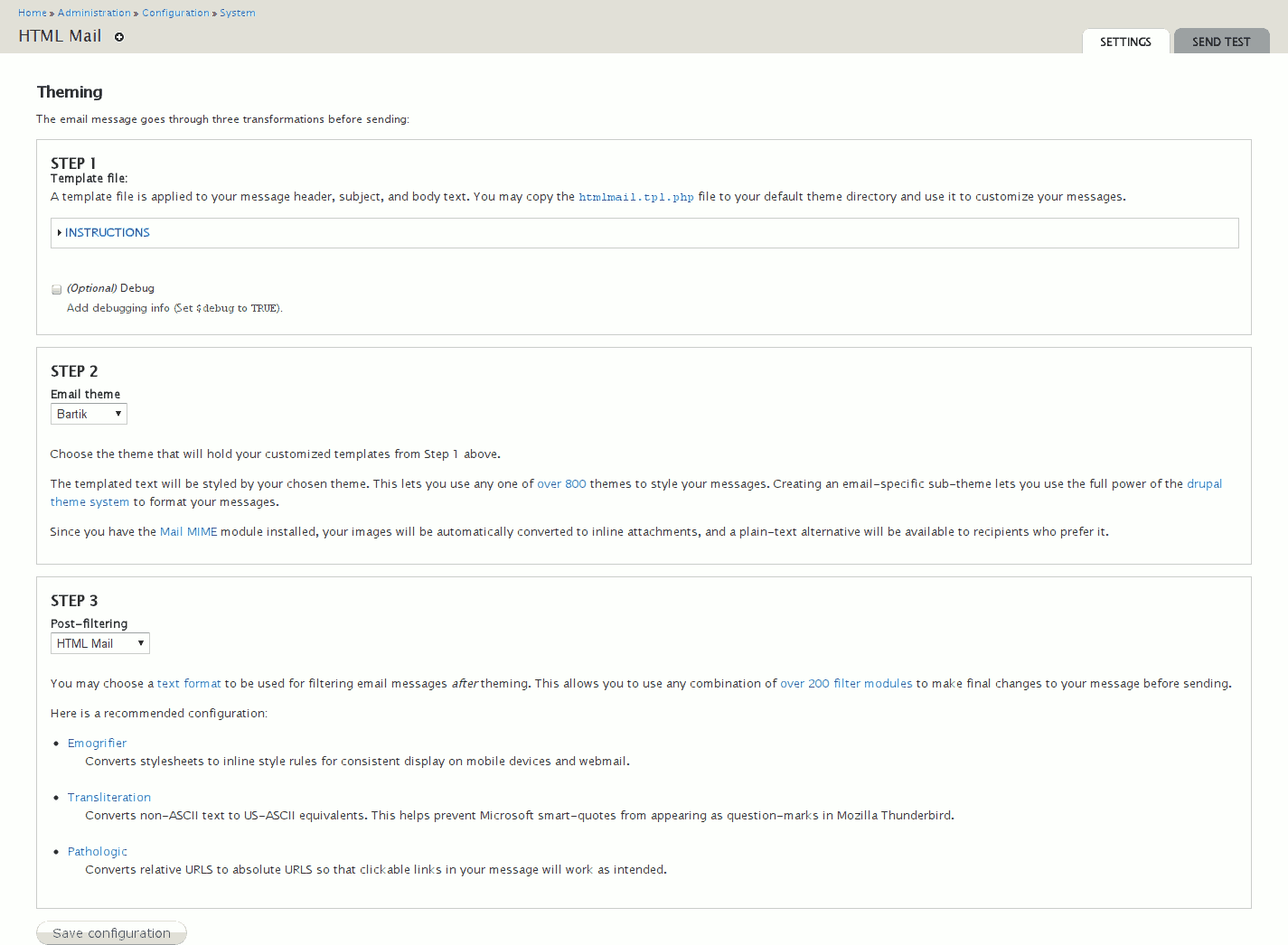
Visit the HTML Mail Settings page at admin/config/system/htmlmail and select the appropriate options.
-
- Template file
- The only configurable option is the Debug checkbox, but if you plan to write your own template files, click on the Instructions link for some helpful information.
-
- Email theme
- If you installed the Echo module, or if you plan to write your own template files, you should create a subtheme and select it here.
-
- Post-filtering
- If you created a text format for emails, select it here.
Screenshot 5: Configuring HTML Mail
Configure SMTP Authentication Support
Visit the SMTP Authentication Support Settings page at admin/config/system/smtp and select the appropriate options.
Send a Test Message
To test mail sending, visit the HTML Mail Send Test page at admin/config/system/htmlmail/test and click the Send test message button at the bottom.
Screenshot 6: Sending a Test Message
Receive the Test Message
Check your mail program to see whether the test message was properly themed, styled, and delivered.
Screenshot 7: Receiving a Test Message
For further assistance, visit:
Alternative Approach: Mail System + SMTP + Mime Mail
It is also possible to generate HTML-formatted email with MIME attachments using a different combination of modules. Instead of using the HTML Module, you can use Allie Micka's Mime Mail module. You can use the Mail System module to glue Mime Mail together with SMTP the same way that you can glue HTML Mail together with SMTP. For this approach, you will need the following modules:
After installing your modules, visit the Mail System Settings page at admin/config/system/mailsystem and click on the New Class fieldset to show its options. Then select MimeMailSystem for the format method, and SmtpMailSystem for the mail method, and click on the Save Settings button at the bottom.
Select the newly-created MimeMailSystem__SmtpMailSystem class for both the site-wide default mailer and the Mime Mail module mailer.
The Mime Mail module has its own system for supporting HTML-formatted emails as well as MIME attachments. This approach may be easier to implement if you are already using the Mime Mailer module on your website, and it is a little easier to configure in general. However, currently the Mime Mail module does not properly send file attachments via the SMTP mail system. The HTML Mail approach described above can offer its own advantages. The HTML Mail module can also handle MIME attachments with its related Mail MIME module. Please note that the Mail MIME module is different from Allie Micka's Mime Mail module, so be careful not to confuse them.
Help improve this page
You can:
- Log in, click Edit, and edit this page
- Log in, click Discuss, update the Page status value, and suggest an improvement
- Log in and create a Documentation issue with your suggestion