
How to use FullCalendar
You are browsing documentation for an older version of Drupal, which is not supported any longer, and the information may not be correct. See current documentation for Contributed modules
Usage
Drupal 7
Here you can find the information for version 2. Version 1 is deprecated.
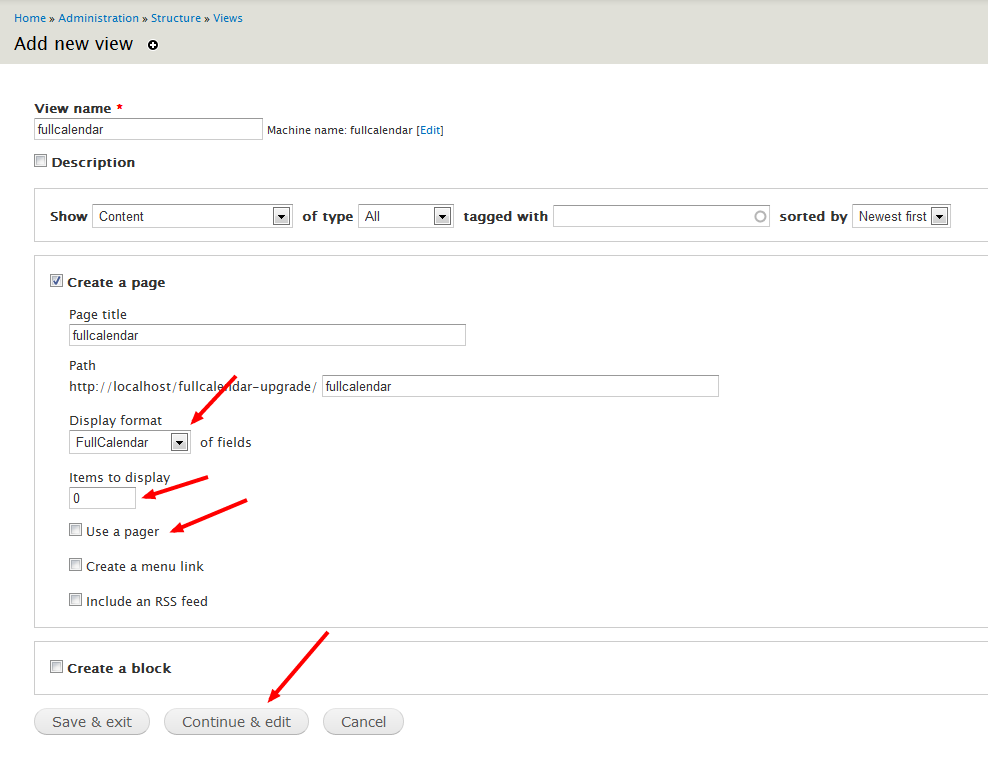
If you want to make a new calendar you need to choose "FullCalendar" as the display format. We recommend that you disable the normal pager and change the "items to display" to 0. Setting the number of items to "0" ensures that all items will be shown.
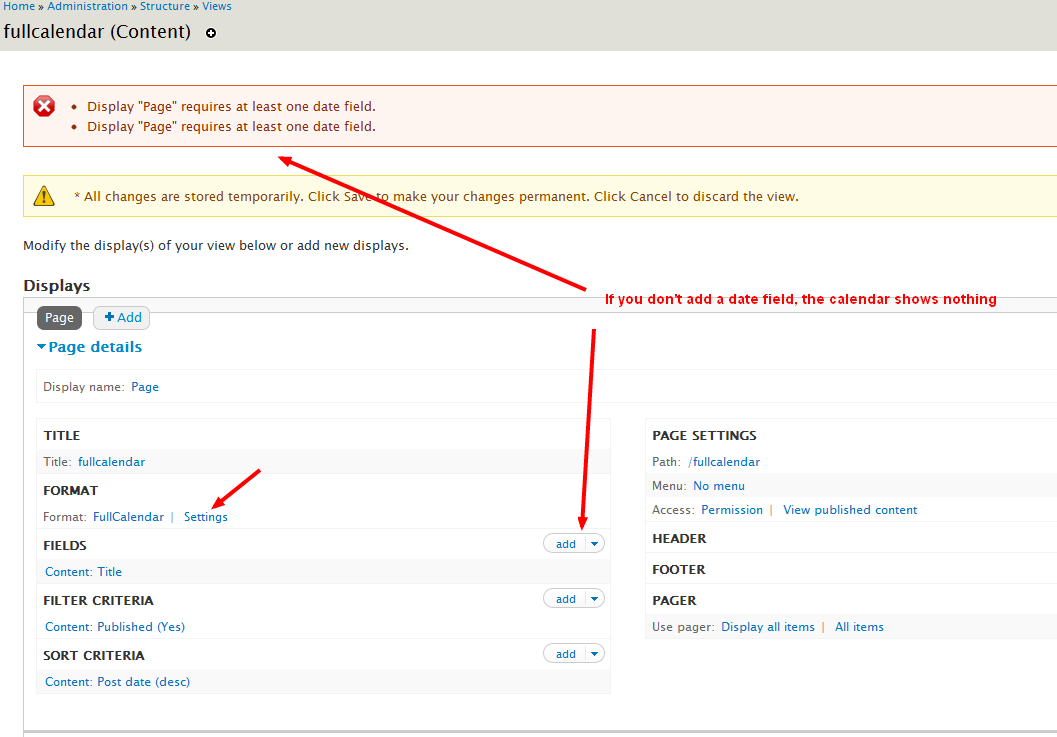
When pressing continue, you'll see a warning. The FullCalendar view must have at least one date field, or else the calendar will be blank(Attention: before you adding any date field, make sure that you have installed a 1.x version of the FullCalendar plugin, you can check it at your Administration » Reports » Status report, otherwise you'll get an error! This because currently the 2.x series of the plugin is not supported). You should also look at the settings of the FullCalendar to see if you need to change the basic settings.
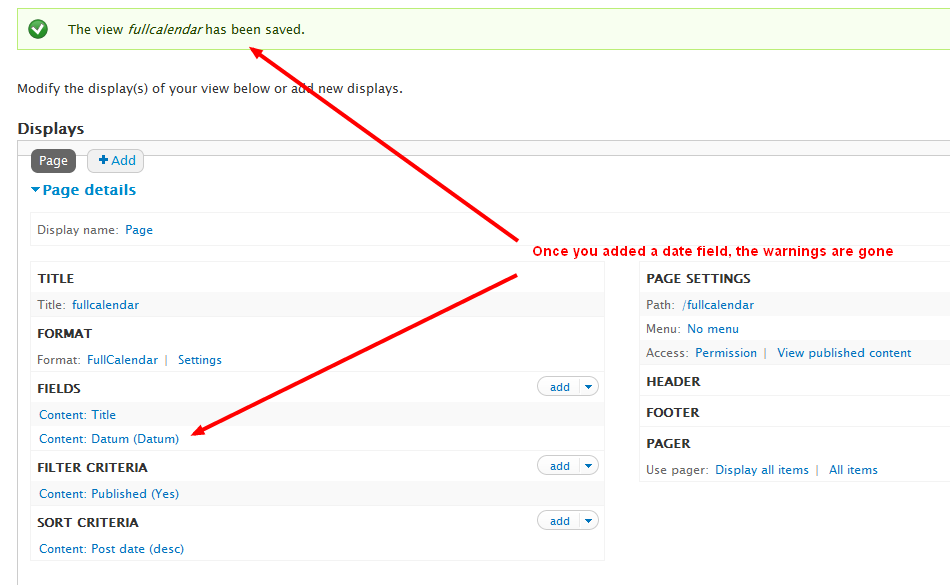
After adding at least one date field the warnings are gone and your calendar should work.
NOTE: if you're working with a big dataset it is advised to turn on the ajax setting.
Drupal 6

An example view named "fullcalendar" is added by default.
Version 2
- Install the required modules
- Create a new content type that has a date field (can also be datetime or datestamp)
- Create a view
- Change the style plugin to "FullCalendar"
- Change the row style plugin to "Fields (FullCalendar)"
- Add at least one date or Google Calendar field(Attention: before you adding any date field, make sure that you have installed a 1.x version of the FullCalendar plugin, you can check it at your Administration » Reports » Status report, otherwise you'll get an error! This because currently the 2.x series of the plugin is not supported)
- [optional] Add a fullcalendar display
- [optional] Add filters for the content type
- [optional] Change field style settings
- [optional] Change row style settings
Version 1 (deprecated)
- Install the required modules
- Create a new content type that has a date field (can also be datetime or datestamp)
- Create a view
- Change the style plugin to "FullCalendar"
- Change the row style plugin to "Node - FullCalendar"
- Add a fullcalendar display
- [optional] Add filters for the content type
- [optional] Change field style settings
- [optional] Change row style settings
Note:
In version 1 the module will automatically find the first date field and use it to place the items on the calendar. If you would like to have more control use version 2.
Deep Linking into FullCalendar
There are a number of ways to create "deep links" into your calendar - that is, to change the JavaScript Settings via the URL. Several options from the JavaScript API are available in the query string:
Examples:
(where http://example.com/fullcalendar is the path to your newly created View page from the above examples)
- http://example.com/fullcalendar?year=2013&month=7
- loads your default view in July 2013
- http://example.com/fullcalendar?year=2013&month=7&day=4&mode=agendaDay
- display the "Agenda Day" view for July 4th, 2013
- http://example.com/fullcalendar?year=2013&month=7&day=4&mode=basicWeek
- show the "Basic Week" view for the week containing July 4th, 2013
Available Modes (from developer website)
The following 5 views are all built in to FullCalendar:
- month - see example
- basicWeek - see example (available since version 1.3)
- basicDay - see example (available since version 1.3)
- agendaWeek - see example (available since version 1.4)
- agendaDay - see example (available since version 1.4)
Google Calendar
Fullcalendar can create a read-only display of a Google Calendar from a feed as mentioned above.
Make your calendar public:
- In the Google Calendar interface, locate the "My Calendar" box on the left
- Click the arrow next to the calendar you need.
- A menu will appear. Click "Calendar settings."
- In the "Calendar Address" section of the screen, click the XML badge.
- Your feed's URL will appear.
Get your calendar's feed:
- In the Google Calendar interface, locate the "My Calendar" box on the left
- Click the arrow next to the calendar you need.
- A menu will appear. Click "Calendar settings."
- In the "Calendar Address" section of the screen, click the XML badge.
- Your feed's URL will appear.
Adjust the view in Drupal
In the view, add the Fullcalendar: Google Calendar field and in the settings input the correct feed link to the calendar you wish to display in the format:
https://www.google.com/calendar/feeds/youremailaddr%40gmail.com/public/basic
More information can be found here in the FullCalendar documentation.
Help improve this page
You can:
- Log in, click Edit, and edit this page
- Log in, click Discuss, update the Page status value, and suggest an improvement
- Log in and create a Documentation issue with your suggestion
