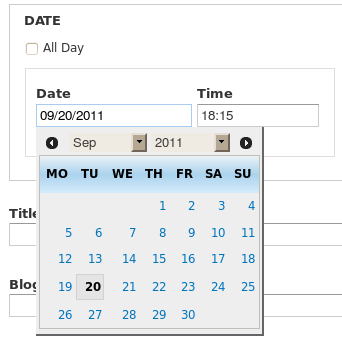
Date
#D7CX: I pledge to have a Date Field released on the day that Drupal 7 is released. Views integration, including calendar module, will be ready released on the day that Views releases.
This package contains both the Date module and a Date API module. The Date API is available to be used by other modules and is not dependent on having CCK installed.
The date module is a flexible date/time field type for the cck content module which requires the CCK content.module and the Date API module.
Videos/Tutorials
New! View a video on Date and Calendar by Karen Stevenson from the Do It With Drupal Free Video archive.
- See a great new screencast demonstrating Date and Calendar at DrupalTherapy.
- Jan Polzer has produced a Czech screencast about how to use the Date Wizard and Calendar at Maxiorel.
- The Drupal Handbook pages are at Date/Calendar Documentation.
- Drupal 6 version only: If you install the Advanced help module you'll have access to a growing collection of help pages documenting how everything works .
More Information
Note: The Date API is designed to use the new PHP date and timezone functions that are available in PHP 5.2 and above. If you're using an earlier version of PHP, you'll need to enable the Date PHP4 module which provides some wrapper code to emulate those functions. The wrapper code is slower and less efficient than the native date functions, and has bugs that may never get totally fixed, so it is far better to use a server that has PHP 5.2 or higher enabled. Some distros, like Red Hat, use PHP 5.1 instead. See Installing PHP 5.2 on RedHat for ideas on how to update that.
The Calendar/Date Popups use the jQuery UI datepicker. A version of that is included with the Date Popup module, but you are strongly encouraged to use the jQuery UI module instead. If the jQuery UI module is installed, the Date Popup will use the datepicker from that module, which is likely to be more current. If you are having any problems with Popups and you are not already using jQuery UI, please do that as a first step before reporting problems.
The Date Popup calendar includes some css for IE6 that breaks css validation. Since IE 6 is now superceded by IE 7 and IE 8, the special css for IE 6 has been removed from the regular css used by the Date Popup. If you find you need that css after all, you can add it back in your theme. Go to Administration >> Configuration >> Date Popup on your site for more information.
Features
- date.module can store dates in two ways, as an iso date (YYYY-MM-DDTHH:MM:SS) or a unix timestamp
- multiple widgets are available for date input - a drop-down selector, a javascript pop-up, and plain text that accepts ISO format or anything strtotime allows
- Create dates with a single input element, or add a second date input element to create 'From' and 'To' dates.
- Use the Views Calendar to display CCK dates in calendars.
- Use the included Date Browser Views plugin to add flexible date-based grouping and paging to any View that uses a CCK date field as an argument.
Important Notices
- The new version has several new files and is completely re-organized. To upgrade smoothly from Date 5.1 to Date 5.2, use the following steps:
- Disable all the Date modules (and any modules that are dependent on Date or Date API.)
- Empty the module folder completely before adding the contents of the new version. If you don't do that, Drupal may try to use some of the invalid, older files and things will not work correctly.
- After uploading the new files to your server, visit the modules page and look for the new Date/Time section and enable the new modules.
- Visit update.php to update your database.
See documentation at Date/Calendar Documentation for more information.
The Latest Code
People are sometimes confused figuring out which version is 'the latest code'. Official releases like 2.0 and 2.1 (with the green background in the box below) are released and never touched again so the only time they are 'the latest code' is at the moment they are released. All fixes after that go into the -dev version (with the red background in the box below), which then becomes 'the latest code'. It doesn't matter how old an official release is, even if it was issued today, if there are fixes since it was released, those fixes are only in -dev and -dev is the latest code. So the -dev version is always the newest code, every other release gets outdated immediately.
The tarballs below are updated twice a day, so they only include whatever fixes were in place at the time they were created. So if a new fix goes in today, it is probably *not* in the tarball below, even if that tarball has today's date on it. The only way to be sure you have all of todays fixes in the tarball is to wait to get the first tarball created tomorrow. You can also always get the latest code directly from the cvs repository, which is updated immediately.
You should usually use the official releases (the ones with the green background) but if you have a bug you may need to upgrade to a -dev release to pick up the bugfix (or to test if that fixes your bug).
TROUBLESHOOTING
I keep repeating this information over and over, so here is a summary of the first things you should do when you run into a Date or Calendar bug.
- Update to the very latest -dev versions of the code (both Date and Calender, if you use Calendar). Many many times people report problems that are already fixed in -dev and they could immediately start using the working code instead of sitting on their hands waiting for someone to respond to their issue. Plus it is a huge waste of time for the developers to keep repeating this advice.
- Run update.php. Be sure to watch carefully to see if there are messages that you need to re-run it. Some updates that are dependent on other updates have to be aborted the first time or two. You may need to run update.php several times until you quit seeing messages to re-run it.
- Clear all your caches. Go to the Modules list in the administration section and submit the page, or in D6 go to the Performance section of Site configuration. In Drupal 6, be sure to clear all the Views caches by clicking on the 'Clear cache' button in the Views Tools tab, and also unselect the option to use cached data.
- Edit your date fields. Go to the Manage fields screen for each of your date fields and edit the date field, double-check that the values all look reasonable, and re-save it even if you don't change anything. Also go to the Display fields screen, double-check all the settings there, and re-submit that screen.
- Edit your views. Pull up each view that has a date field in it, or any views you are having trouble with, and edit each date field, argument, filter, or sort. Double-check that all the values look reasonable and re-save the fields and the view itself.
- If you still have trouble after that, see if your issue is already reported. If you are seeing an error message, do an advanced search on a few key words from the error message.
- If you've done all that and you can't find a similar issue and things still aren't working, open a new issue and be sure to say you have already done all the troubleshooting steps.
