


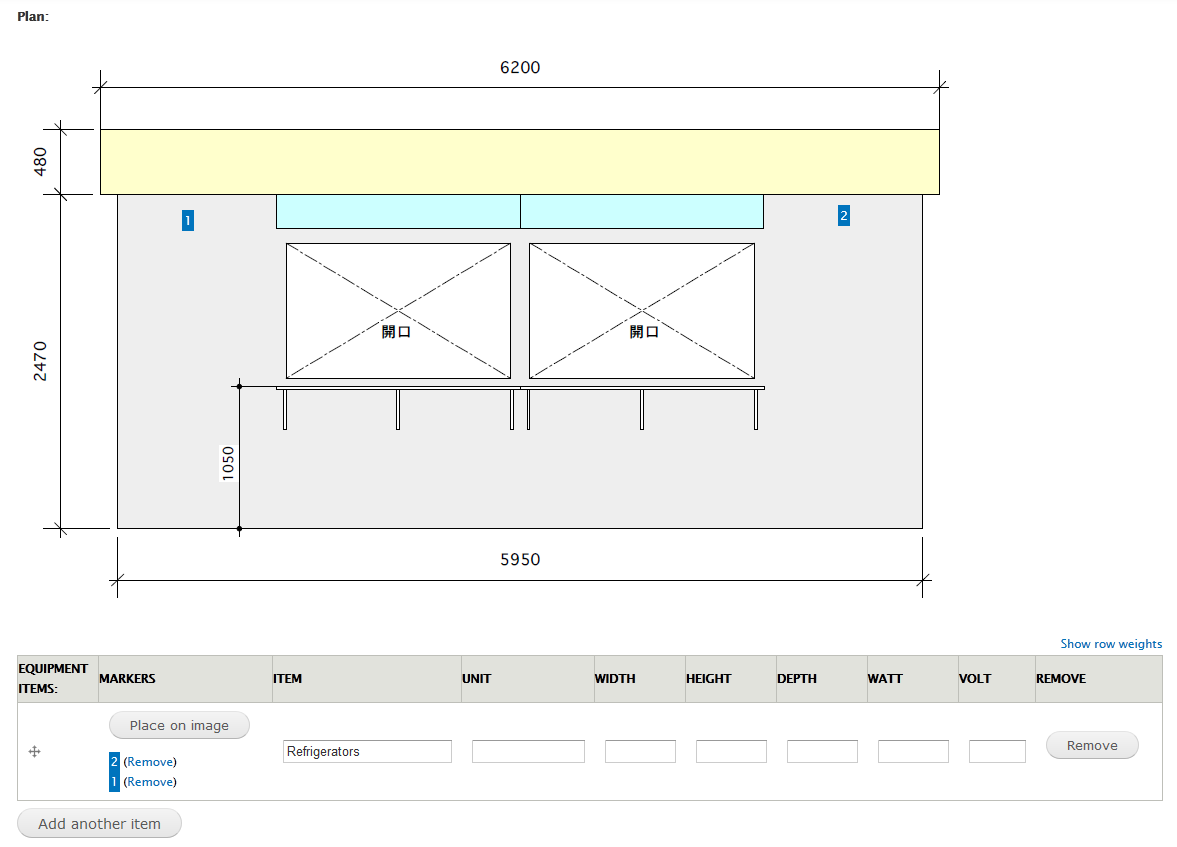
The module allows you to annotate images, and works in combination with field_collection. The module defines a new field called 'Image Annotator' that can be linked to an image field, so you can add multiple markers to an image.
Features
- Multiple markers.
- Can be used as a field so you can add only markers.
- Can be used inside a field collection so you can provide extra details (see screenshot).
- Dev version now supports fixed_field.
Dependency
If you want to use the popups, make sure to do the following (#2280549: Dependency of jQuery qtip library for popup module)
- download the qtip library from http://qtip2.com/download
- upload it to /sites/all/libraries/jquery_qtip
- make sure the path to the files is: /sites/all/libraries/jquery_qtip/jquery.qtip.min.js
and /sites/all/libraries/jquery_qtip/jquery.qtip.min.css
Known problems
- For now the preview image of the image field has to use the same image style as the output.
Warning: In the latest dev version we fixed this problem, but because of the fix all existing data will be useless! This is because the position and size of the markers are now calculated relative to the image size! - Only one image_annotator field per entity is supported.
Todo
Allow people to use a different image style in edit and view mode.Allow people to use a static image without the need of uploading an image first.
Widgets
- Pointer:
This will add a number on the image when you click on the image. The number can not be moved to a different spot, but it can be removed. - Rectangle:
This will draw a rectangle over the image when you click and drag over the image. Rectangles can not be resized or moved once they are drawn, but they can be removed. - Draggable Pointer:
Pointer that can be moved after it has been drawn. - Draggable & Resizable Rectangle:
Rectangle that can be moved and resized after it has been drawn.
Example Setup
Annotations without additional text or info
If you follow these steps you will create a simple image field that can be annotated (without adding additional text to the annotations). This can be useful if you want users to do something like "Point out the 7 differences".
- Create a content type (or any other entity bundle).
- Add an image field or a fixed field (Note: if you want to annotate the same image each time you create an entity of this bundle, use fixed_field, if you want the user to choose which image to annotate, use an image field). Make sure you remember the machine name of this field (e.g. field_image_annotator).
- Add an "Image Annotator" field and choose your widget.
- On the settings page, select the image field you created in step 2.
- Go to the page to create or edit your content as you normally would.
- Click on the 'Place on image' button and then on the image to add an annotation.
Annotations with additional text or info
If you follow these steps you will create an image field that can be annotated with additional text for the annotations. This can be useful if you want users to do something like "Point out the cat and the dog".
- Create a content type (or any other entity bundle).
- Add an image field or a fixed field (Note: if you want to annotate the same image each time you create an entity of this bundle, use fixed_field, if you want the user to choose which image to annotate, use an image field). Make sure you remember the machine name of this field (e.g. field_image_annotator).
- Add a field_collection field to the bundle.
- Go to the field_collection and add a textfield (or any other field you want to relate to an annotation) to it.
- Add an "Image Annotator" field and choose your widget.
- On the settings page, select the image field you created in step 2.
- Go to the page to create or edit your content as you normally would.
- Click on the 'Place on image' button and then on the image to add an annotation. You'll see the annotation appear in the field_collection_item.
Project information
 33 sites report using this module
- Created by attiks on , updated
 Stable releases for this project are covered by the security advisory policy.
There are currently no supported stable releases.


