

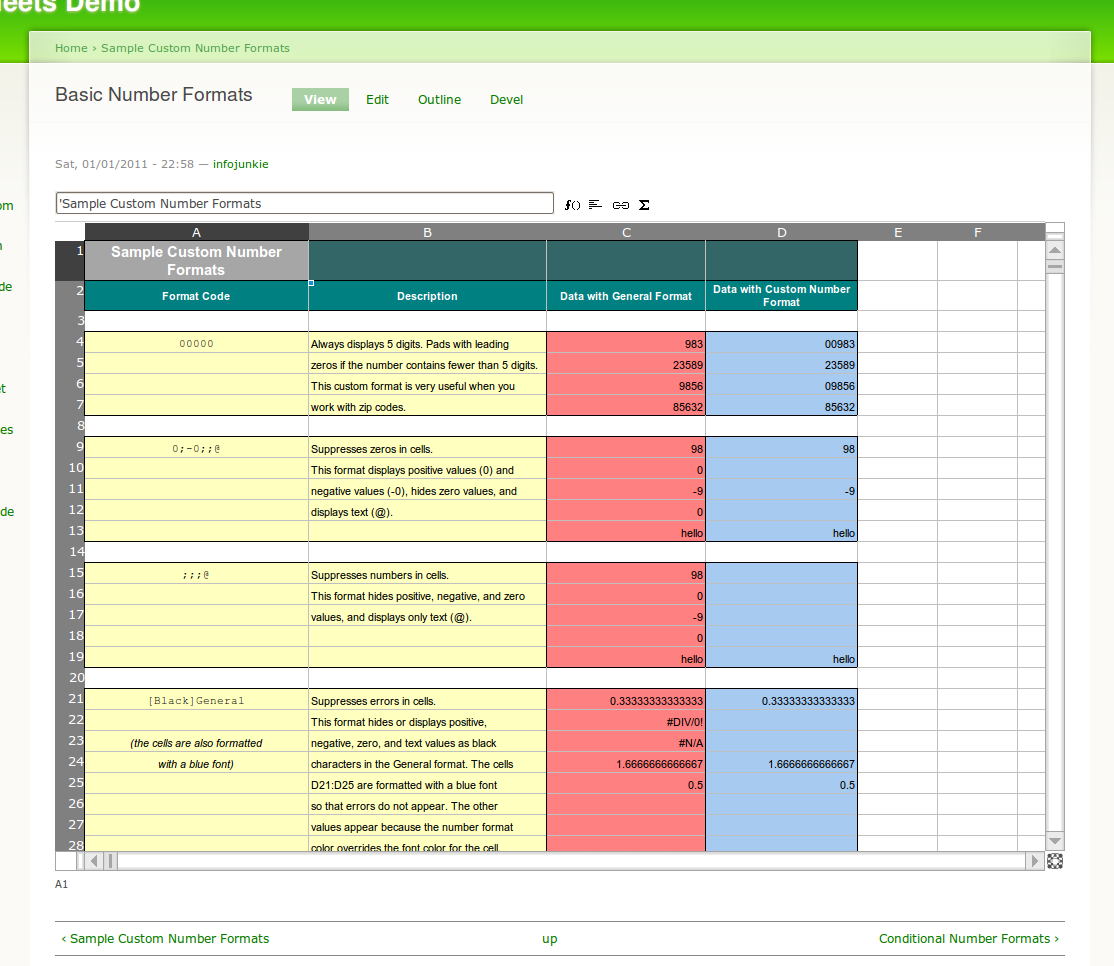
Sheetnode integrates the JavaScript spreadsheet engine SocialCalc as a new node type in Drupal. SocialCalc was written by Dan Bricklin, co-author of the original VisiCalc spreadsheet app in 1979, and is used in the OLPC XO laptop and the SocialText Collaboration Platform.
Need a new feature for your business? Please drop me a line.
Contributors/co-maintainers wanted! Please drop me a line.
WHAT CAN YOU DO WITH IT?
- Create nodes that are spreadsheets, complete with formulas and formatting
- Create CCK fields that are spreadsheets
- Refer to cells in other spreadsheet nodes
- Use the standard Drupal search to find content inside cells
- Save sheets as templates that can be reused when creating new spreadsheets
- Import from Microsoft Excel (.xls and .xlsx) and OpenOffice.org Calc (.ods) files
- Import from Google Docs spreadsheets
- Export to Microsoft Excel (.xls and .xlsx), Adobe Acrobat, and more
- Create views that show results in spreadsheets, complete with formulas, formatting and result expansion
DOCUMENTATION
You can find out more in the documentation:
- Installation
- Installation of Google Spreadsheet Module, PHPExcel Module and CKEditor Module
- How to create a Sheetnode
- How to create a Sheetnode View
- Frequently Asked Questions
CREDITS AND SPONSORSHIP
The following individuals and organizations have provided financial support for Sheetnode:
Thank you all for your generous support.
VERSION 2
Version 2 has just been released. This includes updates to both socialcalc and the module. A short list of what is included:
- Integration with the Libraries module
- New minified versions of the socialcalc library
- More available on this issue: https://www.drupal.org/node/2633426
If you feel this module is useful to your business, please consider the following:
Thanks!
MORE INFORMATION
- Read my articles on Sheetnode at my blog.
- Read about the architecture of SocialCalc by Audrey Tang, one of the original SocialCalc developers.
Currently we are not looking at active development on the 1.x branch but rather looking to build on the 2.x branch backporting where applicable.
Project information
 Unsupported
Not supported (i.e. abandoned), and no longer being developed. Learn more about dealing with unsupported (abandoned) projects- Obsolete
Use of this project is deprecated. - Project categories: Content editing experience, Integrations
 226 sites report using this module
- Created by infojunkie on , updated
 Stable releases for this project are covered by the security advisory policy.
There are currently no supported stable releases.


