

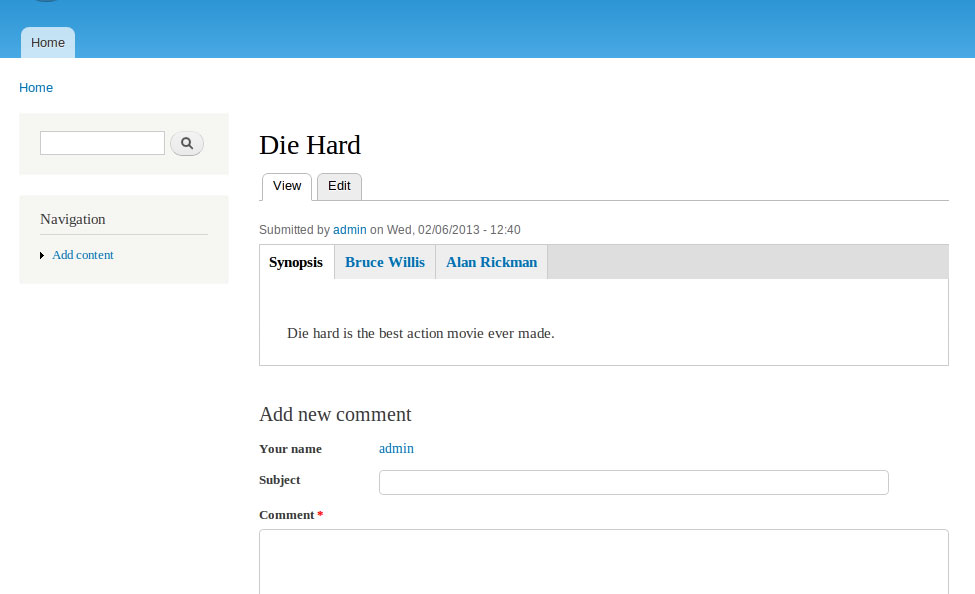

This module extends the Field Group module by adding the ability to override the default title of a field group item (horizontal and vertical tabs, accordions, divs and fieldsets) on a per node basis. This means if you have a content type with 3 tabs, e.g. Movie Name, Lead Actor, Supporting Actor, you can create you can create field groups in the manage display, and override the titles like so:
Node 1
- Die Hard
- Bruce Willis
- Alan Rickman
Node 2
- Lethal Weapon
- Mel Gibson
- Danny Glover
The use case that prompted this module included 15 nodes of the exact same format with different tab titles, and it had to be easy for editors. Using Quicktabs for this case would have required each tab to be a separate node, and each instance would have been rendered as a block. So in the above example you end up with 6 nodes and 2 blocks, as opposed to just 2 nodes. Field Groups by itself would require a unique content type for every node where the group's label changes. This module allowed me to add 15 nodes with unique tabs on each using a single content type.
Requirements
This module requires Field Group which requires CTools
Instructions
The instructions for using this are simple. Use field groups as you normally would, view the documentation here. http://drupal.org/node/1017838
To override the title of a tab, fieldset, div, or accordion, go to content types -> manage fields and add a new field with the type "Field Group Title". Once the field is added, drag the field into the correct group, so it shows as a child of the item it should correspond to. At this point when a user edits the node they should now see the title field show up in the correct field group.
Next, we need to add the title to the display, so go to content types -> manage display. Here you can either drag and drop the field into the correct position as a child of the group you wish to override, or you can scroll to the bottom of the form, and there is an option named "Fieldgroups" where you can clone the form view, meaning it would duplicate the structure seen in the manage fields tab.
Now that the field you've created is set in the display, make sure to set the label to HIDDEN. Hit save, and you should be able to edit the node, and rename the tab to anything you want.
Project information
 Maintenance fixes only
Considered feature-complete by its maintainers.- Project categories: Content editing experience, Site structure, Developer tools
 56 sites report using this module
- Created by TimTheEnchanter on , updated
 Stable releases for this project are covered by the security advisory policy.
There are currently no supported stable releases.

