
Recurring events in Calendar View
Calendar View is compatible with recurring events - tested with Smart date recurring field.
In order for recurring events to work you need one recurring date field attach to your content.
Create a recurring date field
- Create a Smart Date range on your node
- Select unlimited cardinality
- Select any number of month to extend - the View query will be limited by filter criteria later.

Display recurring events in View
Add this Smart date field to the view.

Important tip to display all Smart date values
By default, you'll notice that all the smart date values are grouped together by default under one single View result.
In order to display all the recurring events, you need to uncheck the option in the field configuration.
Edit the field in your view. Scroll down a little and be sure to uncheck the Display all values in the same row option under the Multiple Field Settings field group.

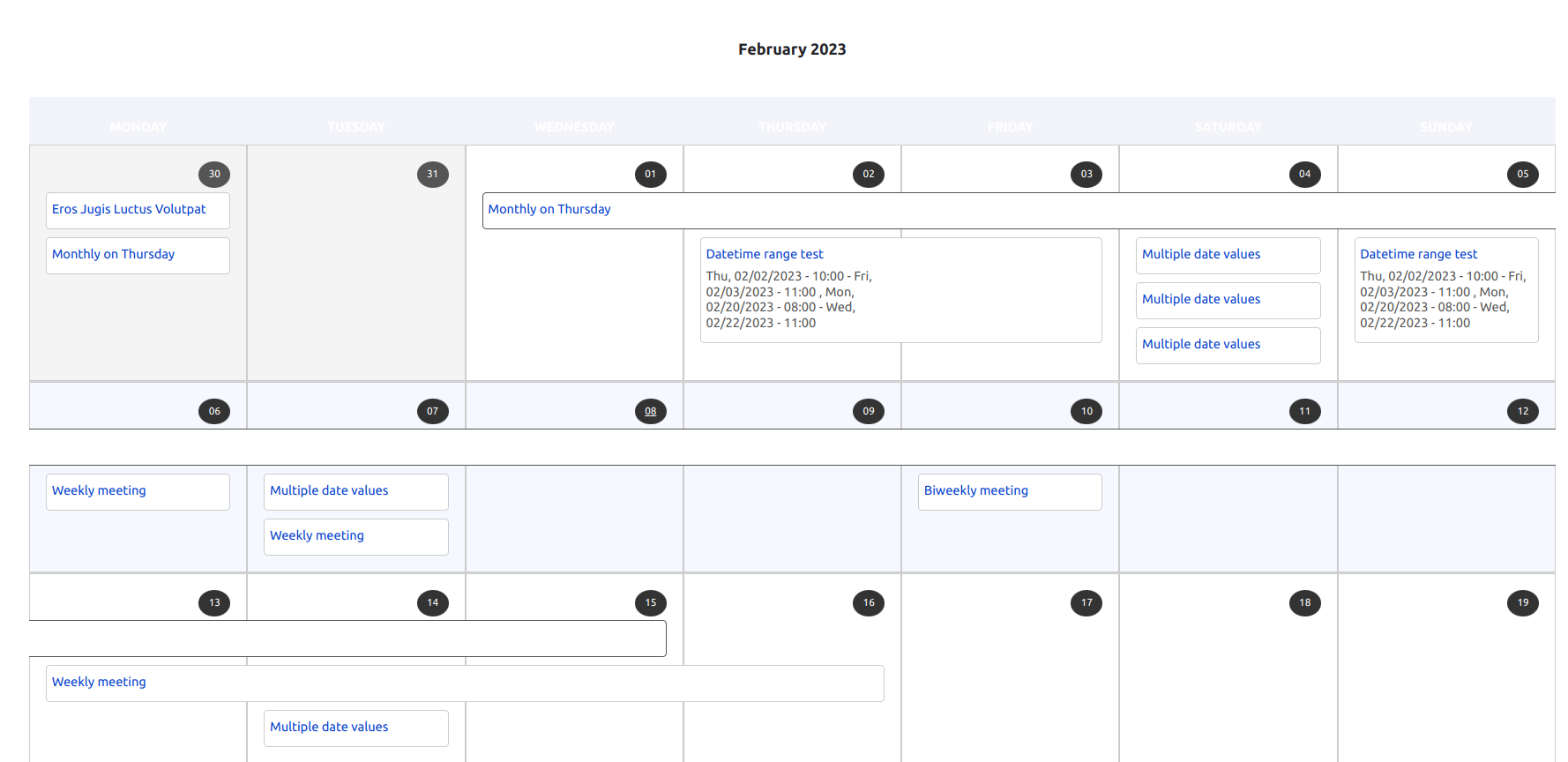
Now your Calendar View displays all the recurring events.
IMPORTANT: Consider limiting the view results
It's great but... mind performances!
If your site grows and/or you have a lot of recurring events, the View can take forever to load.
The solution: use filter criterias to limit the query and reduce the number of results (see below).
You can reduce the View result set by using filter criterias with an offset value (e.g. "greater or equal to -1 week"). The Calendar View plugin preprocesses this value and make it relative to the current selected time/date, meaning it makes it compatible with pagination.
Under filter criteria, do as follow for instance:
- Add the "Smart Date - Start" with an offset >= -1 month or >= -1 week
- Add the "Smart Date - End" with an offset <= +1 month or <= +1 week



Done! Enjoy the View 🎉
Help improve this page
You can:
- Log in, click Edit, and edit this page
- Log in, click Discuss, update the Page status value, and suggest an improvement
- Log in and create a Documentation issue with your suggestion
