
Installation
Installation
Install the latest version of the Drupal 10/11 via composer:
composer create-project drupal/drupal drupal_dir (old, do not use)

composer create-project drupal/recommended-project my_site_name_dir (recommended)
Install this theme with composer as usual (latest stable version is 8.x-1.15):
composer require 'drupal/sshop:^1.15'This will download the required modules, then download the recommended modules if you want, then enable all of them, with drush if you want:
drush en \
colorbox \
commerce \
commerce_wishlist \
fontawesome \
quicktabs\
views_slideshow\
views_slideshow_cycle \
panels \
page_manager \
-y
This file has a composer.libraries.json file which contains the repositores to all the external libraries that you need for this project, these libraries will be installed in the /web/libraries directory, all you need to do is to add the repositories from the composer.libraries.json to your project's composer.json file, for example, here's how I have it in my local composer file:
"repositories": [
      {
          "type": "composer",
          "url": "https://packages.drupal.org/8"
      },
  {
    "type": "package",
    "package": {
      "name": "johnpolacek/stacktable",
      "version": "1.0.3",
      "type": "drupal-library",
      "extra": {
        "installer-name": "stacktable.js"
      },
      "dist": {
        "url": "https://github.com/johnpolacek/stacktable.js/archive/refs/tags/1.0.3.zip",
        "type": "zip"
      },
      "license": "MIT"
    }
  },
  {
    "type": "package",
    "package": {
      "name": "vadikom/smartmenus",
      "version": "1.1.0",
      "type": "drupal-library",
      "extra": {
        "installer-name": "smartmenus"
      },
      "dist": {
        "url": "https://www.smartmenus.org/files/?file=smartmenus-jquery/smartmenus-1.1.0.zip",
        "type": "zip"
      },
      "license": "MIT"
    }
  },
  {
    "type": "package",
    "package": {
      "name": "atheken/json2",
      "version": "0.0.1",
      "type": "drupal-library",
      "extra": {
        "installer-name": "json2"
      },
      "dist": {
        "url": "https://gist.github.com/atheken/654510/archive/51f9363689d9c7764f6fab31581103f95d0e5cff.zip",
        "type": "zip"
      },
      "license": "MIT"
    }
  },
  {
    "type": "package",
    "package": {
      "name": "danrod96-new/cycle",
      "version": "1.0.0",
      "type": "drupal-library",
      "extra": {
          "installer-name": "jquery.cycle"
      },
      "dist": {
          "url": "https://github.com/danrod96-new/cycle/archive/refs/tags/v1.0.0.zip",
          "type": "zip"
      },
      "require": {
          "composer/installers": "^2"
      }
    }
  },
  {
      "type": "package",
      "package": {
          "name": "jackmoore/colorbox",
          "version": "1.6.4",
          "type": "drupal-library",
          "extra": {
          "installer-name": "colorbox"
          },
          "dist": {
          "url": "https://github.com/jackmoore/colorbox/archive/refs/tags/1.6.4.zip",
          "type": "zip"
          },
          "license": "MIT"
      }
  }
  ],
Then you can install the external libraries with composer:
composer require "johnpolacek/stacktable"
composer require "vadikom/smartmenus"
composer require "atheken/json2"
composer require "danrod96-new/cycle"
composer "jackmoore/colorbox"
Finally, Copy the bootstrap directory (which should be there already) located at `/vendor/entreprise7pro/bootstrap` to the `/web/libraries` directory.
Configuration of additional settings/fields
After installing all the modules & downloading all the libraries, you can enable the SShop theme at "/admin/appearance".
Creation of the extra fields
Basic Page
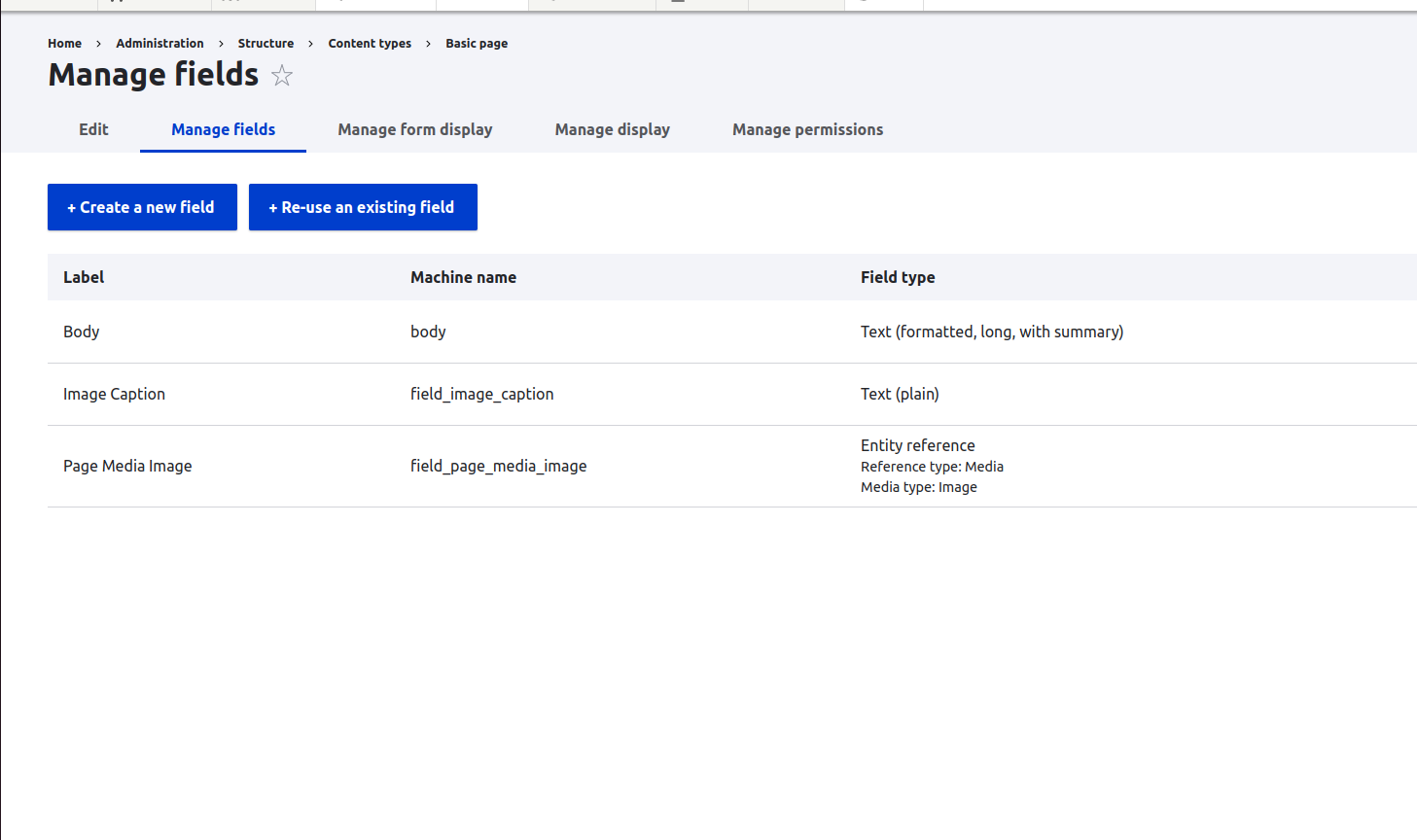
1. For the "Basic Page" content type, go to /admin/structure/types/manage/page/fields and add the field "Page Media Image" (machine name: field_page_media_image, media type: image):
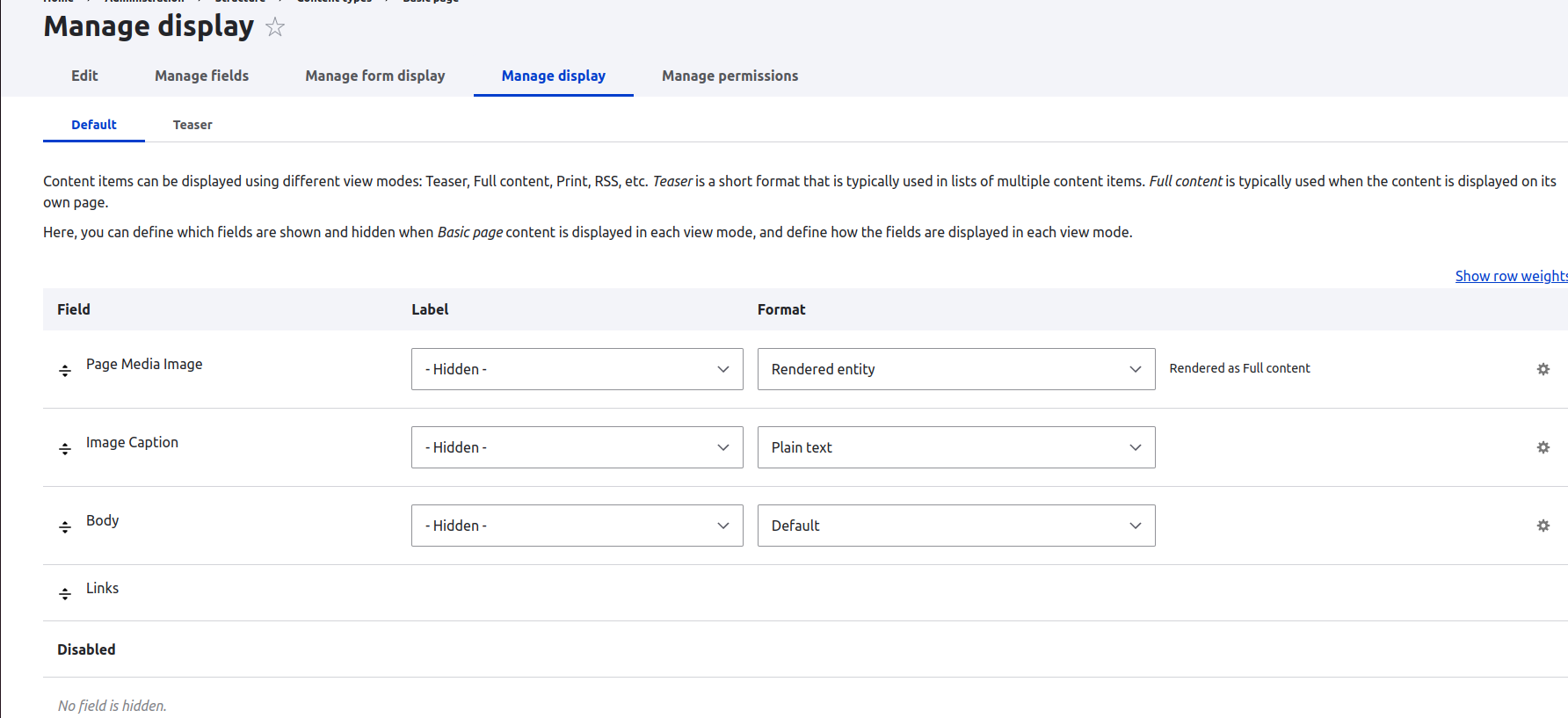
2. Make sure that your display settings for this content type are set up like the image below:
Product Types
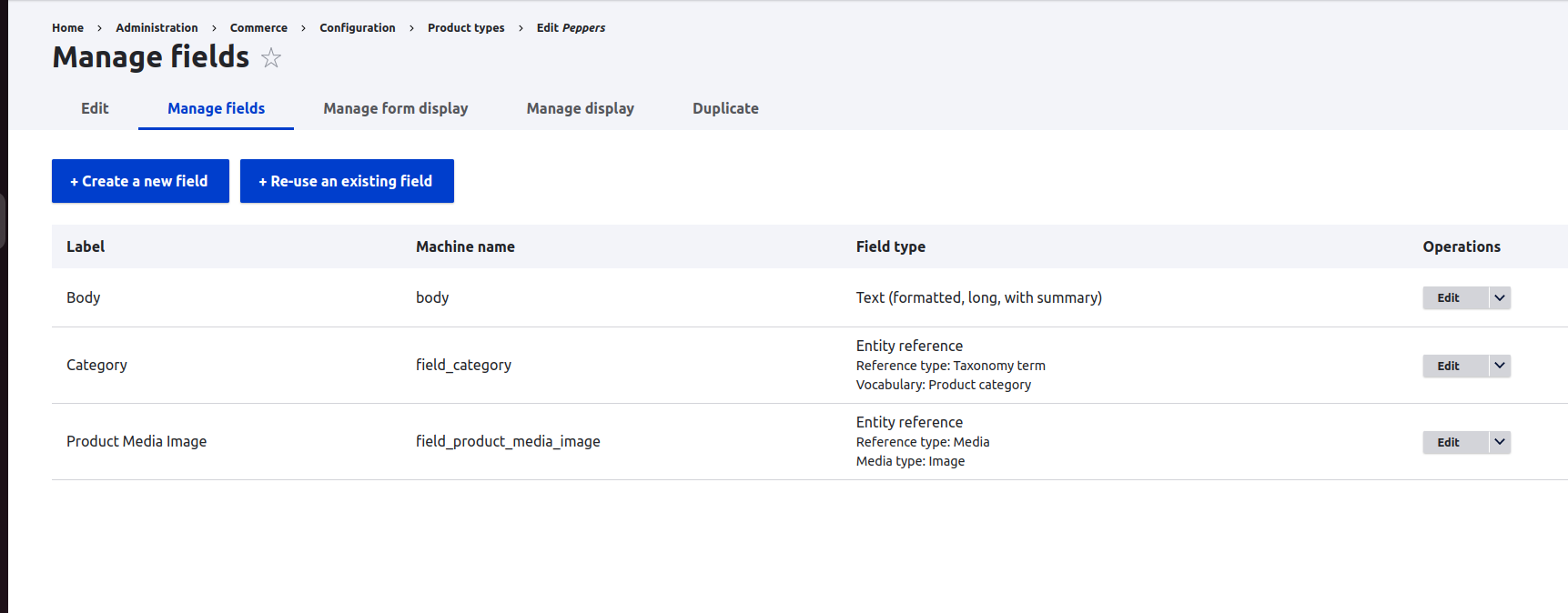
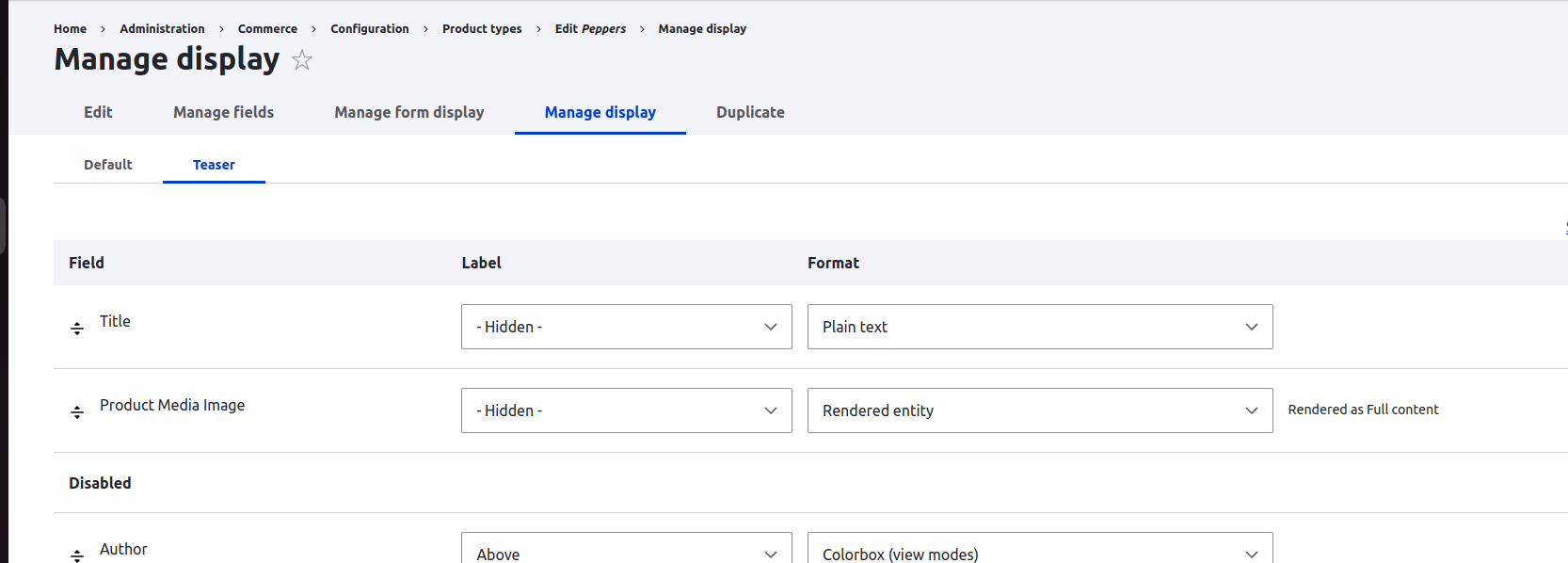
When creating product types, make sure to create the media type field "Product Media Image":
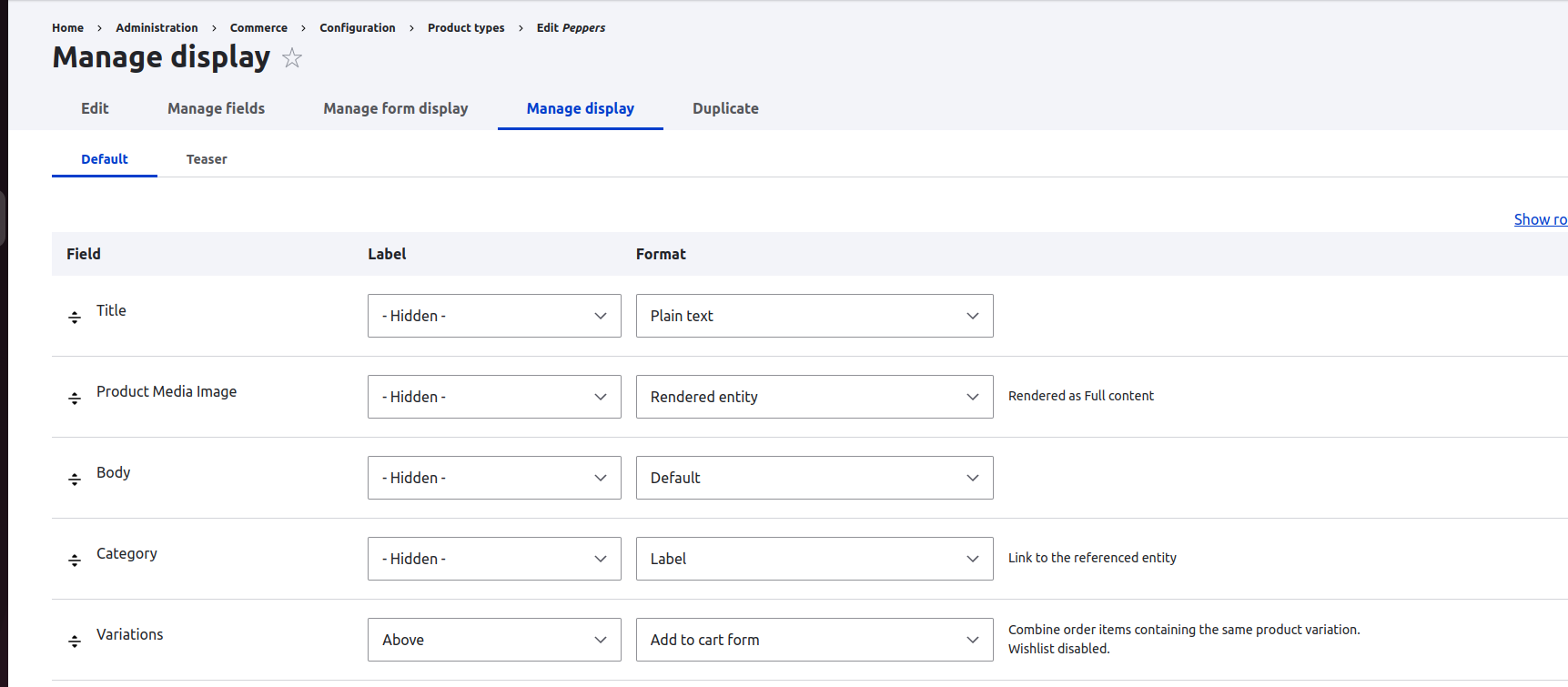
Make sure the display settings for the default view and the teaser will look like this:
Final Steps
Enable the SShop homepage feature module at /admin/modules, this will enable custom Home Page and some fields, taxonomy vocabularies and other settings that you can use when creating your store, please look at the commerce/commerce-product--teaser.html.twig and commerce/commerce-product.html.twig for more information on what fields to use.
Configure the Default Product type. Go to Manage form display page of the Default Product type (/admin/commerce/config/product-types/default/edit/form-display) and enable all disabled fields.
Help improve this page
You can:
- Log in, click Edit, and edit this page
- Log in, click Discuss, update the Page status value, and suggest an improvement
- Log in and create a Documentation issue with your suggestion
