The Picture module allows you to manage images in Drupal sites that are using Responsive Design. The module provides an interface to map existing image styles to breakpoints. The Picture module is a backport of the Drupal 8 solution for responsive images, and promises to provide a smooth upgrade path.
Installation
Recommended to download the latest version as usual. This version doesn't use JavaScript to detect the device width, but uses a picture tag and full media queries.
Module dependencies
- Breakpoints
- Ctools
Install and enable
- Place all the modules in: your sites/all/modules directory; or your sites/[my site]/modules directory.
- Enable the modules at: admin/modules
Configuration
1. Configure your theme
After you have all the modules enabled and ready to go, start with theme configuration. You set the breakpoints for view ports in your theme’s .info file.
Note that for Picture 2.x, you have to order your breakpoints from the "largest" (e.g. wide) to the "smallest" (e.g mobile), but keep in mind that it depends if you use min or max queries, the picture element (and the polyfill) will use the first matching source tag (reading from top to bottom).
; For Picture 1.x
breakpoints[mobile] = (min-width: 0px)
breakpoints[narrow] = (min-width: 560px)
breakpoints[wide] = (min-width: 851px)
breakpoints[tv] = only screen and (min-width: 3456px)
; For Picture 2.x
breakpoints[tv] = only screen and (min-width: 3456px)
breakpoints[wide] = (min-width: 851px)
breakpoints[narrow] = (min-width: 560px)
breakpoints[mobile] = (min-width: 0px)
2. Enable your theme
Breakpoints are only read from an .info file when the theme is enabled, so you'll need to enable your theme in /admin/appearance.
Manually refresh
To manually refresh your theme for breakpoints, go to active theme settings under /admin/appearance/settings/ACTIVE_THEME_NAME and click on the Scan this theme for breakpoints button.
3. Check that your breakpoints are loaded
Go to Configuration » Media » Breakpoints
With the breakpoints configured in your theme’s info file and when the theme is enabled, you will get a message
The breakpoints from theme (name) are imported and a new group is created.
You’ll see a list of the options you specified in your info file.
If you want to create another breakpoint group see Add a breakpoint group through the UI. You will need a new breakpoint group for every image style you want to be responsive. For example, if you want the image styles "thumbnail" and "medium" to be responsive, you will probably need to create two breakpoint groups, which you might call "Thumbnail" and "Medium".
4. Add new styles for breakpoints
Go to Configuration » Media » Breakpoints » Add responsive style
Next, generate a series of image styles using this quick wizard. You could create your own manually, but this is a nice shortcut.
Select any existing style for use as a template. You are going to change the style settings anyhow later on.
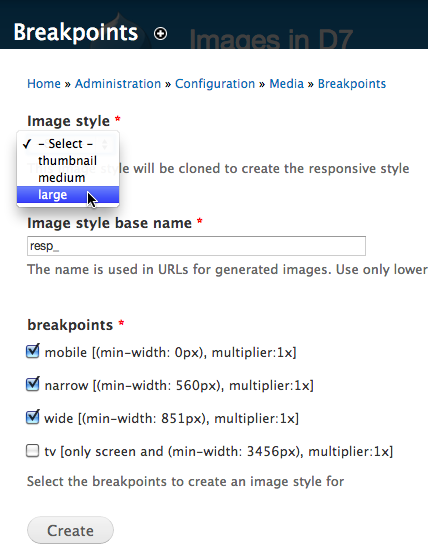
A better image style base name in this case might be "large_" so you can tell that the newly generated styles are based on the "large" image style. This is especially true if you are going to have another set of responsive images based on a different image style such as "thumbnail".
5. Configure image height and width per image style
Go to Configuration » Media » Image styles
Since you based the style on a pre-existing image set, they are all the same to start. Tweak the sizes, such as making mobile small and the wide option larger.
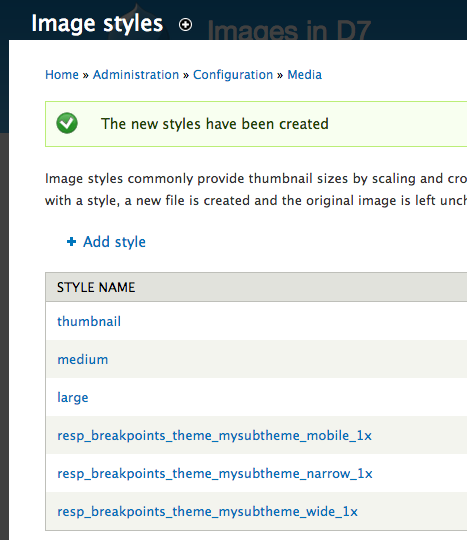
6. Map image styles to picture options
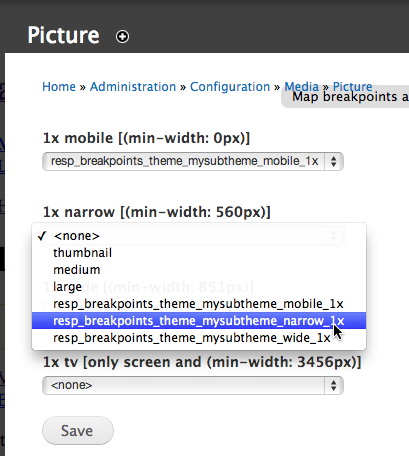
Go to Configuration » Media » Picture mappings
Each breakpoint group you created will result in a picture group being created and listed on this page. For each picture group, associate the breakpoints with your preset image styles.
7. Set Picture as display option
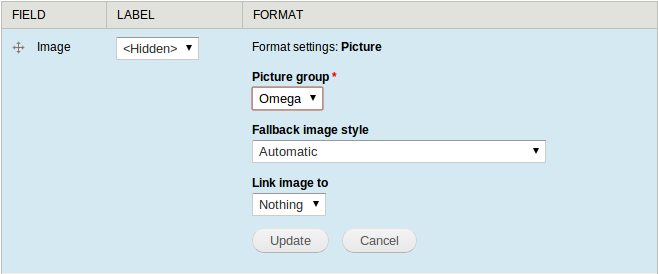
Go to Structure » Content types » ... » manage display
Change the format from 'Image' to 'Picture' and select the group that was created for your theme; or if you created multiple groups, choose the one that contains the desired image styles.

Inline images
On how to handle inline images with Ckeditor SEE: https://drupal.org/node/1983312


