
Migrating an Existing Site to CiviCRM Starter Kit on Pantheon
This is documentation for Drupal 7, which is no longer supported. Learn more and find resources for Drupal 7 sites
Pantheon offers a UI to import an existing site. If you want to use the CiviCRM Starter Kit, DO NOT USE THIS! The version of CiviCRM included in the Starter Kit has been modified to make it compatible with Pantheon. To migrate your existing site to Pantheon and switch to using the Starter Kit as the base install profile at the same time, follow these steps:
- Start a new CiviCRM Starter Kit site on Pantheon
- Add any additional modules, themes, and libraries in the existing site's sites/all directory. You don't have to activate these modules, themes, and libraries. They just need to exist. DO NOT add CiviCRM to sites/all/modules. If there are other duplicate modules, you can use Profile Status Check to find and remove those later.
- If the existing site is using separate databases for Drupal and CiviCRM (recommended if not using Pantheon), you need to combine them. The easiest way to do this is to export your CiviCRM tables from your live site using mysqldump. Import the tables into your Drupal database.
- If not already installed and enabled on the existing site, install Backup and Migrate
- Export the combined Drupal and CiviCRM tables using Backup and Migrate module
- Enable Backup and Migrate module on Pantheon
- Import the database export Pantheon using Backup and Migrate
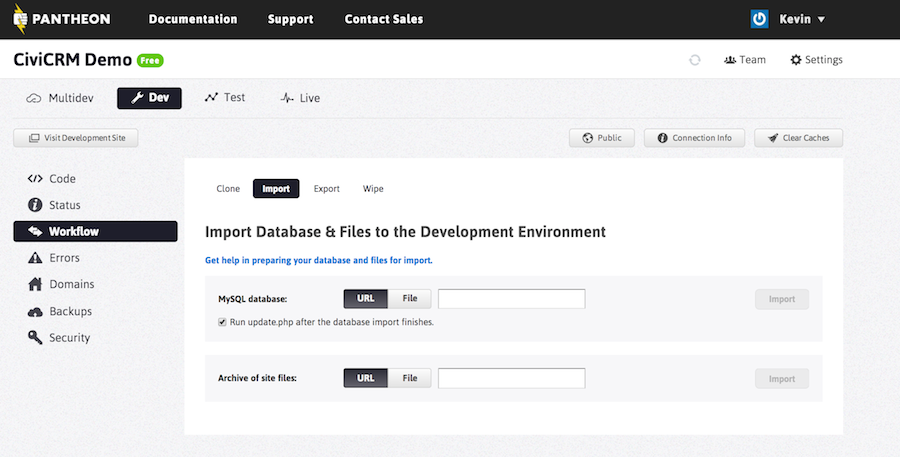
After you import the databases, your the Pantheon site will have all the Drupal nodes and accounts as well as the CiviCRM contacts, events, memberships, etc. The only thing missing will be files found in sites/default/files which can be imported using the Import tools in the Pantheon Workflow.
Help improve this page
You can:
- Log in, click Edit, and edit this page
- Log in, click Discuss, update the Page status value, and suggest an improvement
- Log in and create a Documentation issue with your suggestion
