

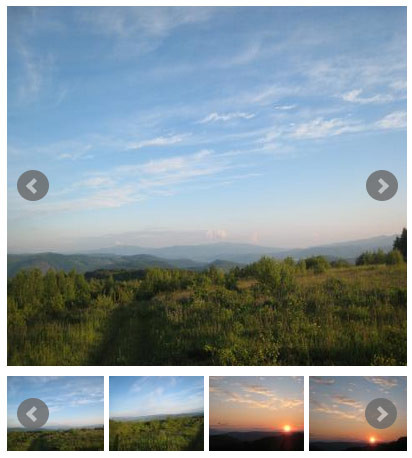
BxSlider module integrates the bxSlider library with Field formatters. Often used for showing photos on e-commerce, classified, real estate sites.
In Drupal 8/9, new fields can be added to Block, to Taxonomy, etc. - so the bxSlider formatter can be used very widely. Also the BxSlider formatter can be used within Views.
Why bxSlider?
- Fully responsive - will adapt to any device
- Horizontal, vertical, and fade modes
- Slides can contain images, video, or HTML content
- Advanced touch / swipe support built-in
- Uses CSS transitions for slide animation (native hardware acceleration!)
- Full callback API and public methods
- Small file size, fully themed, simple to implement
- Browser support: Firefox, Chrome, Safari, iOS, Android, IE7+
- Tons of configuration options
- Integration with the Colorbox module
Drupal 8/9
Features
- Integration with Colorbox
- two predefined methods for Custom Thumbnail Pager
- combination two sliders one for images, another for thumnails
Dependencies
- BxSlider Library - https://github.com/stevenwanderski/bxslider-4/archive/v4.2.15.zip
Drupal 7
Dependencies
- BxSlider Library
- jQuery Update - https://drupal.org/project/jquery_update
- this module is used, because BxSlider libraries require the jQuery library of 1.8 version or higher. - Libraries API - https://drupal.org/project/libraries
Installation
- Download the library https://github.com/stevenwanderski/bxslider-4/archive/v4.2.15.zip .
- Unzip and put the content of the archive to the sites/all/libraries/bxslider
(create required directories). Only bxslider-4-4.2.15/dist/ directory is needed to be
extracted to sites/all/libraries/bxslider directory.
NOTE: the file jquery.bxslider.min.js must be accessible by the path
sites/all/libraries/bxslider/jquery.bxslider.min.js. - Download and enable this module and dependent modules.
- Select some content type, then select 'Manage display' and select a formatter "BxSlider" for required images field. Then click to the formatter settings for filling BxSlider settings. Appropriate image field should be setted as 'unlimited', and should be uploaded many images.
Select the formatter "BxSlider - Thumbnail slider", if needed a carouser thumbnail pager.
For example, go to /admin/structure/types/manage/article/display , select a formatter BxSlider for an Images field and click 'the gear' at the right side of the page for required image field.
Project information
- Project categories: Content editing experience, Content display, Site structure
 1,056 sites report using this module
- Created by vvvi on , updated
 Stable releases for this project are covered by the security advisory policy.
There are currently no supported stable releases.

