


This project is not covered by Drupal’s security advisory policy.
⚠️ ATTENTION #1 : Apologies, everyone — I haven’t had much time to maintain the module lately. However, a new version is on the way! It will be fully compatible with the AI module, easier to set up, and packed with tons of improvements. (July 22, 2025)
ATTENTION #2: This module is currently in the early alpha release and is not yet ready for use in PRODUCTION.
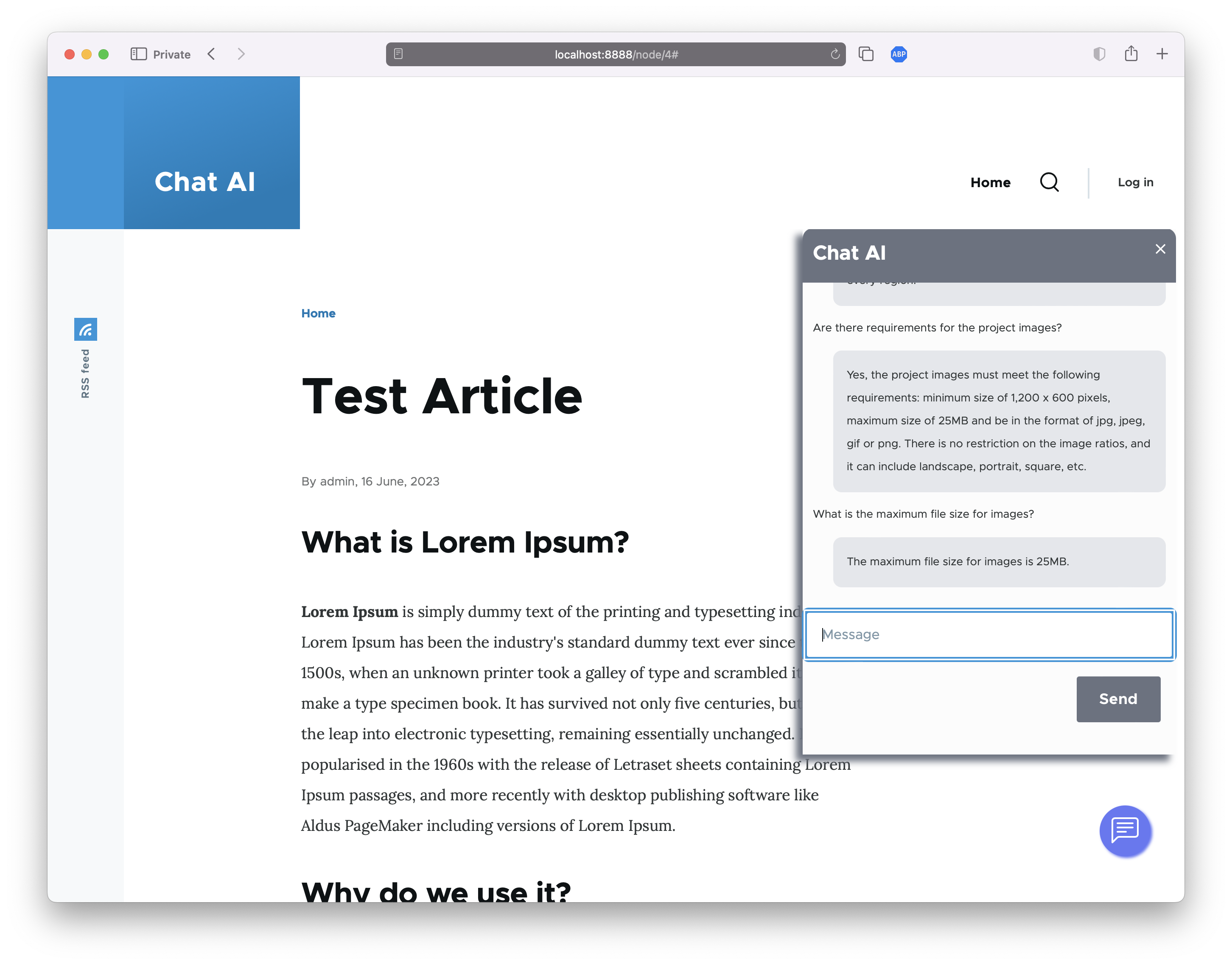
Chat AI adds a chatbot to your website, which can be trained with your website's own data. Visitors will be able to ask questions in natural language through a chat UI. It is based on the OpenAI API and uses Supabase as a vector database.
First, you have to get an Open AI key and set up a new Supabase project (instructions below). Once you're done with these steps:
-
Go to the module settings page
/admin/config/system/chat-ai/keysand enter your keys and Rest API URL for your project on Supabase (there is a free tier as well). -
Go to the Indexing settings page
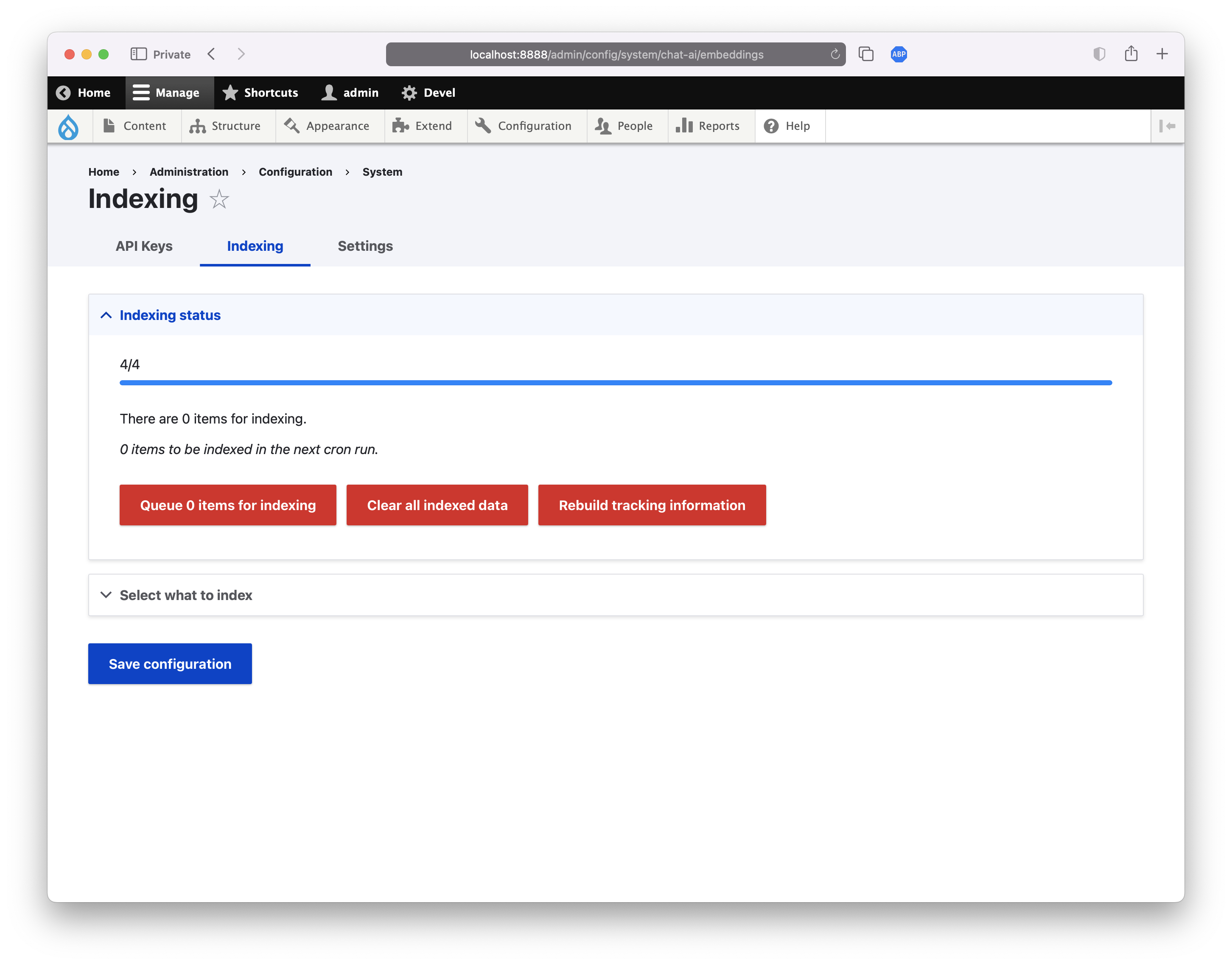
/admin/config/system/chat-ai/embeddingsand configure which content types you want to include in your index. The chatbot will be able to answer questions based on this context. Instead of selecting fields and labels, the Chat AI module follows a unique approach to indexing: you select your entity type and bundle (e.g. Node, Article) and then select a view mode that you want to index. The module will render the selected view mode and create the associated embeddings from the content. -
On the Indexing settings, after saving your preferences on types, bundles, and view modes, press the
Rebuild tracking informationbutton to rebuild the indexing information. This action will not create the actual content index, only the information. Don't forget to rebuild your tracking information after updating yourWhat to indexpreferences. -
If you are happy with your preferences, press the
Queue N items for indexingbutton and run the cron to perform the actual indexing. -
Optionally, navigate to
/admin/config/system/chat-ai/settingsand select your GPT model (default:gpt-3.5-turbo). More models are on the way, as well as custom fine-tuned trained models.
ATTENTION: The use of the Open AI API and Supabase comes with a cost. Always check your costs in the associated platform dashboards.
- The actual chat is provided through a block plugin. Go to your website's
/admin/structure/blockblock administration page and add theChat AIblock. Currently, you can only have one Chat AI block plugin per page.
Currently, the module does not use the previous questions in a chat as context (this feature will be available soon). Moreover, the alpha version does not respect entity permissions yet, so be careful because the content that will be included in your index will be available in the chat. For a full list of upcoming features, check the Roadmap section of this document.
OpenAI API Key
To begin, head to OpenAI’s official platform website. Create an account following the simple steps on the website.
Supabase setup
Please check the README.md file for full instructions on how to setup Supabase. It should only take a few minutes.
Road map
- Improve error handling.
- Write tests!
- Add Pinecone support.
- Move chat history to Supabase and use similarity search for user prompts/questions.
- Embed chat user history as context in the chat completions model.
- Add support for fine-tuning and use of your own models.
- Add custom theme support for the block chat plugin.
- Improve chat UI (e.g., add timestamps).
- Add the ability to use multiple chat blocks with different sources of context (e.g., one chatbot trained with your Q/A, one chatbot trained with help pages, etc.).
- Add chat configuration per block.
- Add token usage statistics (daily/weekly/monthly/all time).
- Ensure chat context respects Drupal entity permissions.
* To submit bug reports and feature suggestions, or to track changes visit:
https://www.drupal.org/project/issues/chat_ai
Supporting organizations:
Project information
- Ecosystem: ChatGPT OpenAI
 4 sites report using this module
- Created by dspachos on , updated
 This project is not covered by the security advisory policy.
Use at your own risk! It may have publicly disclosed vulnerabilities.
Releases
1.0.0-alpha1
released 17 June 2023
Works with Drupal: ^9 || ^10
Chat AI 1.0.0-alpha1
Install:
Development version: 1.0.x-dev updated 20 Jun 2023 at 15:28 UTC

