

 The 2026 Drupal Business Survey is open. Your response will help shape the future of the Drupal business ecosystem.
Provides integration with the G&G Pushcast push notifications service.
Installation
1. Install as you would normally install a contributed Drupal module.
2. Make sure that the ggPushcastsw.js file exists at the root of your site.
But if it is not, then download it by this link:
https://ggpushcast.com/static/js/ggPushcastsw.js
and place in the root of the site.
Configuration
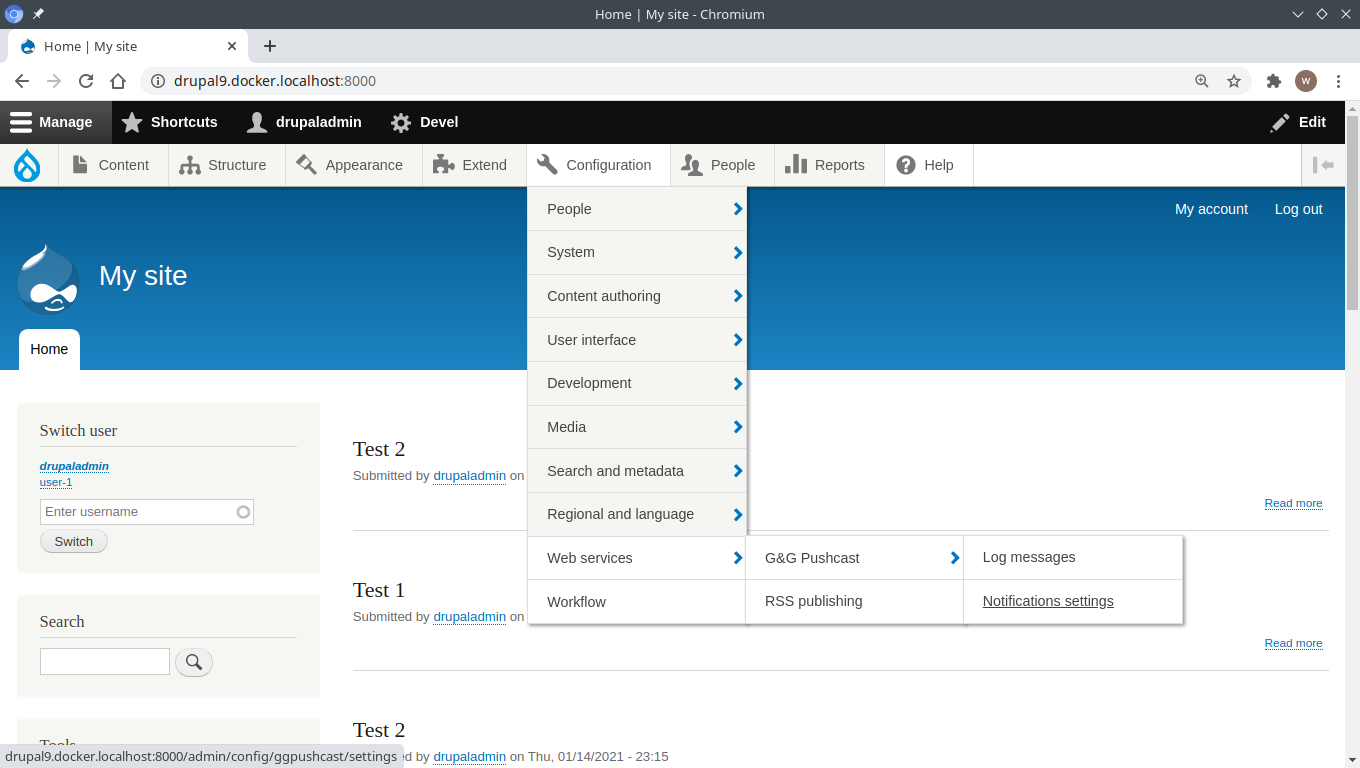
1. Visit /admin/config/ggpushcast/settings
The page is also accessible via menu:
'Configuration' => 'Web services' => 'G&G Pushcast' => 'Notifications settings'.
2. Open the "API key" tab and input the the API key
(you need to get it from the ggpushcast.com).
3. Open the "Content types" tab and select content types for which enable the
notification sending. After that, when a node of this content types is
published, users will get push notifications about it.
4. Configure the settings of the notification title and image.
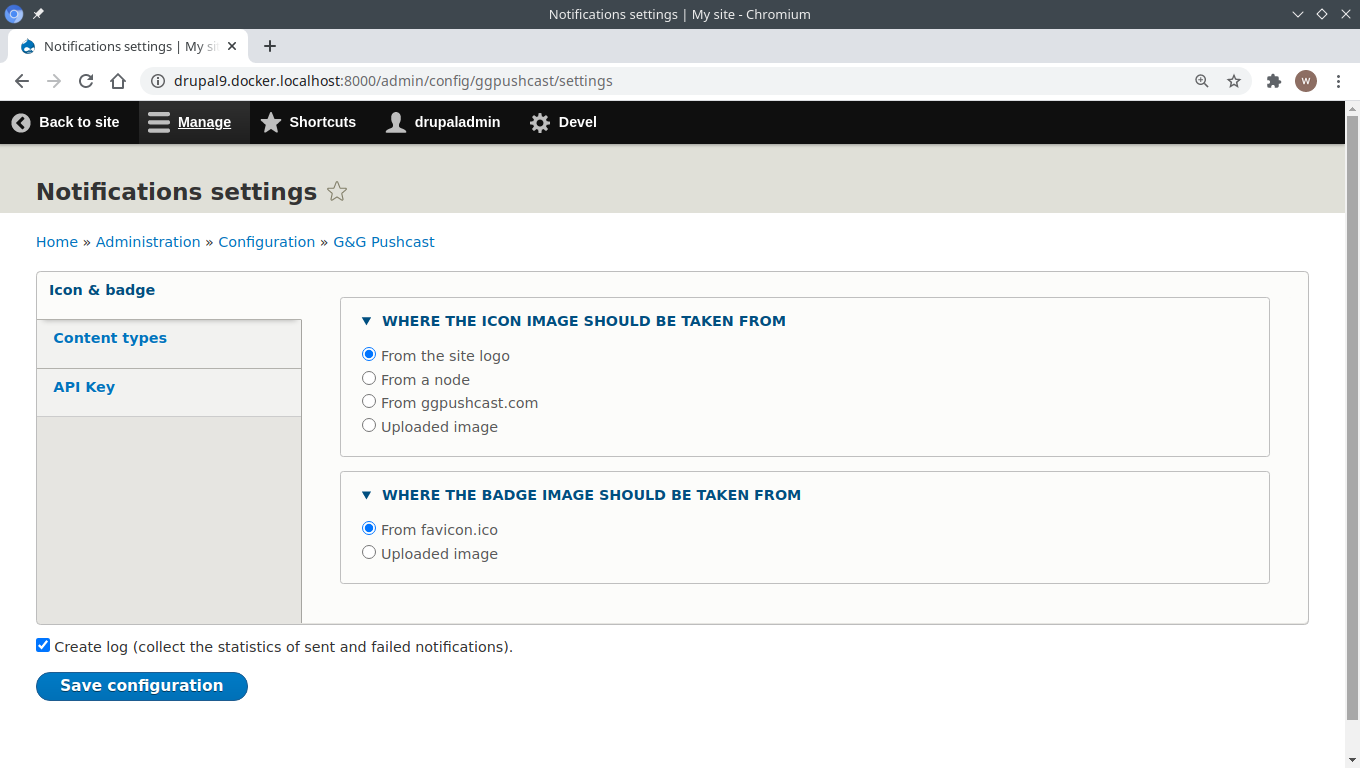
5. Open the "Icon & badge" tab and select the source of an icon and a badge.
6. To enable logging ensure that the 'Create log' checkbox is checked (the checkbox is
placed at the bottom of the form, above the 'Save configuration' button).
7. Click on the "Save configuration" button.
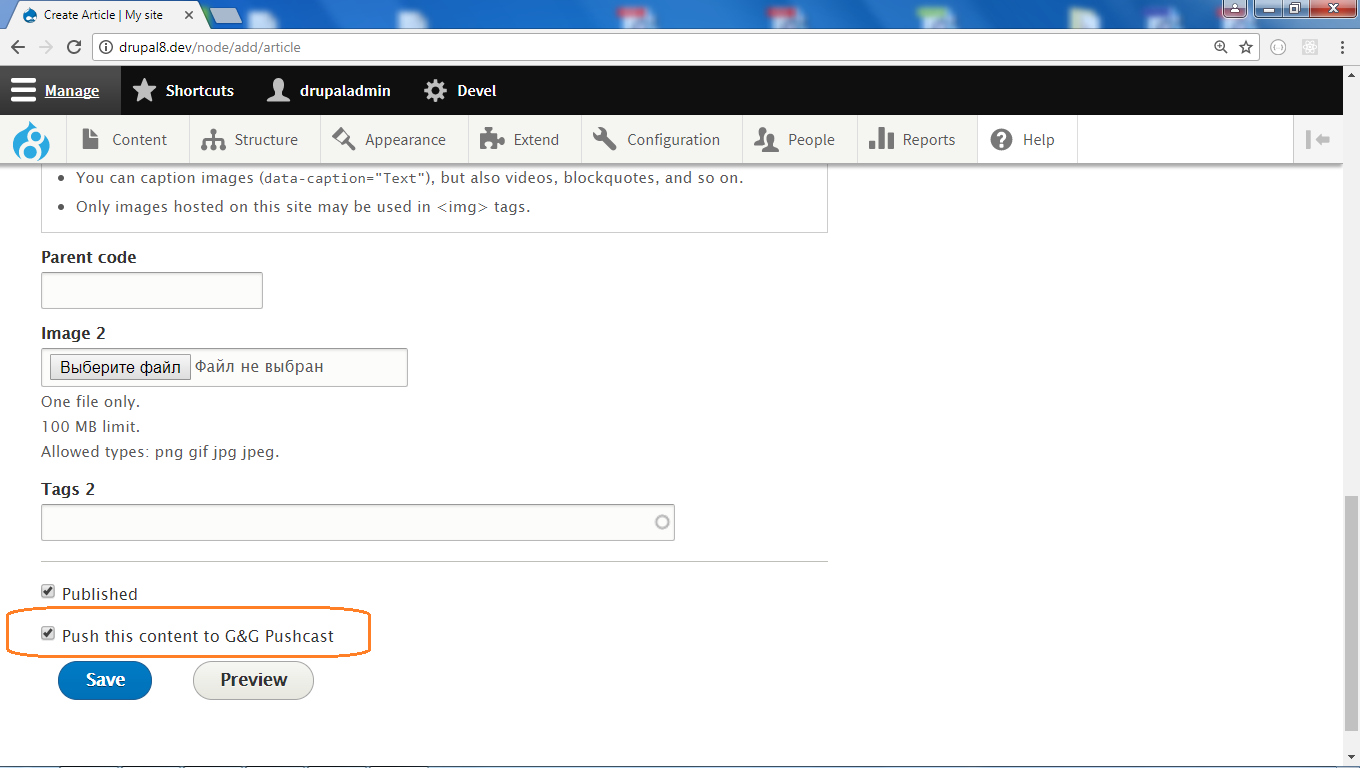
After that on the forms of creation and editing node
the "Push this content to G&G Pushcast" checkbox will display. If this checkbox
is checked then users will get notifications about node publishing.
Push notifications
1. Visit /admin/config/ggpushcast/settings and enable the notification sending
for content types.
2. Configure notifications settings.
3. To push notifications when a node is published,
check the "Push this content to G&G Pushcast" checkbox on a node form.
View log messages
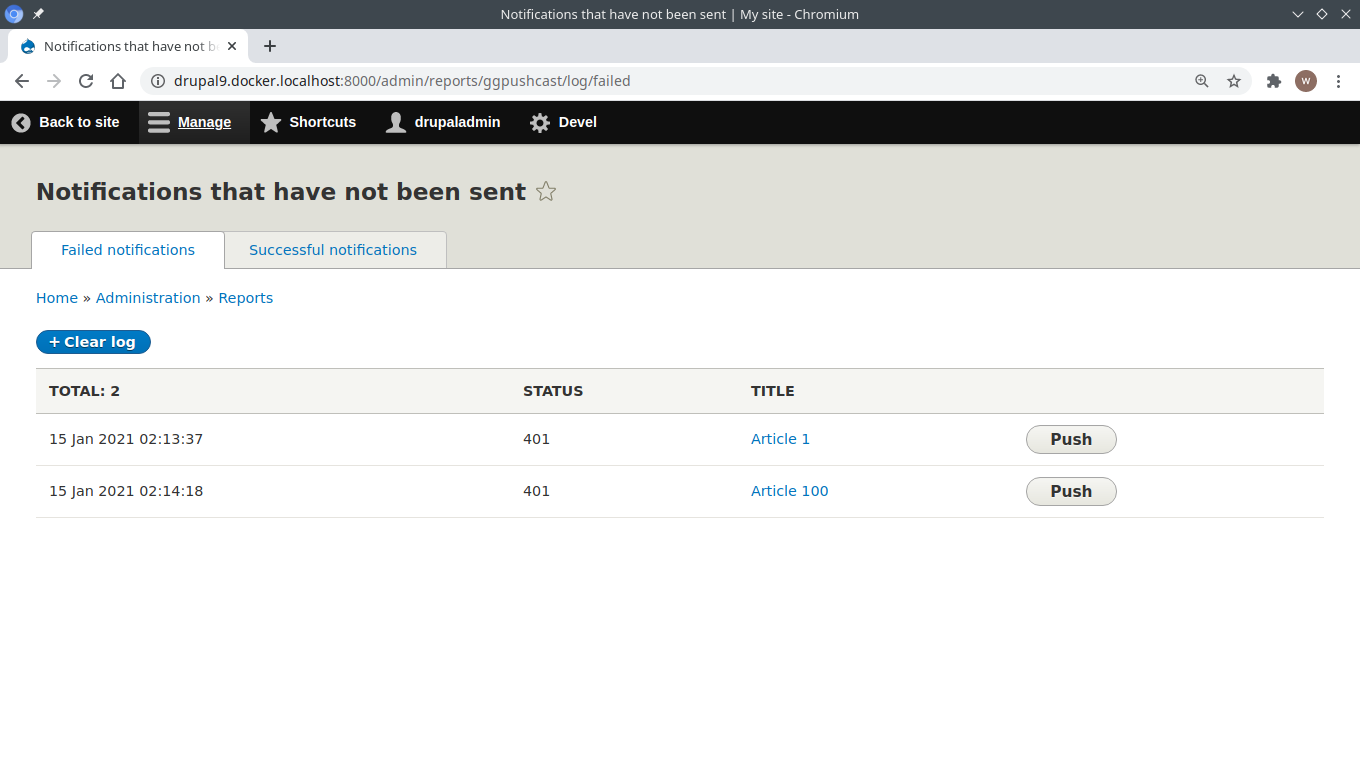
To view log messages visit /admin/reports/ggpushcast/log/failed
or /admin/reports/ggpushcast/log/success
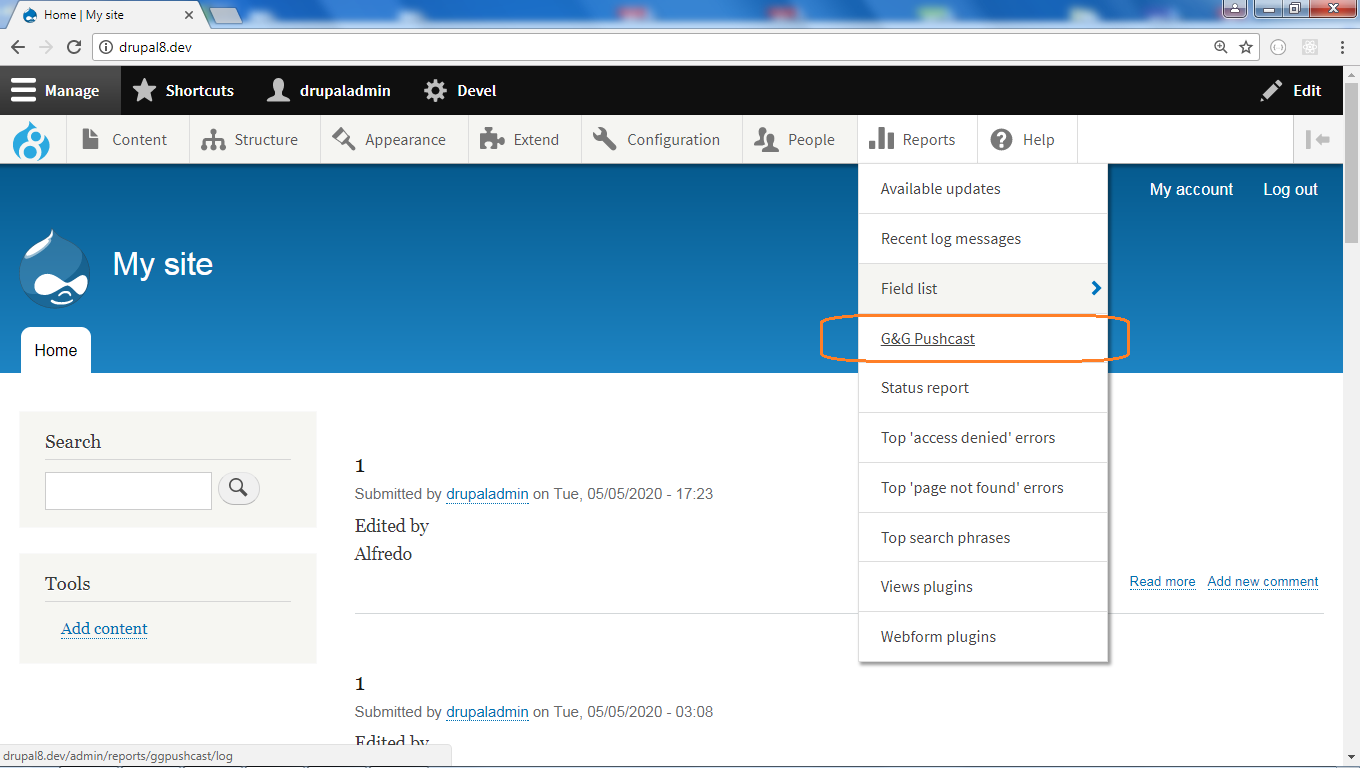
The page is also accessible via menu.
You can open it two ways:
1) 'Reports' => 'G&G Pushcast'
2) 'Configuration' => 'Web services' => 'G&G Pushcast' => 'Log messages'.
Clear log messages
To be able to clear the log a user must have the "Purge notifications logs"
permissions. To clear log
1. Visit the page with log messages /admin/reports/ggpushcast/log/failed
or /admin/reports/ggpushcast/log/success
2. Click on the "Clear log" button which is placed above the table.
Repush failed notifications
If pushing of a notification failed, then it added to the Cron queue for
repushing. But its possible to repush failed notifications manually.
To do this a user must have the "Resend failed notifications" permission.
To repush notifications
1. Visit the page with log messages /admin/reports/ggpushcast/log/failed
2. Click on the "Push" button that is placed in the same row of the table.
Sponsor
G&G SARL www.gontcho.com
Supporting organizations:
Project information
 Minimally maintained
Maintainers monitor issues, but fast responses are not guaranteed.- Project categories: Content editing experience, Integrations
 1 site reports using this module
- Created by wombatbuddy on , updated
 Stable releases for this project are covered by the security advisory policy.
There are currently no supported stable releases.


