

 The 2026 Drupal Business Survey is open. Your response will help shape the future of the Drupal business ecosystem.
This project is not covered by Drupal’s security advisory policy.
The "s3_db_export" Drupal module simplifies database management by automating database exports and securely storing backups in Amazon S3. This module provides:
Key Features:
Cron Job Integration: Seamlessly schedule and automate database exports at your preferred intervals.
AWS S3 Integration: Easily connect your Drupal site to your Amazon S3 bucket for secure and reliable backup storage.
Data Protection: Ensure robust data protection with encrypted data transfer and storage.
Custom Scheduling: Tailor backup schedules to your needs, whether it's daily, weekly, or custom intervals.
User-Friendly Interface: A user-friendly interface for hassle-free management.
Detailed Logging and Reporting: Keep a record of export activities and generate reports for tracking backup status.
Direct Backup Route: Initiate a manual database export directly by using the "/db-export-s3" route.
Direct Download Route: You can download your database directly by using the "/db-export-s3-download" route.
Post-Installation Guide
Congratulations on installing the "s3_db_export" Drupal module! This guide will walk you through the post-installation steps to set up your module for seamless database exports and secure backups in Amazon S3.
Step 1: Configure AWS S3 Details
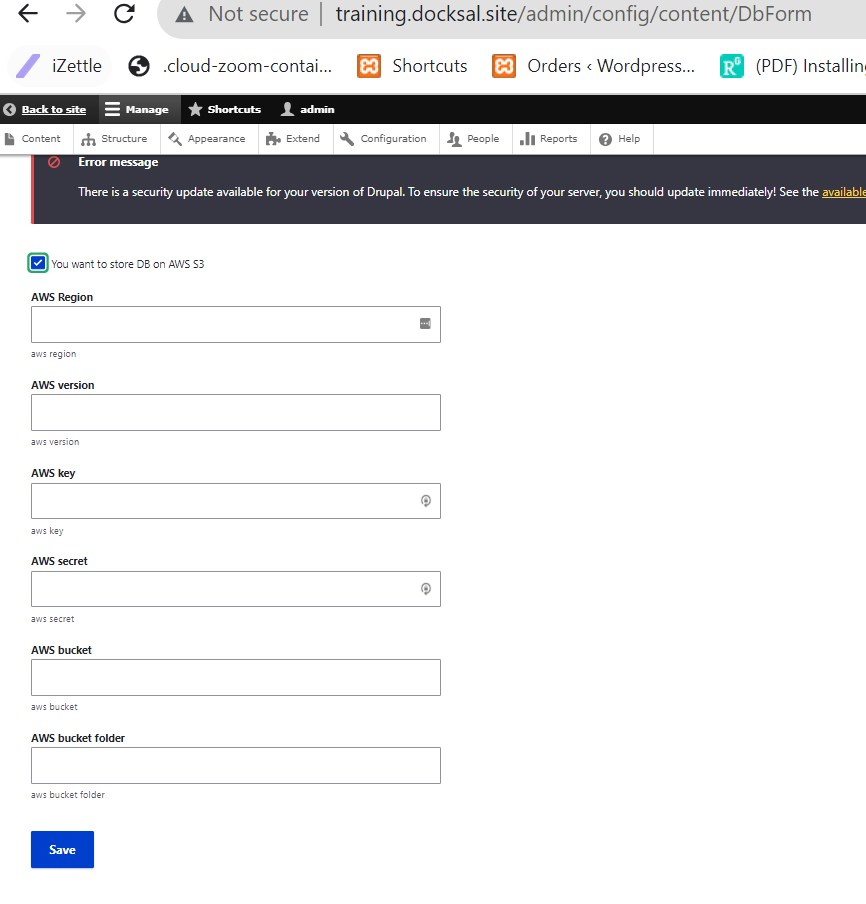
Navigate to the configuration page by going to "/admin/config/content/DbForm" in your Drupal admin interface.
On the configuration page, you'll find settings to configure your AWS S3 details:
Access Key: Enter your AWS access key.
Secret Key: Provide your AWS secret key.
S3 Bucket Name: Specify the name of the S3 bucket where backups will be stored.
Backup Directory: Define the directory path within your bucket for storing backups.
Encryption: Choose whether to enable encryption for backup files.
Save your AWS S3 configuration.
Step 2: Schedule Database Exports
Configure the export schedule by selecting your preferred backup frequency (e.g., daily, weekly, custom).
Define the time and frequency for automated exports to suit your needs.
Save your export schedule settings.
Step 3: Export Your Database
Return to the main module interface.
Initiate a manual database export or wait for the scheduled export to run automatically.
You can also initiate a manual database export directly by using the "/db-export-s3" route. Simply navigate to "/db-export-s3" in your browser or through your Drupal admin interface.
Monitor the export progress and verify that your database backup is securely stored in your configured AWS S3 bucket. If needed, you can now also download your database directly by using the "/db-export-s3-download" route.
Before exporting with "s3_db_export," create a "tmp" folder in "default/files/tmp." Access your site's files directory, create the folder, and set proper permissions for smooth, secure database exports.
Supporting organizations:
Project information
- Created by dharmendra_saini on , updated
 This project is not covered by the security advisory policy.
Use at your own risk! It may have publicly disclosed vulnerabilities.

