Description
Views Database Connector is a powerful module that gives Views full access to external database tables found in the settings for your Drupal installation. With this module, you can setup a view around any table in any database configuration. This can be extremely useful to pull external data from a database to show to your users in a view.
Requirements and Limitations
This module depends on access to the information_schema table when using MySQL or PostgreSQL. If using SQLite, access to the sqlite_master table is required. These tables are used to gather information about your tables and their respective column names and data types. If you cannot accommodate this requirement, this module will not work. Also, any table names that conflict with Drupal table names cannot be used, and any conflicting table names among external databases will also need to be resolved. These restrictions are in place because of the way that Views has structured the return value of its hook_views_data() API.
Installation
Upload this module's folder to your server and place it in the sites/all/modules folder. In order to make use of this module, add extra databases following the instructions found in the installation's sites/default/settings.php file. After you've added a database or two, enable the module. If you later decide to change your database configuration, it is advisable to clear cache and cycle the module's state between disabled and enabled.
Utilization
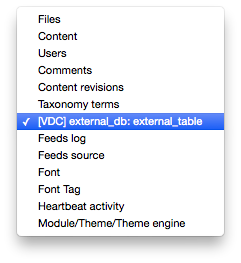
When you add a new view, you should now be able to pick a new entry in the "Show" select menu to use as the view type. Each item created by this module will be prefixed by [VDC]. After you select one of these options and create your view, the first column in the table will be added as the first field. You should also be able to add the other columns as fields using the "Add" button.
Project information
- Ecosystem: Views (for Drupal 7), Charts
 1,081 sites report using this module
- Created by clayfreeman on , updated
 Stable releases for this project are covered by the security advisory policy.
Look for the shield icon below.