

Closed (fixed)
Project:
Views Slideshow
Version:
6.x-2.0
Component:
Documentation
Priority:
Normal
Category:
Support request
Assigned:
Unassigned
Reporter:
Created:
1 Nov 2009 at 18:09 UTC
Updated:
22 May 2013 at 01:58 UTC
Jump to comment: Most recent file


Comments
Comment #1
redndahead commentedYes it can. You'll need to use css to move yoru text above. Something like margin-top: -100px for the text. So output the image first and then the text. Then use css in your theme to move the text into the image area.
Hope this helps.
Comment #2
saepl commentedI was thinking of that approach. Thanks. I'll give it a try!
Comment #3
blksheep commentedHi saepl,
Were you able to achieve what you wanted? Are you willing to share how?
I'm going crazy with the same stuff
Comment #4
saepl commentedHaven't gotten around to it yet...sorry :( This was for a site I was developing but was put on hold. I did look at the css and putting one div in front of the other was the way I was going to try it.
Comment #5
Rob_Feature commentedI built the rotator on twoshirts.org and that actually uses http://drupal.org/project/views_rotator . However, I just did a new one using Views slideshow over at http://stjohnswestbend.org and it was even easier.
The key is the css position attribute. Set your main image section to position: relative, then your text rows to position: absolute...then position wherever you want.
Good luck!
Comment #6
dddave commentedThe slideshow at stjohnswestbend is awesome. Currently I am using ddblock which is a nightmare to get to work and moreover a total screw up with fusion based themes.
I am trying to recreate Rob's great effort but I am unable to get the text as overlay of the picture. Don't even want the pagerpictures to the left. They can stay at under the main slide. Currently I have the slide and the pagerpictures and between them the text of my "pager text"-field.
I am using firebug but seemingly getting lost constantly.
Is there a chance anybody has some kind of tutorial at hand or is willing to provide one? I am not a grandmaster with CSS but very eager to learn. So any additional help would be awesome.
Comment #7
Rob_Feature commentedYou could get this from firebug, but this may be easier (and hopefully helpful since if you named your View "homepage_rotator" you should be able to just drop this in). Combine this with a proper imagecache setting and you're good to go. Here's the css code for the slideshow currently on the homepage of http://StJohnsWestBend.org (courtesy of http://mustardseedmedia.com of course :)
Your classes and IDs should be the same as what's shown here so go thru the code and look at your markup to see how it works.
Oh, and I'm still building this, so if the code is sloppy...well...too bad :)
Comment #8
izmeez commentedsubscribing
Comment #9
dddave commented@ Bob
Thx a million. I am still not comfortable with firebug and css changes so your code can be as sloppy as Pig Pen - it helps me a lot. I've watched most of your videos and now you have helped me again. If you ever visit Cologne I'll buy you a beer. ;)
Comment #10
pepe-perez commented@dddave, @Rob_Feature
Hello to all here...
May it´s possible to work with imagecache, doing a preset for the slideshow.
Using the imagecache addons (actions..), you may could overlay the dark part of the picture and combining it with Token you could put for example the node-titel into the darkt part of the picture. Isn´t it?
Comment #11
dddave commentedMmh, never thought of this possibility. Might be worth a look...
Comment #12
Rob_Feature commentedI've actually used imagecache actions to write the text on a number of projects. I have to say that after lots of experience there, I'm going to start using this CSS method more instead. There are 2 reasons CSS is better (at least for me):
So, while imagecache actions is possible...I find that CSS has given me a much better answer to this problem.
Comment #13
pepe-perez commented@Rob_Feature
1. That´s true.
2. For the manageability, it´s possible to use a CCK Field, wich you call "Text for banner" and to set up this for the picture. So the user don´t get confused and do not change the node name.
At the same time, you got the possibility to use the banner for the latest 5 news automatically. I don´t know if this will work with your html/css solution too.
Comment #14
dddave commentedI am trying hard to create a slightshow like the one discussed above but so far I only get it by "cheating". I am using the css stuff provided by rob but can only apply it to one field. My problem is that I am pretty unable to insert the needed divs (slideshow-text and slideshow-text-bg). As far as I understand it I have to use a custom views template for the row style output, don't I? But where the heck do I "integrate" those divs? I watched the great video over at mustardseed but really hitting a brick wall.
btw: When I finally get it to work, I am going to provide a tutorial. Promised!
Comment #15
Christian Hudon commentedI've been to play around with that.
With this code I'm getting somewhere but not yet where I'm trying to get...
Posting it, if it may help.
Also, please have a look at http://kofiannanfoundation.org/ is this using Views Slideshow ?
Comment #16
dandolino commentedHey Rob or anybody else,
On the slideshow for the site http://stjohnswestbend.org that you made, How did you get the text on the image to not inherit the transparency of the background that you set at "opacity:.7;". I tried to duplicate what you did with that, but still my text ends up inheriting that transparency, and shows up very light even though it's supposed to be "white".
Here is a sample of what I did. http://mamaroberta.com/drupal/views-slideshow
What do you think?
Dan
Comment #17
Rob_Feature commented@dandolino
Note the HTML for the slideshow on http://stjohnswestbend.org and you'll see how it works....I made the background an empty div that's OUTSIDE the div containing the text and is positioned absolutely...then I set it's transparency. If it's not outside the text div, the text will inherit the transparency.
Comment #18
redndahead commentedI think we have some good solutions here. Marking as fixed.
Comment #19
jared12 commentedGreat info!
Comment #20
hsp.org commentedRob, thanks for the info.
Comment #21
Rob_Feature commentedHey All,
Watch this method in action on a video podcast I did over at: http://mustardseedmedia.com/podcast/episode42
Hope it helps!
Comment #22
dawiyo commentedThanks Rob for the podcast. I've got it running on a local site and was wondering if there was a way to add a new pager option. I'd love to use just a simple bullet as the pager but I'm having trouble trying to get it to work correctly and display bullets for all 4 images in the slideshow.
Comment #24
OpenChimp commented@dawiyo
Creating a bullet style pager can be acheived with some simple css. You will leave the pager as a standard numbered pager.
You basically just need some css to hide the pager numbers and replace them with the appropriate bullet background.
Study the code at http://kofiannanfoundation.org/ for more details.
Speaking of pagers, I would love to have another pager option added ... so that the pager could display text (perhaps the title field). This would make it possible to create nice looking tabs to navigate between the slides. It would be ideal if I could select the field(s) to include in the pager from the list of fields set in the view. That way you could do cool things like display the title along with a short date field for events or you could display the node title along with a comment count to help entice users. This flexibility would accommodate many fringe use cases.
Comment #25
redndahead commented@MikeyLikesIt have you used Thumbnailhover? That's what that does.
Comment #26
Desi Raaj commentedThank You Rob, I watched your video and left a comment as well. I was able to achieve what you showed in the video, but can you tell me how to put the thumbnails pager on the right side of the image instead of bottom. Thank You.
Comment #27
Desi Raaj commentedalrite i was able to put the thumbnails on the right side, but they only show up correctly in FF, chrome and safari. they don't show up correctly in IE for some reason, is there anyway i can fix that?
Comment #28
redndahead commentedDes Raaj without a site to look at it's going to be impossible to tell you what the problem is. If I was going to take a guess I would say that with padding and margins ie makes your main frame too wide and your thumbnails are wrapping. But again that's just a guess. Please open a new issue if you continue to have problems.
Comment #29
Clint Eagar commentedI can't get the pager to show up as a UL...any ideas? Sorry the site isn't live, I'm working on my localhost.
Comment #30
redndahead commentedClint Open a new issue
Comment #31
Dreher commentedTotal newbie question, but what file do you add the css to?
Comment #32
redndahead commentedAny one of your themes files. Look at whatever theme you are looking for and there is probably a style.css you can add it to.
Comment #33
scampbell70 commentedI know this is an old thread but I been trying to find a way to do this for a month before stumbling on the video by Rob_Feature over at: http://mustardseedmedia.com/podcast/episode42. I am still not able to make it work. I created 4 test nodes and only added a picture and title. I then set up a view to display the node type I set up. I now have a view with that rotates 4 images but I cannot figure out how he got the 4 images under the larger image as shown on the video.
I am also unable to find node: teaser or node:title as shown in the video. I am using views slideshow 7.x-3.0 on drupal 7.10. I am not a drupal master by any means but I learning quickly and I am grateful for all the help I get on the forums.
Comment #34
rwilson0429 commentedThe 'images under the larger image' are pager thumbnail images.
Wrote this up quickly, hope it helps and not too confusing.
Comment #35
scampbell70 commented@rwilson0429
I have a slideshow set up and working but now when I go to rewrite output and do the
Comment #36
rwilson0429 commentedJust to be certain I understand, before you do a rewrite of the teaser field, your slideshow functions properly with a main image and image thumbnails are shown for the pager as expected.
Assuming my understanding is correct, when troubleshooting problems, I always like to start with the obvious first. So, make sure that you haven't mistakenly clicked the 'Exclude from Display' on your image field. The only fields that should be excluded from display are the Title, Teaser and, Read More Link. These three fields will be shown in the Rewrite Results for the Teaser field.
Also, make sure you are not putting your Rewrite on the Image field.
Comment #37
scampbell70 commentedrwilson0429 one of the problems is that I cant even find a teaser field anywhere to pick. I am beginning to feel pretty stupid because I cant seem to locate it anywhere. You can see the site here http://www.scouttroop210.org/user the sample slideshow I have set up is only two slides right on the home page.
username and password are both demo
Comment #38
rwilson0429 commented@scampbell70
Ok, maybe you setup your slideshow to show 'Fields' instead of content. No problem, fields are probably better because you have more control of what and how your information is displayed.
I visited your link, it looks like you will need to add your image field again to the Fields section of the view . Basically, the image style of your second image field will need to be set to thumbnail or a custom image style that you define at admin/config/media/image-styles. So, the list under your View's Fields section will be something like: content:title [optional], content:image, content:image.
Based on what I see on your home page, the only thing you need to do is add the same image field again to your Fields display and set it to the appropriate image-style (I use a custom style that is scaled to 40px x 40px for my pager images). After adding the 2nd image field and applying the appropriate styles, you will need to configure the pager on your Slideshow Settings link. Under the Slideshow Settings, set your Pager type to 'Fields' then, right under that, select the image field you want to use as your pager.
Comment #39
scampbell70 commentedCorrect I have it setup as fields. I have thumbnails but excluded them from the view. I turned them back on and here is a screenshot of the view admin panel if it helps
http://scouttroop210.org/img/view.png
You can still go to the site with the demo account
Comment #40
rwilson0429 commented@scampbell70, Assuming you are using D7, Views3 and Views slideshow 7.x-3.x, you can try to import the following Slideshow view. To import: copy the code below, create a new view and select the Import link on the View configuration page then, paste the code into the import area.
Besure to change the fields, and filter criteria to your specific needs. BTW, you would only exclude the image field if you were rewriting the output. Once you get your view setup properly then, you can deal with the rewriting and positioning of the output as outlined in the video.
$view = new view;
$view->name = 'clone_of_gallery';
$view->description = 'Picture galleries view';
$view->tag = 'default';
$view->base_table = 'node';
$view->human_name = 'Clone of Gallery';
$view->core = 7;
$view->api_version = '3.0';
$view->disabled = FALSE; /* Edit this to true to make a default view disabled initially */
/* Display: Master */
$handler = $view->new_display('default', 'Master', 'default');
$handler->display->display_options['title'] = 'Gallery';
$handler->display->display_options['use_ajax'] = TRUE;
$handler->display->display_options['access']['type'] = 'perm';
$handler->display->display_options['cache']['type'] = 'none';
$handler->display->display_options['query']['type'] = 'views_query';
$handler->display->display_options['query']['options']['query_comment'] = FALSE;
$handler->display->display_options['exposed_form']['type'] = 'basic';
$handler->display->display_options['pager']['type'] = 'full';
$handler->display->display_options['pager']['options']['items_per_page'] = '5';
$handler->display->display_options['pager']['options']['offset'] = '0';
$handler->display->display_options['pager']['options']['id'] = '0';
$handler->display->display_options['pager']['options']['expose']['items_per_page_options_all'] = 0;
$handler->display->display_options['style_plugin'] = 'slideshow';
$handler->display->display_options['style_options']['slideshow_type'] = 'views_slideshow_cycle';
$handler->display->display_options['style_options']['slideshow_skin'] = 'default';
$handler->display->display_options['style_options']['skin_info'] = array(
'class' => 'default',
'name' => 'Default',
'module' => 'views_slideshow',
'path' => '',
'stylesheets' => array(),
);
$handler->display->display_options['style_options']['widgets']['top']['views_slideshow_pager']['weight'] = '1';
$handler->display->display_options['style_options']['widgets']['top']['views_slideshow_controls']['weight'] = '1';
$handler->display->display_options['style_options']['widgets']['top']['views_slideshow_controls']['type'] = 'views_slideshow_controls_text';
$handler->display->display_options['style_options']['widgets']['top']['views_slideshow_slide_counter']['weight'] = '1';
$handler->display->display_options['style_options']['widgets']['bottom']['views_slideshow_pager']['enable'] = 1;
$handler->display->display_options['style_options']['widgets']['bottom']['views_slideshow_pager']['weight'] = '1';
$handler->display->display_options['style_options']['widgets']['bottom']['views_slideshow_controls']['weight'] = '1';
$handler->display->display_options['style_options']['widgets']['bottom']['views_slideshow_controls']['type'] = 'views_slideshow_controls_text';
$handler->display->display_options['style_options']['widgets']['bottom']['views_slideshow_slide_counter']['weight'] = '1';
$handler->display->display_options['style_options']['views_slideshow_cycle']['timeout'] = '5000';
$handler->display->display_options['style_options']['views_slideshow_cycle']['speed'] = '700';
$handler->display->display_options['style_options']['views_slideshow_cycle']['delay'] = '0';
$handler->display->display_options['style_options']['views_slideshow_cycle']['start_paused'] = 0;
$handler->display->display_options['style_options']['views_slideshow_cycle']['remember_slide_days'] = '1';
$handler->display->display_options['style_options']['views_slideshow_cycle']['items_per_slide'] = '1';
$handler->display->display_options['style_options']['views_slideshow_cycle']['wait_for_image_load_timeout'] = '3000';
$handler->display->display_options['style_options']['views_slideshow_cycle']['cleartype'] = 0;
$handler->display->display_options['style_options']['views_slideshow_cycle']['cleartypenobg'] = 0;
$handler->display->display_options['row_plugin'] = 'fields';
$handler->display->display_options['row_options']['hide_empty'] = 0;
$handler->display->display_options['row_options']['default_field_elements'] = 1;
/* Field: Content: Picture Gallery */
$handler->display->display_options['fields']['field_pictures']['id'] = 'field_pictures';
$handler->display->display_options['fields']['field_pictures']['table'] = 'field_data_field_pictures';
$handler->display->display_options['fields']['field_pictures']['field'] = 'field_pictures';
$handler->display->display_options['fields']['field_pictures']['label'] = '';
$handler->display->display_options['fields']['field_pictures']['alter']['alter_text'] = 0;
$handler->display->display_options['fields']['field_pictures']['alter']['make_link'] = 0;
$handler->display->display_options['fields']['field_pictures']['alter']['absolute'] = 0;
$handler->display->display_options['fields']['field_pictures']['alter']['external'] = 0;
$handler->display->display_options['fields']['field_pictures']['alter']['replace_spaces'] = 0;
$handler->display->display_options['fields']['field_pictures']['alter']['trim_whitespace'] = 0;
$handler->display->display_options['fields']['field_pictures']['alter']['nl2br'] = 0;
$handler->display->display_options['fields']['field_pictures']['alter']['word_boundary'] = 1;
$handler->display->display_options['fields']['field_pictures']['alter']['ellipsis'] = 1;
$handler->display->display_options['fields']['field_pictures']['alter']['strip_tags'] = 0;
$handler->display->display_options['fields']['field_pictures']['alter']['trim'] = 0;
$handler->display->display_options['fields']['field_pictures']['alter']['html'] = 0;
$handler->display->display_options['fields']['field_pictures']['element_label_colon'] = FALSE;
$handler->display->display_options['fields']['field_pictures']['element_default_classes'] = 1;
$handler->display->display_options['fields']['field_pictures']['hide_empty'] = 0;
$handler->display->display_options['fields']['field_pictures']['empty_zero'] = 0;
$handler->display->display_options['fields']['field_pictures']['hide_alter_empty'] = 0;
$handler->display->display_options['fields']['field_pictures']['click_sort_column'] = 'fid';
$handler->display->display_options['fields']['field_pictures']['settings'] = array(
'image_style' => 'large',
'image_link' => '',
);
$handler->display->display_options['fields']['field_pictures']['group_column'] = 'fid';
$handler->display->display_options['fields']['field_pictures']['group_rows'] = 0;
$handler->display->display_options['fields']['field_pictures']['delta_offset'] = '0';
$handler->display->display_options['fields']['field_pictures']['delta_reversed'] = 0;
$handler->display->display_options['fields']['field_pictures']['delta_first_last'] = 0;
$handler->display->display_options['fields']['field_pictures']['field_api_classes'] = 0;
/* Field: Content: Picture Gallery */
$handler->display->display_options['fields']['field_pictures_1']['id'] = 'field_pictures_1';
$handler->display->display_options['fields']['field_pictures_1']['table'] = 'field_data_field_pictures';
$handler->display->display_options['fields']['field_pictures_1']['field'] = 'field_pictures';
$handler->display->display_options['fields']['field_pictures_1']['label'] = '';
$handler->display->display_options['fields']['field_pictures_1']['alter']['alter_text'] = 0;
$handler->display->display_options['fields']['field_pictures_1']['alter']['make_link'] = 0;
$handler->display->display_options['fields']['field_pictures_1']['alter']['absolute'] = 0;
$handler->display->display_options['fields']['field_pictures_1']['alter']['external'] = 0;
$handler->display->display_options['fields']['field_pictures_1']['alter']['replace_spaces'] = 0;
$handler->display->display_options['fields']['field_pictures_1']['alter']['trim_whitespace'] = 0;
$handler->display->display_options['fields']['field_pictures_1']['alter']['nl2br'] = 0;
$handler->display->display_options['fields']['field_pictures_1']['alter']['word_boundary'] = 1;
$handler->display->display_options['fields']['field_pictures_1']['alter']['ellipsis'] = 1;
$handler->display->display_options['fields']['field_pictures_1']['alter']['strip_tags'] = 0;
$handler->display->display_options['fields']['field_pictures_1']['alter']['trim'] = 0;
$handler->display->display_options['fields']['field_pictures_1']['alter']['html'] = 0;
$handler->display->display_options['fields']['field_pictures_1']['element_label_colon'] = FALSE;
$handler->display->display_options['fields']['field_pictures_1']['element_default_classes'] = 1;
$handler->display->display_options['fields']['field_pictures_1']['hide_empty'] = 0;
$handler->display->display_options['fields']['field_pictures_1']['empty_zero'] = 0;
$handler->display->display_options['fields']['field_pictures_1']['hide_alter_empty'] = 1;
$handler->display->display_options['fields']['field_pictures_1']['click_sort_column'] = 'fid';
$handler->display->display_options['fields']['field_pictures_1']['settings'] = array(
'image_style' => 'thumbnail',
'image_link' => '',
);
$handler->display->display_options['fields']['field_pictures_1']['group_rows'] = 1;
$handler->display->display_options['fields']['field_pictures_1']['delta_offset'] = '0';
$handler->display->display_options['fields']['field_pictures_1']['delta_reversed'] = 0;
$handler->display->display_options['fields']['field_pictures_1']['delta_first_last'] = 0;
$handler->display->display_options['fields']['field_pictures_1']['field_api_classes'] = 0;
/* Sort criterion: Content: Post date */
$handler->display->display_options['sorts']['created']['id'] = 'created';
$handler->display->display_options['sorts']['created']['table'] = 'node';
$handler->display->display_options['sorts']['created']['field'] = 'created';
$handler->display->display_options['sorts']['created']['order'] = 'DESC';
/* Filter criterion: Content: Published */
$handler->display->display_options['filters']['status']['id'] = 'status';
$handler->display->display_options['filters']['status']['table'] = 'node';
$handler->display->display_options['filters']['status']['field'] = 'status';
$handler->display->display_options['filters']['status']['value'] = 1;
$handler->display->display_options['filters']['status']['group'] = 0;
$handler->display->display_options['filters']['status']['expose']['operator'] = FALSE;
/* Filter criterion: Content: Type */
$handler->display->display_options['filters']['type']['id'] = 'type';
$handler->display->display_options['filters']['type']['table'] = 'node';
$handler->display->display_options['filters']['type']['field'] = 'type';
$handler->display->display_options['filters']['type']['value'] = array(
'picture_gallery' => 'picture_gallery',
);
Comment #41
scampbell70 commented@rwilson0429 that you for the info I am sorry I havent got to try it yet and get back to you but I will asap. I was down with a nasty bug and I am an full time college student and the semester just started back up, so I been stretched thin.
Comment #42
naught101 commentedAnother method is just to put the image as the first row, then set
You might also need a z-index, and still need to set the height of the parent row and block. Not sure how browser compatible it is..
Comment #43
drupaljohngo commentedThis maybe and probably is a dumb question. Which css are we adding this code to?
There is Viewslide_slideshow.css or depending --if using views slideshow Xtra-- views_slideshow_xtra.css in addition to a bazillion other css in drupal and the default theme,
Comment #44
rwilson0429 commented@drupaljohngo, I don't think it's a good idea to change the module styles unless you know what you are doing. It's probably better to over-ride the module style sheets by putting your custom css code in your sub-theme's main style sheet or create a custom style sheet, add it to your sub-theme and put the custom css there. If you have a styles.css in your sub-theme/css folder, you could also try putting it there.
Comment #45
dddave commentedPlease do not change settings randomly. Secondly: This issue is closed. Posting here does no good.
Comment #46
ressaHow to create a bullet style pager with CSS
I have these fields in my view. They all are set to be hidden, except 'Node: Nid', which I use to display all the fields. 'Content: Front of slideshow image linked to node' is set to use an imagecache preset of 600x300 pixels:
Under 'Node: Nid' -> 'Rewriting', I have this in the 'Rewrite the output of this field', based on the available tokens:
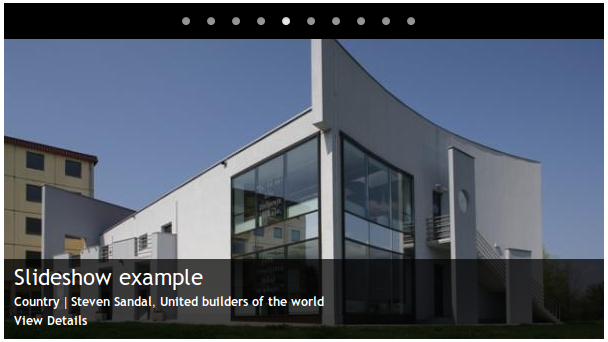
This part of the CSS creates the transparent overlay for the slideshow:
This part creates bullets at the top, to go back and forth between the slides, on hover. To make it work, remember to select a 'Pager Type' and 'Activate Slide and Pause on Pager Hover' under slideshow settings:
Comment #47
ressaAn example of how the slideshow looks, and the sprite for the bullets. Just put it in a folder named 'images', in your theme folder, and it should work.
Comment #48
rwilson0429 commented@ressa, very very nice. Thanks so much for sharing.
Comment #49
ressa@rwilson0429, you're welcome :-)
Good news for Drupal 7 users: Building a slideshow with captions in D7 can be done in minutes, by combining Views Slideshow with the Flex Slider module. As an added bonus the slideshow will be responsive, resizing the image according to the screen width.
Comment #50
Paladine commentedPersonally I wasn't happy with the way Views manages content formatting for the teaser - no matter what I did it refused to use the default "summary" text for Drupal's default content type and instead used "trimmed". Furthermore, it counted all html code (such as
<a href="yadayada">in the trimmed character count so if you have any html in the first paragraph it makes your slider text look terrible (please note these observations are based on Rob Feature's podcast and comment) which is what I based my slider view on.So I decided to add a new field to my content types that are added to the slider called field_slider_txt which allowed me to write specific text for the slider. I hid this field in the display settings for the content types and just added the field to my slider view instead of the [body] field.
The result looks much better: http://www.alexanderhanff.com
Comment #51
scarey commentedI don't understand where this CSS should go. Can you offer any path or file to put this in?
Comment #52
rwilson0429 commented@scarey, the location of your css is dependent on the theme you are using. It's not recommended that you modify your theme, so you should create a sub-theme and modify your settings there. The css files responsible for your styles are usually in your sub-theme folder. Use a developer tool like Firebug to examine the html elements on your page. Firebug will display the styles, as well as location of the css file responsible for the style, of the elements on your page.